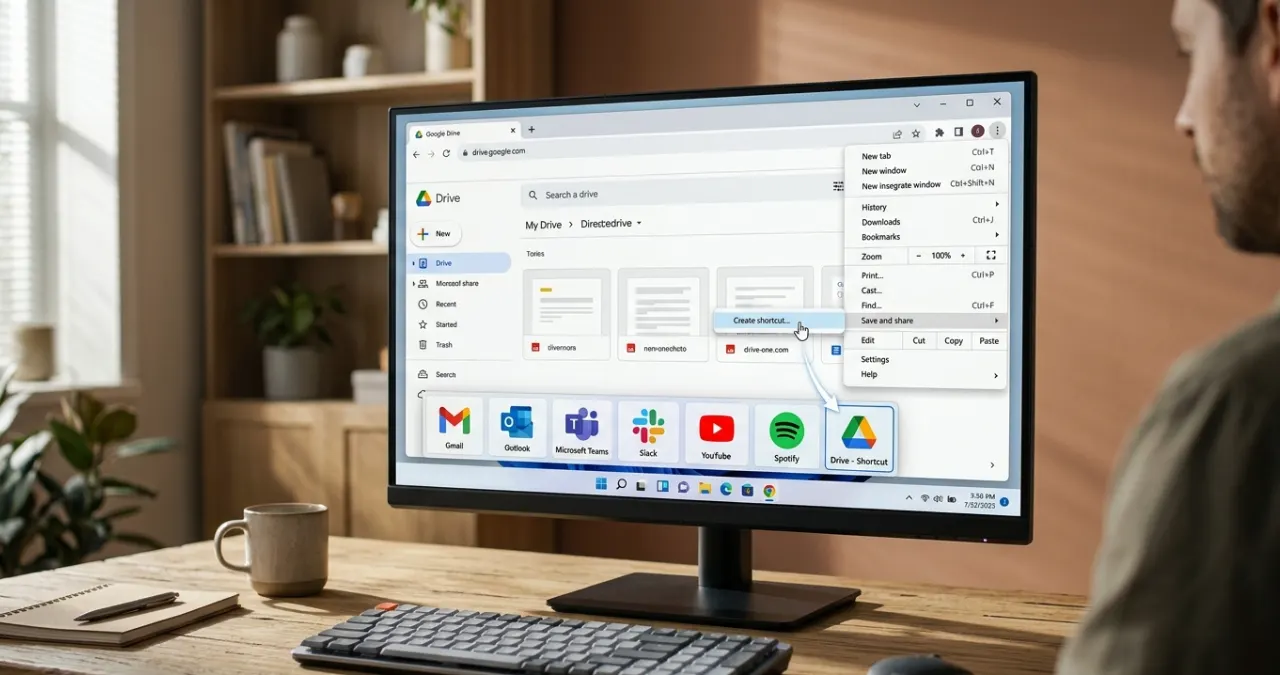
Do you have a website you check every day, kind of like Gmail, YouTube, Google Docs, ChatGPT, or even your company’s dashboard? If yes, pinning that site to your Windows taskbar can feel way faster and helps you sort of focus more. Instead of opening a browser and then typing the URL, you can just start your go-to website with one simple click.
In this Webtechhelp little guide, you’ll figure out how to pin a website to the taskbar using common browsers, such as Microsoft Edge and Google Chrome. I’ll also include some troubleshooting tips, plus the useful perks of using website shortcuts, so you aren’t stuck when it doesn’t behave right.
1. What Does It Mean To Pin A Website To The Taskbar
Creating shortcuts for your browser by pinning it to the taskbar not only makes it easy to access, but it also makes you feel almost like a desktop application. This feature is especially useful for the website that we mostly access,
- Email services
- Social media platforms
- Project management tools
- Online banking portals
- News websites
- Streaming platforms
- Educational websites
2. Why Choose A Shortcut To Get Into A Browser?
While pinning the website to the taskbar, it provides immense facilities in the world of browsing. Some benefits are
- One-click access to frequently visited sites
- Save time instead of wasting time searching for the URL or typing it
- Organized and easily accessible websites
- Improve workflow
- Behave like a desktop application
3. Browser-Specific Step-By-Step Methods
1. How To Pin A Website To The Taskbar Using Google Chrome
Google Chrome makes it incredibly easy to turn any website into a desktop shortcut that you can lock straight to your taskbar.
The steps to pin the website to the taskbar
Go to Google Chrome
↓
Type the URL for the website
↓
Click the three vertical dots in the right corner of the window
↓
Hover the mouse over the Save and share option
↓
Select Create Shortcut
↓
Name your shortcut and save
↓
Click and drag to the taskbar
↓
Finish
2. How To Pin A Website To The Taskbar Using Microsoft Edge
Since Microsoft Edge is really intertwined with Windows, it basically gives you the quickest, most seamless path to pin a website in a native manner. You don’t even have to set up a desktop shortcut first, like at all.
The steps to pin the website to the taskbar
Open Microsoft Edge
↓
Click the three horizontal dots
↓
Scroll down and choose More tools
↓
Select Pin to taskbar
↓
It will directly show on the taskbar
↓
Finish
How To Pin A Website To The Taskbar Using Mozilla Firefox
Unlike Chrome and Edge, Firefox doesn’t have that built-in “Pin to Taskbar” button, mostly because its browser architecture is independent, yeah. Still, you can get the same exact result with a quick Windows workaround, without much fuss.
The steps to pin the website to the taskbar
Minimise the Firefox window
↓
Search for your website
↓
Click the drop-down arrow symbol
↓
Name the URL and add it to the taskbar

↓
Finish
How To Pin A Website To The Taskbar Using Safari
All Mac users, it is high time to learn how to save your favourite website in your taskbar while using Safari.
The steps to pin the website to the taskbar
Go to the website
↓
Click and hold the small icon
↓
Add to doc
↓
Customize name and icon
↓
Click the add-on in the taskbar
↓
Finish
How To Pin A Website To The Taskbar Using Brave
If you use the Brave browser, you can sort of easily pin your favorite websites to the Windows taskbar for quick one-click access. Brave runs on Chromium, so the whole setup is kinda similar to Google Chrome.
The steps to pin the website to the taskbar
Open the browser
↓
Visit the website
↓
Open the browser menu
↓
Go to save and share
↓
Click More Tools
↓
Choose to create a shortcut
↓
Click create
↓
Right-click on the icon
↓
Select to pin to the taskbar
↓
Finish
How To Pin A Website To The Taskbar Using Vivaldi
Vivaldi is a Chromium-based browser that makes it simpler to do website shortcuts and pin them to your Windows taskbar, like it’s no big deal. It’s a nice way to reach your favorite sites with one single click.
The steps to pin the website to the taskbar
Open the browser
↓
Go to the menu
↓
Choose More Tools from the pop-up menu
↓
Choose Create shortcut
↓
Enter a name and save
↓
Right-click on the saved icon
↓
Select Pin to taskbar
↓
Finish
How To Pin A Website To The Taskbar Using Opera Mini
Opera Mini is a very fast and useful websites which is mostly used for social media purpose, web searching. It is a very lightweight browser which is specially used for mobile devices. But the standard Opera GX is specifically made for unstoppable browsing for desktop users.
The steps to pin the website to the taskbar
Click on the browser
↓
Select properties
↓
Enter the website URL into the target box
↓
Go to the desktop and right-click on a blank space to hover new and select shortcut
↓
Right-click to select the new shortcut
↓
Create the name
↓
Right-click and select Pin to taskbar
↓
Finish
4. Troubleshooting Common Glitches
The icon is just a generic browser logo
Sometimes, Windows fails to grab the website’s actual logo (favicon) and displays a generic Chrome or Edge icon instead. If this happens, follow the steps
- Refreshing the page.
- Recreating the shortcut.
- Clearing the browser cache.
Drag and drop isn’t working (Windows 11)
On Windows 11, sometimes it just blocks people from dragging a web shortcut straight onto the taskbar, and then you’re stuck. In case the drag attempt fails, just fall back on the browser’s own internal option, like “Save and share” in Chrome or “More tools” in Edge, then use that to send the shortcut into Windows the safe way.
5. Rearrange and unpin a website from a desktop
- Rearrange Them: Press and keep holding any pinned website icon on your taskbar, then kinda drag it left or right so it lands spot on where you need it. It can feel a bit awkward at first, annoying for a moment.
- Unpin the browser: If you dont really need quick access to that site anymore, just right-click the icon sitting on the taskbar and choose Unpin from taskbar. It should vanish right away, no fuss, and it won’t touch your browser data.
6. Best website to pin
Not all websites are eligible to pin into a taskbar. So before choosing a web browser for streamlined and flawless browsing, know the best one to choose.
- Gmail
- Google Drive
- Google Calendar
- Microsoft Outlook
- Microsoft Teams
- Slack
- Notion
- Trello
- ChatGPT
- YouTube
7. Tips for better organisation
To keep your taskbar tidy:
- Pin only the websites you use every day.
- Group similar apps together.
- Remove outdated shortcuts.
- Use browser profiles for work and personal websites.
- Keep your taskbar uncluttered for easier navigation.
Conclusion
Knowing how to pin a website to the taskbar is a pretty straightforward way to make your day-to-day workflow quicker and more efficient, too. Whether you’re checking email, juggling projects, or just hopping to that one website you always use, these taskbar links remove the extra steps and keep your most important tools close by and ready.
With just a couple of clicks in Microsoft Edge, or sometimes in Google Chrome, you can turn the sites you visit again and again into easy taskbar shortcuts. After you pin them, your favourite pages are always there, just one click away—so you can stay sorted and get more done each day.
FAQs
Simply drag and drop the website icon on the taskbar.
Yes, it can be done with some simple steps.
Open the website, click the three dots (…) in the top-right corner, select More tools, and click Pin to taskbar.
Yes. You can pin as many websites as you like, although keeping only your most-used sites pinned will help keep your taskbar organised.
Yes. Since the shortcut opens the live website, you’ll always see the latest content whenever you launch it.
No. A pinned website is only a shortcut and uses virtually no system resources until you open it.
Yes. Simply click and drag the pinned website icons to reorder them however you like.
No. A pinned website is only a shortcut and uses virtually no system resources until you open it.
Yes. If you’ve created a desktop shortcut, you can often customise its icon through the shortcut’s Properties before pinning it to the taskbar.
No. A bookmark is stored inside your browser for easy access, while a pinned website appears directly on the Windows taskbar, making it accessible without first opening your browser.
Yes. Windows 10 and Windows 11 both support pinning website shortcuts to the taskbar using compatible browsers such as Microsoft Edge, Google Chrome, Brave, and Vivaldi.