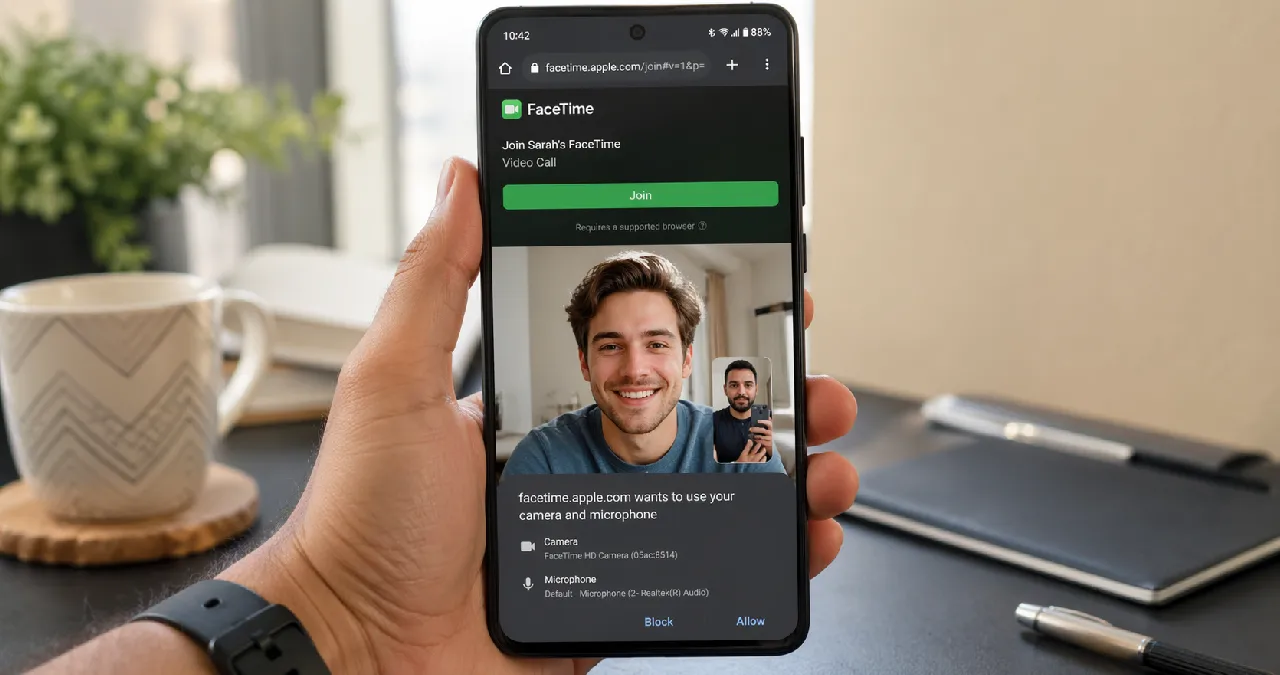
Do you know that there are many popular apps and services developed by Apple, keeping the Android user distant from using them for a long while? Recently, Apple has given access to FaceTime video calling to Android users.
Over the years, the app FaceTime has been available only for iPhone users, but now it has become accessible to Android users through a shareable link from an iPhone user.
In this blog, a complete walkthrough of the incredibly popular video calling app [Vague filler Remove or specify ] is provided to show how to use FaceTime on Android. This article on Webtechhelp also sheds light on how to send FaceTime Link to Android, Top FaceTime Alternatives for Android users, and much more.
FaceTime for Android: Is It Possible?
Based on proprietary technology and aligned protocol, the FaceTime video calling app is only compatible with macOS and iOS. Henceforth, it is quite an unfortunate fact that makes FaceTime only compatible with Apple users, denying Android users access to the official FaceTime.
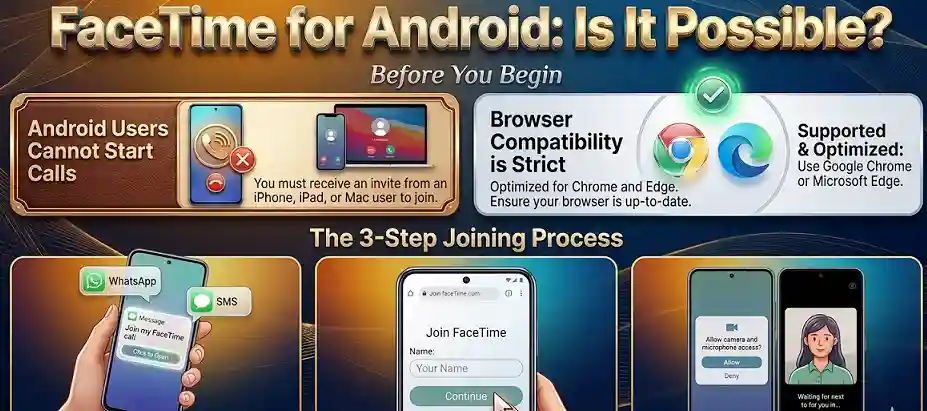
Recently, a change was made that enables the FaceTime video calling service to be accessible for Android users via a browser link, although they cannot initiate, schedule, or independently use FaceTime. So Android users cannot install FaceTime, but they can join FaceTime calls via a browser link shared by an iPhone user.
Indeed, all you need to do is follow the basic steps to join the app on either an Android or a Windows PC.
How to Use FaceTime for Android: Step-by-Step Guide
Joining a FaceTime video call from an iPhone to your Android is simple and easy to do. Just need to follow the stepwise guide mentioned below to join FaceTime from your Android.
Step 1: Receive a link to FaceTime from iPhone: You never start a FaceTime video call from your Android device by yourself on your own. Someone having a Mac, iPad, and iPhone requires sending you a FaceTime link from their device to you through sms, text, WhatsApp, and other means. The link resembles a normal website link.
Step 2: Tap on the link sent to you from the FaceTime iPhone app on your Android device: You have to click on the “FaceTime app” link sent by Apple users, through sms, text, WhatsApp, and other means.
After you tap the link, it will automatically redirect you to the browser website. Make sure your browser is Microsoft Edge or Google Chrome.
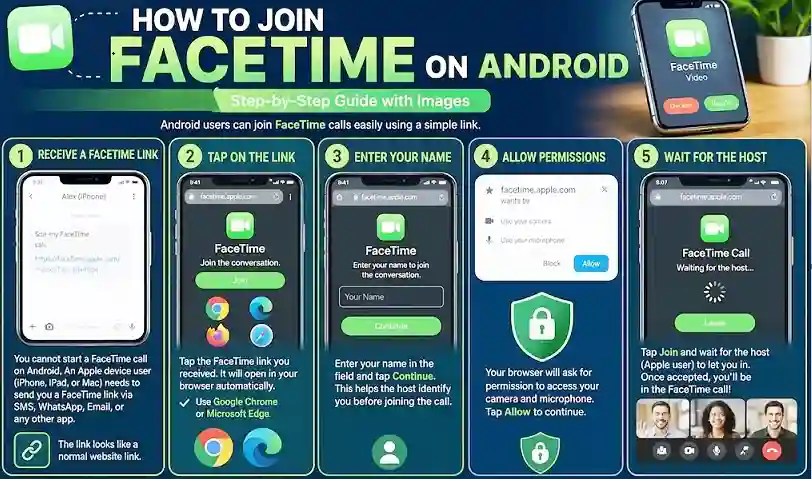
Step 3: Type your name on the Face app link to join the conversation: a screen appears in front of you after you tap the link, showing ” Join FaceTime.” Enter your name and click on continue to proceed.
Step 4: Allowing the browser permission: now you are asked to give access to your browser, and you need to tap on the allow button to grant permission access.
Step 5: Wait until the host lets you in: Wait until the host who sent you the browser link lets you enter the video call.
How to Send FaceTime Link to Android
If you are an iPhone user and really want to join your friend or anyone familiar to you to enjoy joining the FaceTime with you, just follow the steps mentioned below
- First, you need to open the FaceTime app from your iPhone.
- Tap the ” Create Link” button to invite your friend to come and join the conversation with you.
- A pop-up menu appears to redirect you to share the link.
- You can send the link as a host via Messages, WhatsApp, Gmail, or even copy-paste it into any app.
- Once the Android user taps on the clickable link sent by you, you’ll immediately get a notification asking you if you want to let the user in. Tap on the Admit button and enjoy a FaceTime conversation.
FaceTime link not opening- troubleshooting guide to fix
Suppose you are an iPhone user and somehow experience a glitch in your iPhone make you unable to make and receive calls directly from your device. All you need is to follow the basic fundamental troubleshooting guide mentioned in the table below to fix them before any issues arise.
| Identifying issues | Troubleshooting steps |
| Connectivity | Ensure you have a stable Wi-Fi or Cellular connection. Turn on Cellular Data for FaceTime in Settings if not using Wi-Fi. |
| Settings Refresh | Go to Settings > FaceTime. Toggle FaceTime OFF and then ON again. |
| Activation | If you see “Waiting for Activation,” restart the app toggle. Ensure your correct phone number/email is selected. |
| Restrictions | Check Settings > Screen Time > Content & Privacy > Allowed Apps. Ensure “Camera” and “FaceTime” are not restricted. |
| Device Updates | Ensure your iPhone or iPad is updated to the latest iOS/iPadOS version. |
| System Settings | Go to Settings > General > Date & Time and ensure Set Automatically is enabled. |
| Device Reset | Perform a standard Restart of your device to clear temporary software glitches. |
Top FaceTime Alternatives for Android Users
Although the FaceTime app is incompatible with Android, there are also some exciting feature-rich video calling apps that are incredibly popular and are a reason to use by Android users. Go through the information mentioned in the table format below to know the top FaceTime alternative for Android users.
| App | Best For | Key Features |
| Zoom | Ideal for hosting Meetings & Interactive Group Calls | Help to arrange Easy scheduling among large groups virtually through screen sharing |
| live streaming & casual call | Video calls, group calls, Instagram Live | |
| Microsoft Teams | Work & team collaboration | Screen sharing, file sharing, meeting recording, and advanced tools |
| Quick personal & family calls | Simple video calling interface, ideal for group video calls, end-to-end encrypted | |
| Google Meet | Professional & feature-rich calls | Filters, screen sharing, background blur, live captions |
What users need before using FaceTime
Before using FaceTime on Android, certain things need to be kept in mind and should never be overlooked.
- An Android phone or Windows PC
- Stable internet connectivity with a strong Wi-Fi or mobile internet connection
- The latest updated version of Google Chrome or Microsoft Edge
Wrapping up
Although the FaceTime app is iPhone compatible, there are multiple options for Android users to use a “FaceTime app” alternative for their video calling. Leveraging the cross-platform solution and using the alternative of FaceTime enables users to enjoy video calling with colleagues, friends, and parents regardless of the device they use. Hence, it is not always necessary to stick to only FaceTime.
Frequently asked questions (FAQs)
When an iPhone user sends a link to FaceTime to an Android user via text, WhatsApp, or email, the users are getting a browser link to join a video call.
Yes, the user can use the FaceTime app from pc but not directly from the native app. Rather, the user joins by gaining a browser link from an Apple device to connect.
Yes, having an Apple device of your own helps you to send a shareable link to join FaceTime video calling to more than one person, just like seen in Zoom calling.