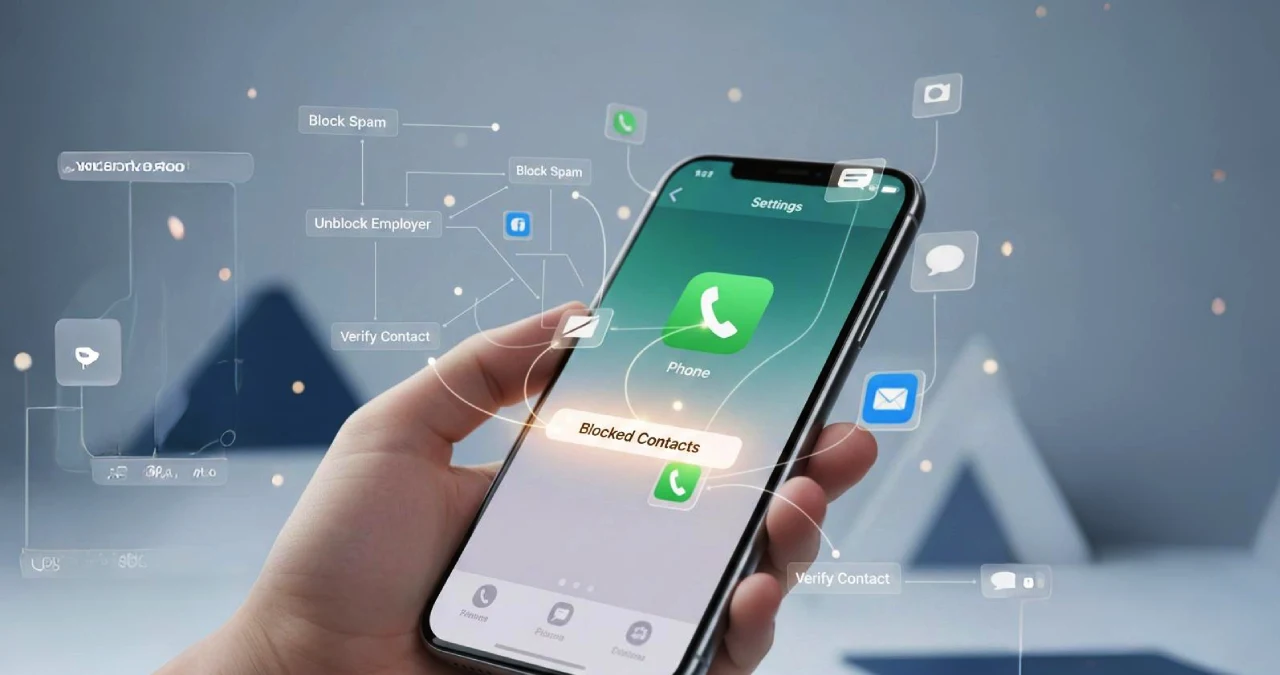
Are you tired of spam calls, annoying calls from someone you don’t need to connect and uninterrupted messages on your iPhone? So, the simple thing you do is just block the contact to fix these. For now, picture a situation by yourself. Suppose you are blocking someone who will be your potential future employer, assuming the call is spam. Suppose you block someone previously whom you like to reconnect with, and that’s what really makes you get a nagging feeling. Now you think about how to see blocked numbers on an iPhone.
If you are an individual who finds it challenging to view blocked numbers on your iPhone, then there’s no need to feel tense. Actually, you are not alone in having never faced something like this before. Am I right? Here, I provide a comprehensive walkthrough of the step-by-step procedure for checking blocked numbers on your iPhone and unblocking them if necessary, wherever and whenever needed.
Why Check Your Blocked List?
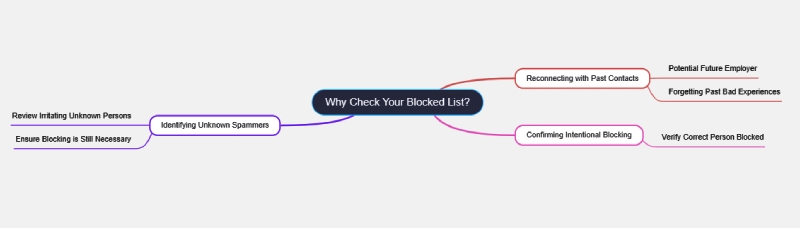
The reason may be anything that makes you feel the need to block the contact. Here, I mention a few cases that make it important to check the blocked list again.
- Suppose you block someone who will be your potential future employer or anyone whom you really want to reconnect again by forgetting the past bad experience.
- To make it confirm again, are you really blocking the person you intend to do so
- To check the spammers who are really irritating and now want the check the unknown person on your block list again to be sure about it.
How to See Blocked Numbers on iPhone Step by Step
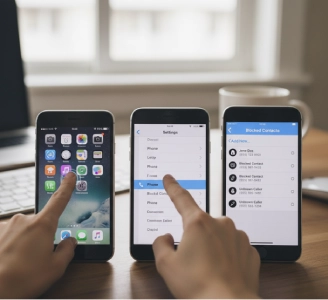
If you want to check the full blocked list on your iPhone device, you just need to follow the basic steps mentioned below to make it happen. Here I tell how to see blocked numbers on iPhone.
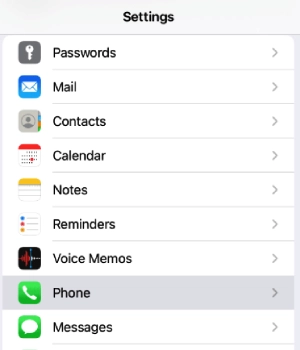
- At first, go to the “Settings” app and open it from the home screen of your iPhone device
- Scroll down until the Phone icon is shown and tap the icon when visible.
- Now, you go to the “Calls” section. Now you have to locate and tap on “Blocked Contacts,” which comes under the calls section.
- A list of all the blocked iPhone numbers is just at your fingertips, shown on your iPhone device.
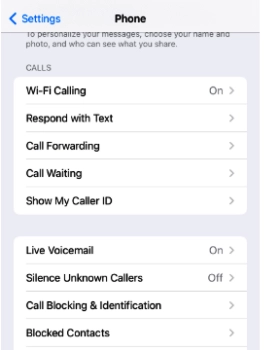
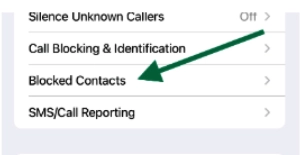
Find Blocked Numbers: in Phone, in message, or in FaceTime
Do you find it really hard to find out how to see blocked numbers on an iPhone? Is it really a scammer or someone whom you dont like to block or that totally seems unintended for you now? Below, I discuss everything to check the total blocked list from your iPhone using Phone, Messages, and FaceTime settings options. Stay with me to know how it happened.
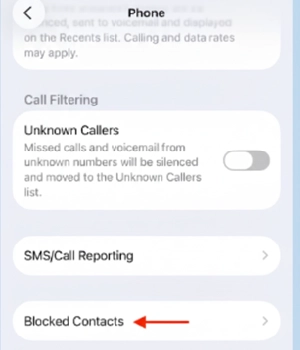
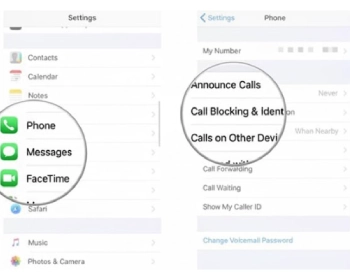
Find Blocked Numbers in the Phone app on iphone
Suppose you want to see how to see blocked numbers on iphone. Now the question arises, how to make it happen. The process is entirely easy and straightforward. At first, you go settings option, now tap on the apps section of the iPhone that gives you the option for scrolling.
Now you see the phone option, and scrolling down the screen redirects you to the blocked contact option, where you see all the names of contacts that are being blocked. If you tap on the unknown option, you find all the unknown blocked numbers.
Find Blocked Numbers in Messages on iphone
If you wish to see the blocked contact from the message option, you just need to go to the Settings app from your iPhone. Scroll down utill you see the app list section.
After seeing the message option and now select the blocked contacts option. It will display all the people whose numbers have come under the blocked list. If you tap on the unknown option, you find all the unknown blocked numbers.
Find Blocked Numbers in FaceTime on iphone
Now you think about how you check the list of blocked numbers with the FaceTime option. Is it as simple as the previous or something that requires expertise? No need to worry, as it is not as complex as you think. If you wish to see the blocked contact from the FaceTime option, you just need to go to the Settings app from your iPhone. Scroll down utill you see the app list section. Now, after scrolling for a while, an option is shown that is FaceTime.
After seeing the FaceTime option, select the blocked contacts option from it. It will display all the people whose numbers have come under the blocked list. So, if you tap on the unknown option, you find all the unknown blocked numbers.
Adding the Numbers block list through the Blocked Contacts Screen
Suppose you want to add a number to the block list, but it is not shown in the list of blocked connections initially. So there is an option to manually enter the details of a blocked contact from the block contact screen.
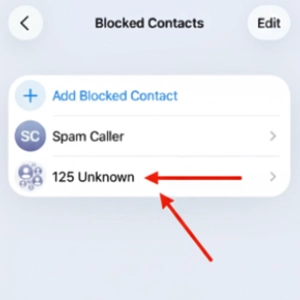
Above the image, I show the blocked contact list of my iPhone device, of which 125 contacts are unknown. Now if I want to add more contacts to the block list, I just need to tap the add blocked contact option, which will already add it the the blocked list.
How to Remove Blocked Numbers via the Blocked Contacts Screen
Suppose any of your contacts is now in the block list and you no longer need to keep it on the block list. The reason may be many. Meanwhile, either you block someone who will be your potential future employer or anyone whom you really want to reconnect again by forgetting the past bad experience.
Now the question is how to unblock them from the blocked contact list. It is a simple process. Just make a swipe of the contacts and tap on unblock. Tap on the “Edit” button to also give you the way to select the “Unblock” option to make the blocked contact free from the list.
Alternative Ways to View Blocked Contacts
If your phone doesn’t show the option for “Phone” option in Settings, there are some alternative ways to make it happen for you. Just follow the paths below wherever required.
Through the use of Messages: Settings > Messages > Blocked Contacts
Through the use of FaceTime: Settings > FaceTime > Blocked Contacts
Actually, there is no difference among all these. No matter whether you are saving the blocked contacts in Phone, in message, or in FaceTime, if you block the number in any of these places, the updates can be seen from everywhere.
Key takeaways
There are some key takeaways on how to see blocked numbers on iphone
- If you block a number on one of your iPhone devices, it is universal. Suppose you block a contact, any of these locations among messages, FaceTime and phone, it is automatically blocked in the other place too among the three already mentioned.
- Similarly, you can unblock any number flawlessly by tapping any of the options mentioned above.
- Suppose you can’t figure out the blocked contact option. The reason is quite obvious that you are using an iOS version that is obsolete. Tapping on Call Blocking & Identification simply makes you free from the blocked contact issues.
Troubleshooting Problems and ways to fix
Issue 1: The “Blocked Contacts” option is missing
Solution to mitigate
iOS Update: Settings > General > Software Update.Meanwhile, it will help you to fix the problem of a missing blocked contact.
Reset settings: Settings > General > Transfer or Reset iPhone > Reset All Settings. Always remember, never delete data during the reset. So, it is worth resolving the issues that the Blocked Contacts option is missing.
Issue 2: Still getting calls from blocked numbers
Solution to mitigate
You need to double-check the blocked list to verify whether the number is truly blocked or not.
Contact your appropriate carrier in the network is also helping to block numbers.
Wrapping up
Having the right understanding of how to see blocked numbers on iPhone is an important prerequisite for iPhone users that cannot be undeniable. Suppose you blocked someone because you were tired of spam calls or feeling annoyed by calls from someone you dont really like connecting with again.
Having the mastery of blocking and unblocking contact empowers you as an iPhone user. So from next time onwards, if you have any issues with finding blocked numbers from iPhone, you can just go through my blogs once again to sort it out.
Frequently asked questions
No, you cannot get a missed call notification on your iPhone if you block the contact. A silent rejection of the missed call dont make you trace any attempt for the call.
No, you cannot get a message notification on your iPhone if you block the contact. As the message stopped reaching you, you cannot trace any attempt at message delivery.