
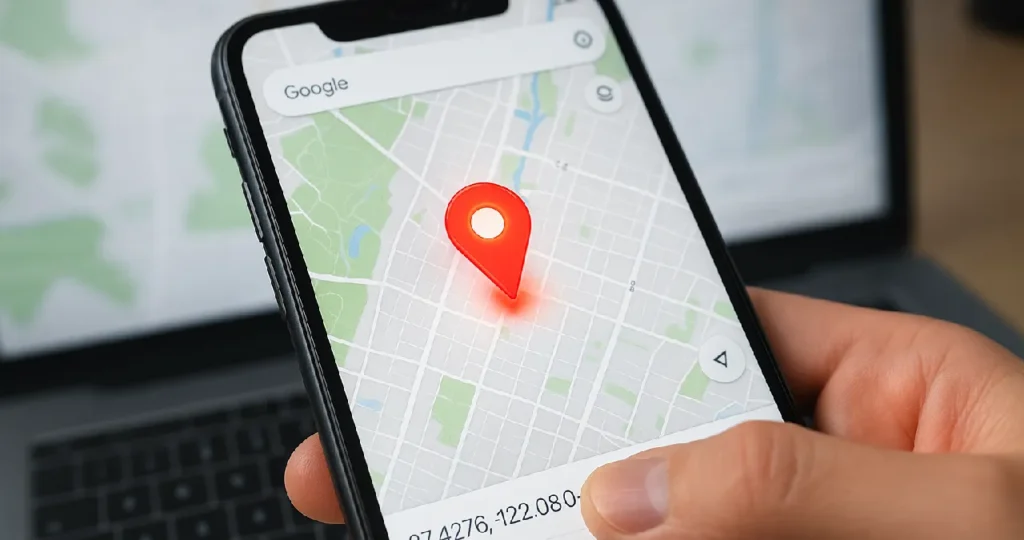
Some places don’t have an address: a parking spot, a trailhead, the back gate of a venue, or a meeting point in a big park. Dropping a pin lets you mark the exact spot, then save it, share it or get directions to it.
Here’s how to do it on your phone and computer.
Drop a pin on iPhone or Android
- Open the Google Maps app.
- Zoom in to the place you want.
- Press and hold on the exact spot until a red pin appears.
- A panel opens at the bottom with the location’s details and coordinates.
From that panel you can tap Directions, Save, Share or Label.
Tip: zoom in as far as you can before pressing and holding. The closer you are, the more accurate the pin.
Drop a pin on a computer
- Go to maps.google.com in your browser.
- Zoom in and click the exact spot on the map.
- A small box appears at the bottom with the coordinates. Click it to open the full details panel.
From the panel on the left, you can get directions, save the place, or share a link.
How to share a dropped pin
- Drop the pin.
- Tap or click Share.
- Choose WhatsApp, Messages, email, or copy the link.
The person opens the link and sees exactly where your pin is. This is perfect for “meet me here” messages.
How to save a dropped pin
- Save to a list: tap Save and choose a list such as Favourites or Want to go. You need to be signed in to your Google account.
- Add a label: tap Label and give it a name, such as “Car parking” or “Site entrance”. Labels appear on your map and in search.
How to remove a dropped pin
Tap the X in the search bar, or tap somewhere else on the map. The pin disappears. Saved pins stay in your lists until you remove them.
Share your live location instead
If you want someone to follow you in real time, rather than a single spot, use location sharing: tap your profile picture in Google Maps, choose Location sharing, and pick who to share with and for how long.
Frequently asked questions
Can I drop a pin using coordinates? Yes. Type the coordinates (for example 22.5726, 88.3639) into the search bar, and Google Maps drops a pin there.
Does dropping a pin work offline? You can drop a pin on an offline map you’ve downloaded, but sharing it needs an internet connection.
Why can’t I drop a pin? Make sure you press and hold (not tap) on mobile, and that you’re not pressing on an existing place label. Updating the app usually fixes other problems.
Related guides on WebTechHelp
- What Is Data Roaming? How It Works, What It Costs, and How to Avoid Charges
- “Search Google or Type a URL”: What It Means and How to Use It
- How to use FaceTime on Android