
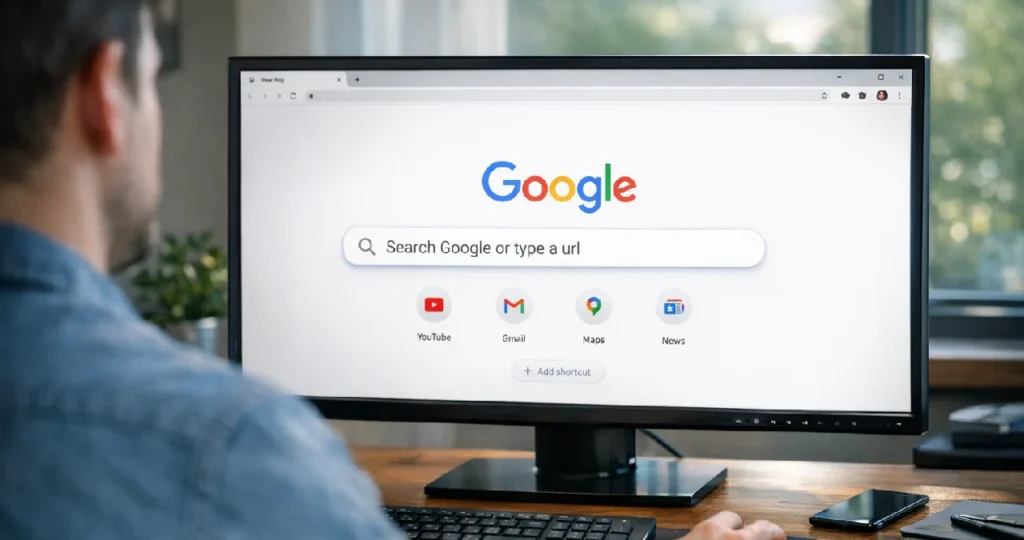
When you open a new tab in Google Chrome, you see the words “Search Google or type a URL”. It’s not an error or a message you need to act on. It’s simply the hint text in Chrome’s address bar, telling you the bar does two jobs at once.
Here’s what that means, when to use each option, and a few tricks that make browsing faster.
What does “Search Google or type a URL” mean?
Chrome’s address bar (Google calls it the omnibox) works as both a search box and a web address bar:
- Type a question or words such as “weather in Kolkata”, and Chrome searches Google for you.
- Type a web address such as webtechhelp.org, and Chrome takes you straight to that site.
Chrome works out which one you mean. If what you type looks like a web address, it opens the site. Otherwise, it searches.
Search or type a URL: which is better?
Type the URL when you know the exact site. It’s faster, and it’s safer: you go straight to the real website instead of clicking a search result, which could be an ad or a lookalike site. This matters most for banking, email and shopping.
Search when you don’t know the address, or when you want answers from several sites.
My tip: for sites you use every day, bookmark them or let Chrome suggest them as you type. That’s faster than both.
How to change the default search engine
You don’t have to use Google. To switch to Bing, DuckDuckGo or another engine:
- Open Chrome and click the three-dot menu at the top right.
- Go to Settings > Search engine.
- Choose a different search engine.
The hint text changes to match, for example “Search Bing or type a URL”.
Useful address bar tricks
- Quick maths: type “245*18” to see the answer instantly in the suggestions.
- Unit conversions: type “5 km in miles”.
- Search inside a site: type the site’s name, then press Tab to search that site directly (works for sites Chrome has learned, such as YouTube or Wikipedia).
- Search your history and bookmarks: start typing and Chrome suggests pages you’ve visited.
- Jump to the address bar: press Ctrl + L on Windows, or Cmd + L on Mac.
How to remove a wrong suggestion
If Chrome keeps suggesting a site you don’t want, highlight the suggestion with the arrow keys and press Shift + Delete (Windows) or Shift + Fn + Delete (Mac), or click the X next to it.
Frequently asked questions
Is “Search Google or type a URL” a virus? No. It’s Chrome’s normal address bar hint. But if your searches suddenly go to an unfamiliar search engine, check Settings > Search engine and your extensions. A browser hijacker may have changed them.
Why does Chrome search instead of opening my website? If you leave out the “.com” or type a space, Chrome treats it as a search. Type the full address, such as example.com.
Can I turn off search suggestions? Yes. In Chrome’s settings, look under You and Google > Sync and Google services for the option that autocompletes searches and URLs, and turn it off.
Related guides on WebTechHelp
- How to Clear Facebook Cache on iPhone, Android and Computer
- How to block a website on Chrome
- People Also Search For: Google’s SERP feature
Sources
- Google Chrome Help: Set default search engine and site search shortcuts