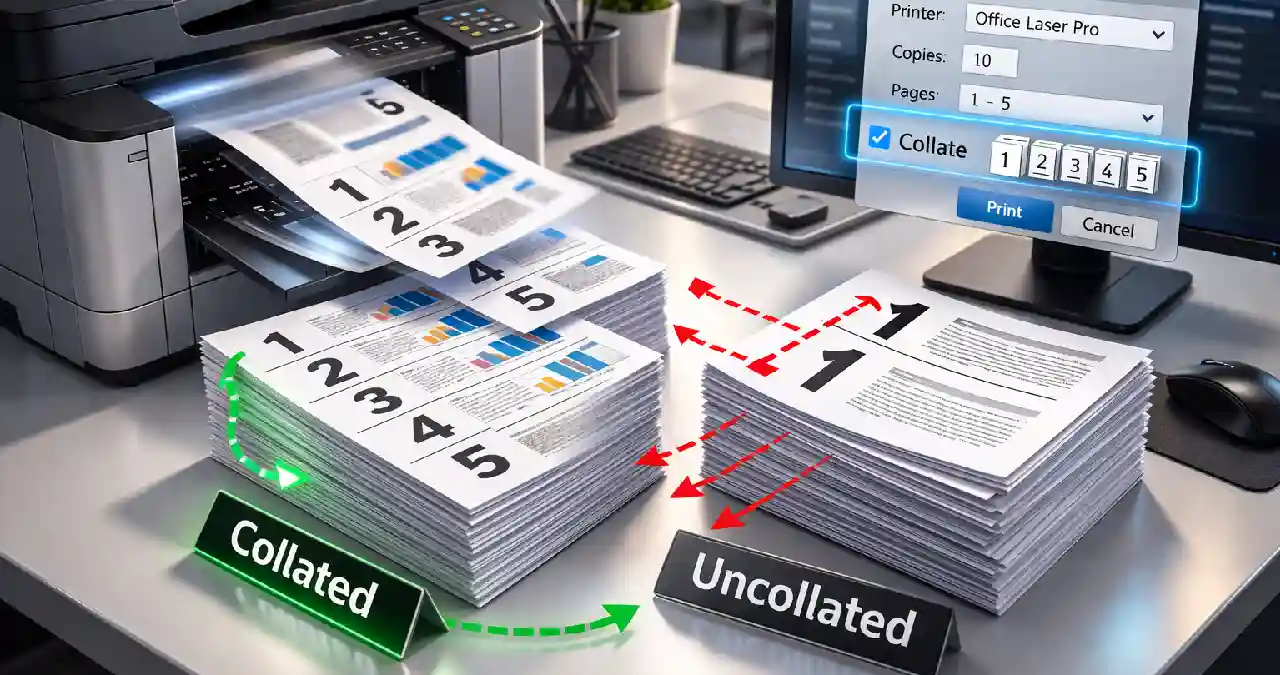
When printing a multi-page document, you may have come across a checkbox labeled “collate” in the print settings. A question must have popped into your mind, “What does collate mean when printing?” Well, you will have your answers now.
What does collate mean when printing?
Collating pages in printing refers to the process in which the printer arranges the pages to be printed in a sequential order. For example, let’s say that you are printing five copies of a five-page document. If you check the box “collate”, the printer will print one copy of each page in a 1-2-3-4-5 order. But if you don’t, the printer will print five copies of the first page, five copies of the second, and so on.
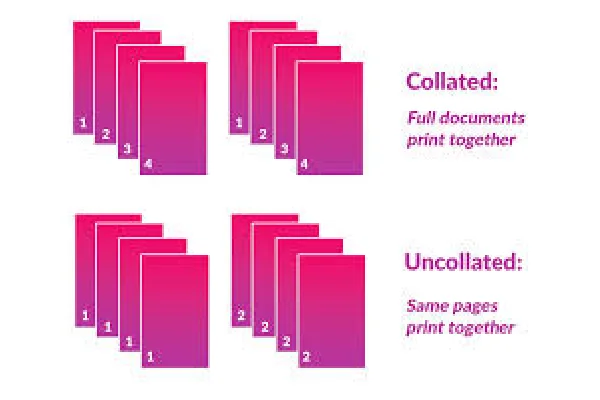
Why You Should Use Collation
The core principle of collated printing is arranging a multi-paged printed document. Before the innovation of modern printers with automated collation software, you had to manually arrange the printed documents in order. But nowadays collating is done mainly for three reasons:
- Time Saving: If you had to manually arrange a 40-50 page document, it would take a whole day. Work smart, let the printer do the arrangement for you.
- Convenience: Automated collating is hassle-free. Whether you are delivering a presentation or making reports, you can use the documents right after printing, since they are already arranged.
- Accuracy: The printer has already done the arranging for you. So, there is no chance of mixing up a large pile of pages.
Uses of Collation
The printer selects the “collate” option by default. But if the checkbox is blank, we should manually opt for collation. There are some instances when we should opt for collated printing, such as:
- Reports or Presentations:
While handing out reports or delivering a presentation on a topic in an office, you would not want your documents in a disorderly manner. You are also too busy to arrange them manually. So, you should have the printer collate the documents by default.
- Binding:
The printer automatically arranges the pages in order if you select collating. So if you intend to bind the pages together later, collating will be helpful for you.
- User manuals:
A collated user manual or a guidebook delivers a clear and logical sequence of pages in a correct order. This is essential for a clear understanding of instructions.
- Invoices:
Organisations need to store customer information in an orderly manner. So they should always collate the invoices and bills while printing.
- Low Ink:
If the cartridge in your printer is running low on ink, you should opt for collating when printing.
Why You should Uncollate
Collation when printing seems to be the obvious choice since it saves time. But there are instances when we need the documents uncollated and printed in bulk, such as:
- When we or someone else will assemble the pages later:
If you have someone else who will arrange the pages for you, you can deselect the collation option in the settings. For example, in a print shop or in an office production team, some people will arrange the pages in order.
- For Handouts, forms, and flyers:
When you need multiple pages of a single-page document, like distributing handouts, flyers, and forms, you should print uncollated.
- For Bulk Distribution to Different People:
If different people need different pages of a document, like the first page is for the accounts department, the second page is for HR, and the management department needs the third page, you should opt for uncollated printing.
- Old Printer:
Old printers do not have the collation software in them, so every document will be printed uncollated.
How to Collate and Uncollate
Collating or uncollating the printouts depends on your or your client’s needs and on the printer’s software. If it is old, there will be no “collate” checkbox. In modern printers, the “collate” option is usually selected by default, and you can unselect it if you need. Here is a step-by-step guide to enabling and disabling the collate option:
- Arrange the soft copy of the document pages in order first, which will make the job easy for the printer.
- Create an index and a table of contents if necessary, and double-check the order if necessary.
- Open the file.
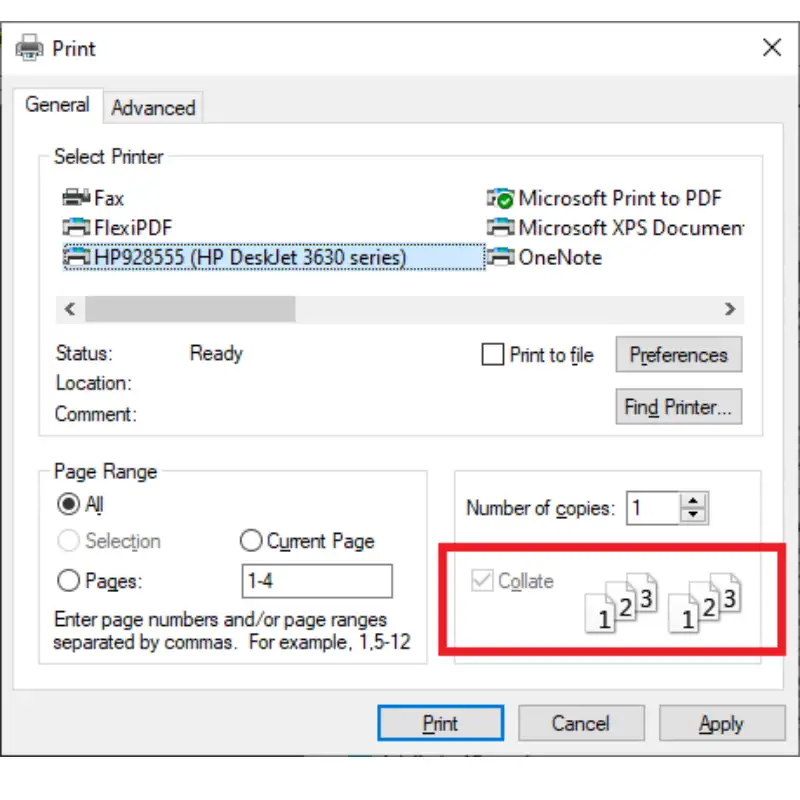
- Type Ctrl+P on your keyboard, or click on “print documents.”
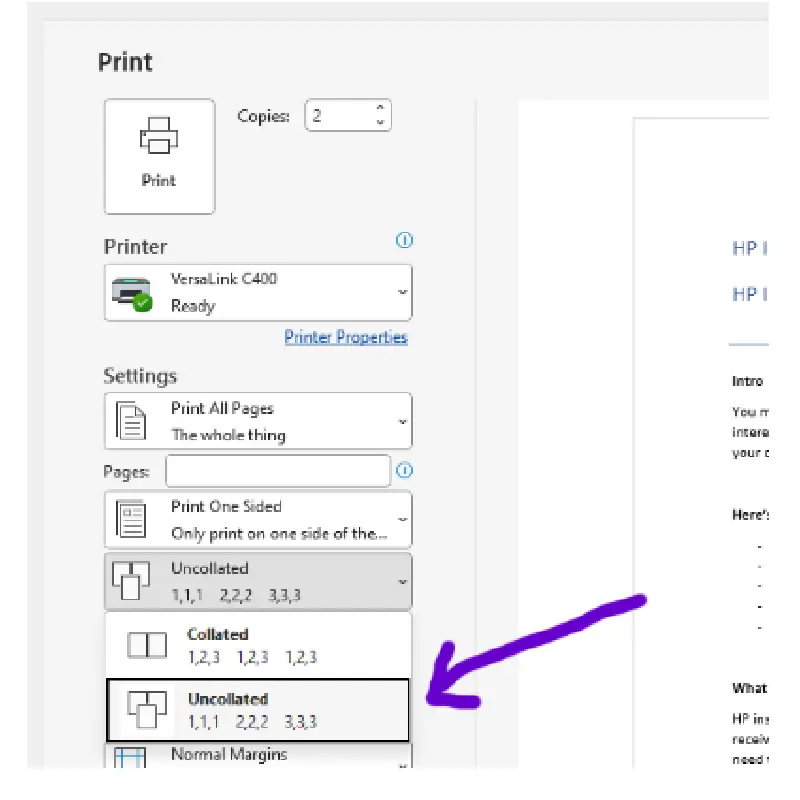
- The print settings will pop up, in which you should look for the “Collate” checkbox. The printer software automatically selects the checkbox. If you want the documents to be printed uncollated, simply deselect the checkbox before printing.
- In some printers, a drop-down option might also appear for collation and uncollation.
- If the collation and uncollation are done, click on “print” at the bottom right corner.
How to fix the Collation Issue:
Sometimes the printer runs into some issues while collating and can’t collate when printing as needed. Then we will have to manually address these issues. Below are a few tips and tricks for manually troubleshooting the printer:
The papers get jammed:
Sometimes, when the papers are not arranged inside the paper tray properly, the printing process gets jammed in the middle. To avoid this, try looking to see if you have arranged the papers in order or not. If not, arrange them before you start printing. Or else, you will have to start printing all over again.
The quality of the collated document is poor:
If the print quality takes a nosedive in the middle of the process, it could be due to an ink shortage in the cartridge or the overheating of the fuser. To stop this from happening, run a trial before starting the collating when printing to check the quality. Also, you can print large documents in smaller segments to prevent this from happening.
Collated Documents in the Wrong Order:
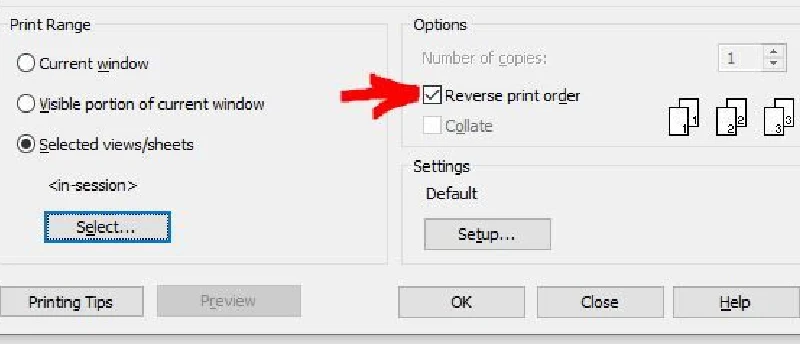
Sometimes the printouts don’t come in the same order as intended. This happens primarily due to a software error or deselecting the collate button by mistake. And also, if you have mistakenly selected the “Reverse Print Order,” the page will come out in reverse order. It is a simple error, but often ignored. Make sure that the pages are in the correct order, and check for grammatical errors before printing.
Printing Failure:
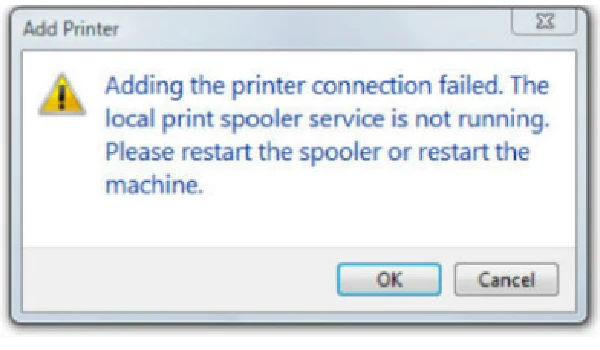
Sometimes the printer fails to initiate printing the whole document. If this happens, there should be a pop-up on your desktop. This is called a “Print Spooler Error.” A print spooler is a software in your computer that lists all the necessary jobs regarding printing and sends them to the printer. If you are printing a large document, the spooler creates a queue and sends it to be done separately. To fix this issue, clear the print queue and try again. If the error persists, follow these three steps:
- Press the Windows key and search for the “Services” app.
- Search for “Print Spooler” in the services app and right-click it. Click on “Stop” and wait for a minute.
- Right-click on the print spooler again and click on “Start.” You are ready to start again.
If your printer is still unable to print, try updating the software of the printer as it might not have enough memory. To address this problem, clear the printer memory by turning it off and unplugging it for 10 minutes.
Conclusion
Collation in printing refers to arranging the pages automatically. Nowadays, the printers come with default collation software in them. Since we don’t have to arrange the printed pages manually, it saves time and reduces the risk of messing up the order. But if you are printing a flyer, a form, or a handout, you can uncollate before printing.
Frequently Asked Questions
Collating is the process by which the printer arranges the pages of the document to be printed. As a result, the printouts will come out in a sequential order.
The printer automatically arranges the pages of the documents that you are printing in a sequential order. It saves time and labour.
When you are printing a report, a presentation, or a manual, you need the pages in the correct order. Collation does that for you.
If you have someone else who will arrange the pages for you, or if you are printing flyers, booklets, or forms, etc., you don’t need to collate. This is called uncollating. You can uncollate the pages before printing.
Look for the “collate” checkbox or drop-down before printing. It is selected in the modern printers by default. You can enable or disable collation from there.
You have to reboot the print spooler. Go to services from the searchbar and search for “Print Spooler.” Right-click on it and click on “Stop,” and wait for a minute. Then again, right-click and click on “Start.” If you follow all these processes, you should be able to print again.