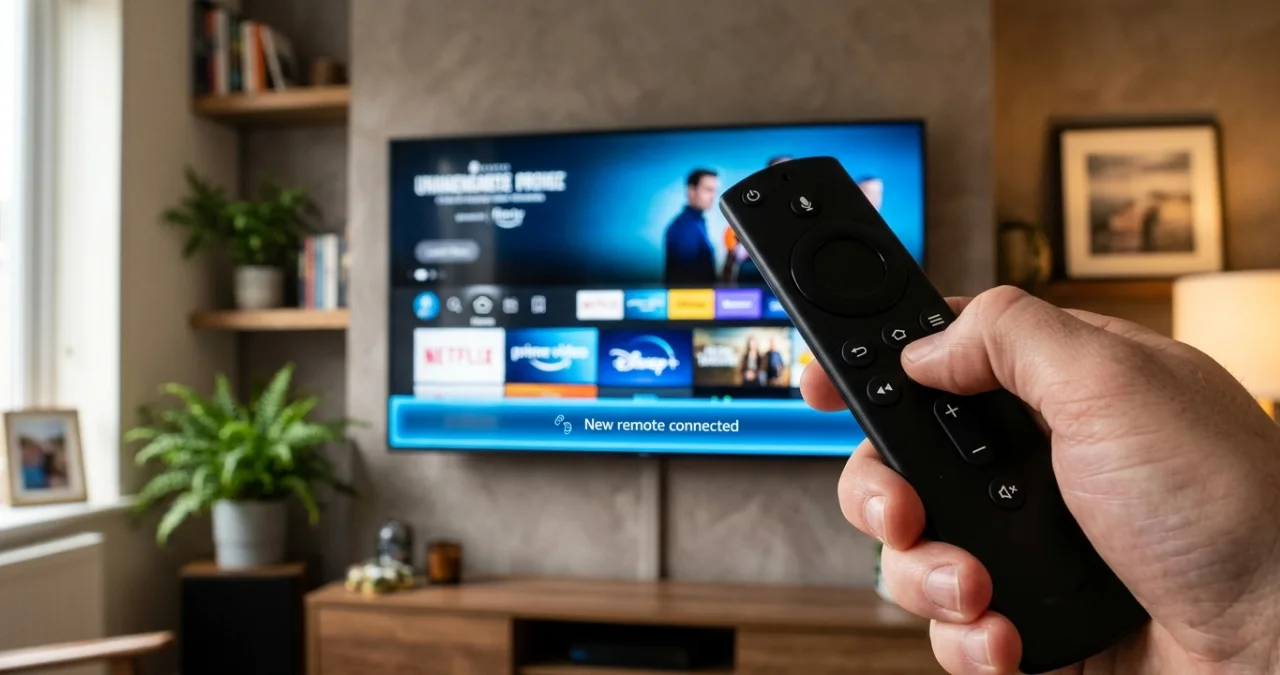
So you sit down to binge your go-to series, then boom, the screen just freezes solid, and your remote does not respond at all. It can ruin the whole vibe, but don’t toss the thing yet, okay? If your streaming gadget suddenly went dead quiet, the fix is often way simpler than it sounds.
Whether you’re getting a fresh device going or you’re trying to unstick a glitchy setup, figuring out how to pair a Fire Stick remote controller back to the console is something you can do in under a minute. Let’s go over the fast and nearly foolproof steps that make your remote start cooperate with your TV again, so you can slide right back into your show.
What is a Fire Stick
Fire Stick is a wireless media streaming device which directly plugged into a TV’s HDMI port. It converts any standard TV into a smart TV.
Easy Steps To Pair A Fire Stick For Entertainment
Method 1: The Standard Magic Button Trick
If your remote suddenly stops working, don’t throw it out. The Fire TV Stick has a built-in shortcut designed specifically for automatic pairing.
Step 1: Get close to the TV
Try to bring your Fire Stick remote about 3 to 5 feet from your TV. Distance matters a lot during that first pairing handshake thing. It can help the whole process click faster and smoother.
Step2: Press and Hold the Home Button
Figure out the Home Button (appearing with a small house icon). Press and hold it down firmly for a full 10 to 15 seconds. Do not let go early.
Step 3: Wait for the notification(the blue light)
Keep the button held until the blue light appears at the bottom of the TV screen. A notification will appear as “new remote connected”.
Method 2: Pairing A Second Or Replacement Remote
If the first method is not working and is still creating issues with pairing, replace it with a phone.
Solution 1: Turn Your Phone into a Temporary Remote
- Grab the official Amazon Fire TV app from the Apple App Store or Google Play Store, if you haven’t already.
- Just ensure your smartphone and your Fire Stick are on the same Wi‑Fi network, or it won’t work right.
- Go ahead and open the app, then just pick your Fire Stick from the list that pops up on the screen. After that, you enter the 4-digit PIN that shows up on your TV, and that’s it.
- Here, you can use your phone’s display as a proper touchpad remote; it feels pretty seamless.
Solution 2: Adding the Physical Remote via Settings
- Go to the main menu at the right corner of the home screen
- Scroll to the right to go to the Settings option
- Click on the Controllers & Bluetooth Devices option
- Select Amazon Fire TV Remotes from the sub-menu section
- Select Add new remote, and the fire stick will start to find the device to connect
Additional Tips: keep pressing the Home Button for 10 seconds until it finally recognizes which app to connect to.
Method 3: The Deep Hard Reset
In the third method, if your remote is still not working properly or refuses to pair, then it might be a software issue. It can only be solved by following some professional steps.
- Take the Fire Stick out, either from the wall outlet or from the back of your TV. Just let it be fully powered down, no lights, nothing.
- Now press and hold all three of these buttons at once: Left (the one on the navigation ring) + Back + Menu (those 3 horizontal lines).
- Keep the buttons together for like 12 seconds. Then let go of the buttons, and wait 5 seconds or remove the batteries.
- Plug the Fire Stick back into the TV, then give it time to boot until you’re seeing the main home screen.
- Put the batteries back in. Finally, press and hold the Home button for 10 seconds.
Important Note: While doing this process, make sure that your TV is turned on and the Fire Stick is plugged in.
Quick Troubleshooting Checklist
Are you still facing the same issue connecting the fire stick? Find out the reason and solve it as soon as possible.
Reason 1: The Battery Trap
Fire Stick remotes are kind of infamous for draining batteries fast, mainly because they use Bluetooth, not the usual infrared signal. So even when you notice that tiny little light on the remote still works, the power might already be too low, and then it simply can’t manage that pairing message. When you troubleshoot, it’s best to go with a totally fresh set of alkaline batteries—a brand-new pair, right away.
Reason 2: Obstructions and Interference
Even though Bluetooth technically doesn’t need a straight line of sight, those heavy metal TV stands, other electronics, or having the Fire Stick tucked way back behind a thick wall-mounted screen can still block the signal. So try using the HDMI extender cable that was included in your Fire Stick package, and set the stick a little farther out, sort of just off from the rear part of the TV frame.
Reason 3: The Limit Barrier:
The Fire Stick will not connect if it reaches the limit of 7 Bluetooth controllers at once. If there are other connected devices paired and still connected, then it will refuse to take a new pairing.
Conclusion
Pairing A Fire Stick with its remote is essential to use the services. If you are very new to using this kind of media streaming device that plugs into your TV’s HDMI port, then this guide will help you to become a pro at it. The following methods are essential and keep you up to date.
FAQs
To use a Fire Stick, you need to connect the stick to your TV via Bluetooth pairing.
A fire stick provide afty awareness, rapid navigation, and equipment compliance.
The Amazon Fire TV Stick does not have different companies making the device itself; it is manufactured exclusively by Amazon.
In most cases, it comes down to low battery power or signal interference. Fire Stick remotes connect via Bluetooth rather than infrared, which means they require a stable, strong power supply to broadcast a pairing signal. Even if the remote’s LED light turns on, the batteries might be too weak to complete the digital “handshake” with the stick.
If your remote has an LED light at the top, its blinking pattern tells you its pairing status.
Yes. Almost all Fire TV remotes are backward- and forward-compatible across different generations of Fire Stick devices.
To control your Amazon Fire TV Stick with your regular TV remote, you need to enable a feature called HDMI-CEC (Consumer Electronics Control). This allows commands from your TV remote to pass through the HDMI cable straight to the Fire TV Stick.
This usually means the TV is on the wrong Input/Source. You must grab your TV’s original remote, press the “Input” or “Source” button, and select the exact HDMI port number (e.g., HDMI 2) where the Fire Stick is plugged in.