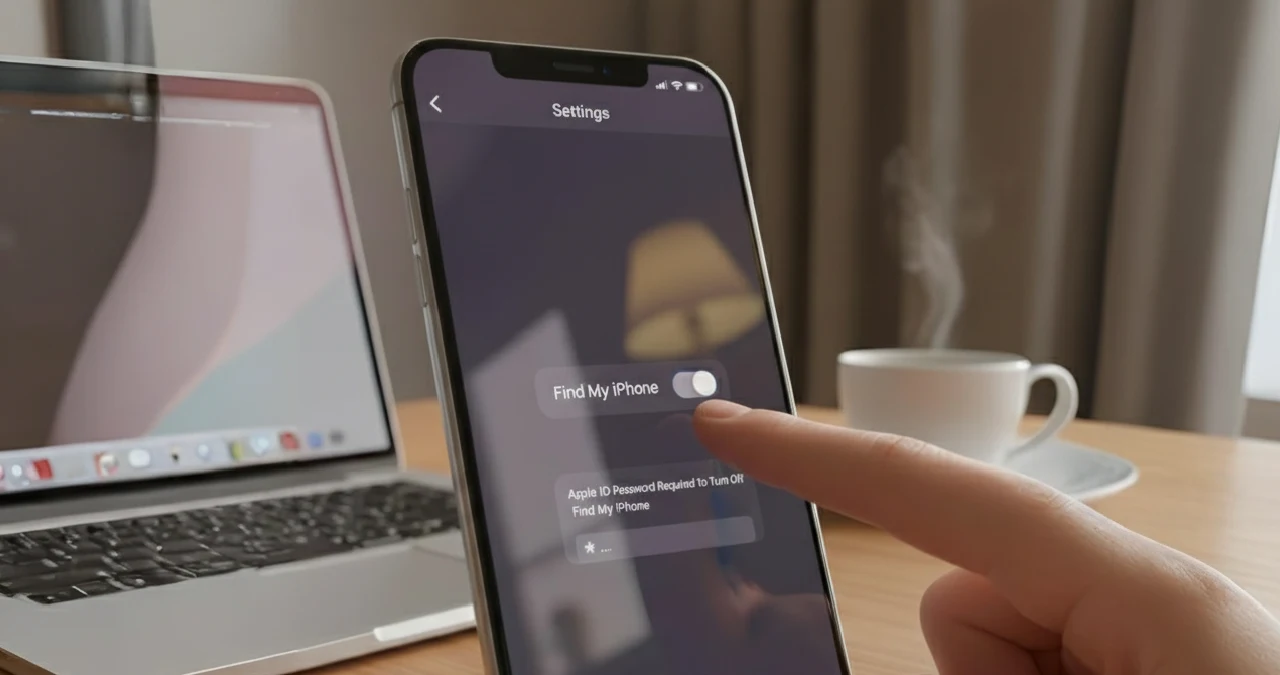
If you have fixed your mind to sell your iPhone, all you need to do is just turn off Find My iPhone to make it successful. Now the question arises, is the process simple or something that is a hard nut to crack? You can turn off the feature even if the iPhone no longer remains in your possession. Go through the blog to know how you can make it happen.
In the blog, I also unveil a step-by-step guide to help you understand how to turn off Find My iPhone on your device itself or from iCloud, a computer, or through the use of another Apple device. Here in the guide, I also discuss why it sometimes becomes arduous to disable it and why we sometimes need to keep the feature on.
How Find My iPhone Works
It is beyond doubt that there are some interesting, trendy features available in the iPhone. One such standout feature of the iPhone is the “Find My feature”, which can assist you in tracking or locating the device you are searching for and that is missing.
The handy feature of your iPhone helps you locate your missing device and open up the Maps app on your device, take you directly to the location where your phone is kept or missing. Find my option, give you the exact direction for your device just by tapping on the feature in your device list.
Why Disable Find My iPhone Before Selling and Trading In
If you are making up your mind to trade or sell your device, there is no alternative but to Disable the Find My feature on your iPhone. The activation lock feature is inwoven with the Find My iPhone option, which assists in preventing any theft by connecting the device you used directly with your Apple ID.
If you decided to trade in or sell your phone, then turning off the feature is a prerequisite for removing the activation lock setting. If someone decided to service their phone by visiting the Apple store for any tech services, disabling the feature is then the only viable option.
Ways to Turn Off Find My iPhone on Your iPhone
It’s all about fun while you turn the feature on Find My from your iPhone device. If you are using iOS 13 or a higher version, go directly to the settings option of your device and tap your name located just at the top. After scrolling, the list appeared on your phone. Locate the Find My option and click on the option showing “Find My iPhone.” Now you need to tap the turn off button on the settings menu, which will redirect you directly to the option for proving Apple ID password. Enter your passwords and turn it off.
For users having iOS 12 and older versions, go directly to settings and tap your name shown on your phone redirects you directly to the iCloud option. After that, you see the “Find My iPhone” option. Tap on it, enter your password, and select the option turn off.
Ways to Turn Off the Find My iPhone feature On A Computer
Instead of the table or iPhone you use, sometimes you are compelled to turn the feature off on your computer for myriad reasons. Sometimes the broken screen of your device makes it arduous for you to navigate the settings.
Additionally, sometimes your drained battery and dead iPhone make it an obvious genuine reason to turn the Find My iPhone feature off from your computer by visiting the Apple account. To make it happen, at first, you need to go to your desktop and search for the iCloud account.
Now, after visiting the settings option, you see the Find My option. Now you need to disconnect the device of interest from your iCloud account by clicking on it. That’s all.
Ways to turn off the Find My feature on an iPad or another Apple device
If you have a Mac, iPad, and iPhone that have been signed in with the same Apple ID you use, then you are able to turn off the Find My option. All you need to do is follow the required steps. After opening the Find My App from your iPhone, tap on the tab showing the device, and then, after discovering the device from the list, tap on Remove it to make it done for you.
Suppose you are planning to sell your phone, but suddenly realize that none of your data has been deleted, then no need to panic, as the erase iPhone option helps you wipe off everything in your phone to make it clean. If you have no access to the Apple ID, but if you have the family sharing option enabled, it will help you sort out the issue by helping to discover the Find My app.
Why unable to disable the Find My feature
Some instances make it increasingly difficult for you to turn off the Find My feature on your iPhone for the myriad reasons mentioned below
- Forgotten or entry of the wrong password: Security purposes compelled you to provide your Apple ID or password to turn off the Find My feature. Sometimes it becomes hard to recall the password, which makes you unable to disable the Find My feature. Entering the wrong password raises a question over account ownership, which makes you unable to turn off the Find My feature on your iPhone.
- Security issue: In rare instances, a waiting period has been imposed by Apple for security concerns before removing your device from the account you own.
- Stolen device lock: Sometimes, the activation for the stolen device protection option is enabled in your account, which compels you to turn off the activation at first before disabling the turn-off feature as a prerequisite. In this scenario, the option of Find My is unavailable or faded away.
- Offline device: you your iPhone is offline, turn it off with the disabled location option, then it will by no means show an error of no location found option. Hence, it cannot let you disable the find my option unless ot until you turn it back to an on mode.
- No internet connectivity: Internet connectivity is mandated to turn off the Find My feature on your iPhone, no matter what. Lack of internet connectivity makes the option to turn off Find My not work for users.
Why should you keep the feature on?
Unless or until you have decided to sell your iPhone, keeping the feature on your iPhone gives you some benefits. Here I mentioned the list of reasons that make it relevant for you to on the feature.
- Preventing theft: The activation lock feature embedded within the iPhone as a part of the Find My feature deters device theft.
- Data protection: keeping the Find My option on your iPhone assists you in erasing information from your iPhone remotely and wiping off personal or confidential information just at your fingertips to keep your data protected.
- Device security: If all of a sudden you lose your iPhone and become perplexed with your stolen device, the Find My iPhone option gives you a solution by providing the gateway for lost mode activation. Thai will help you to disable the option for payment and lock some features within the iPhone to ensure maximum security for your device.
- Phone recovery: even if you are facing a situation of low battery life, the Find My option shows you the last location of your iPhone.
- Keep connected with family: With prior approval of permission of family members, the Find My option gives you the gateway for the family sharing option, enabling you to keep track details of family members’ devices.
Final thought
It can be concluded that turning off the Find my option is a viable option if anyone makes up their mind to sell the device to others. It also gives users some benefits if they keep the feature on, that is already discussed above. If you have anything more to know about feel free to connect with me in the comments.
Frequently asked questions
No, absolutely not, always use the official Apple platform. Using a third-party app can be risky and illegal, too.
Unless or until the Find My iPhone option is disabled user cannot able to use or activate the device.