Seesaw is a digital portfolio and learning app used mostly in primary and elementary schools. Students post photos, videos and drawings of their work, and families can see it. The login depends on where the student is and how the teacher has set up the class.
In this guide I’ll explain each Seesaw sign-in method, how Home Learning codes work, and what to try when a code doesn’t work.
Where to sign in
Students sign in in the Seesaw app (tap I’m a Student) or on the web at app.seesaw.me.
Seesaw sign-in methods
According to Seesaw’s help center, teachers choose one of these:
| Method | How it works | Best for |
|---|---|---|
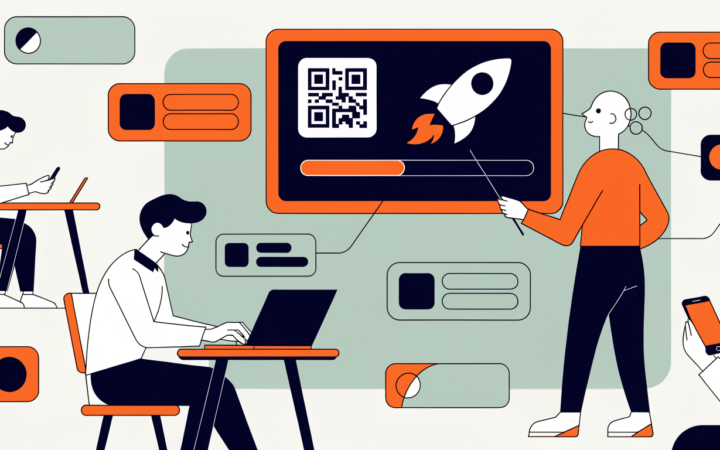
| Class code (1:1 devices) | Scan the class QR code or type the text code, then pick your name. Students stay signed in for up to a year | Each student has their own device |
| Class code (shared devices) | Same code, but students choose their name each time they post | Shared iPads |
| Email or school account | Sign in with a school Google, Microsoft, Clever, ClassLink or other school account (with a Seesaw subscription), or with an email and password | Older students, school Chromebooks |
| Home Learning code | A personal QR or text code for signing in from home | Learning at home |
How Home Learning codes work
Home Learning codes let students sign in from home without the classroom code:
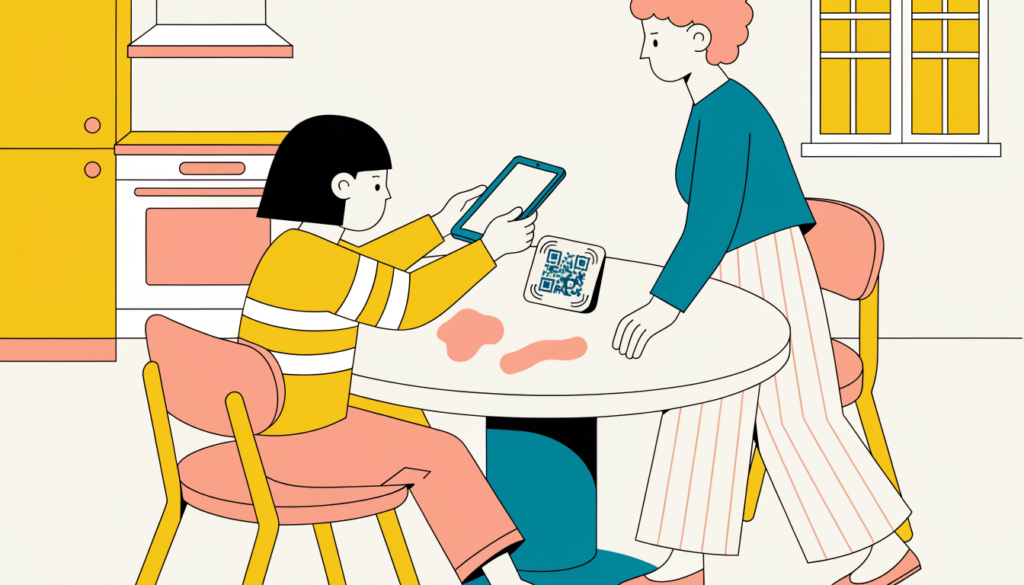
- The teacher prints or downloads each student’s personal code (a QR code and a 16-letter text code).
- At home, open the Seesaw app or app.seesaw.me and choose the student option.
- Scan the QR code or type the text code.
Seesaw says each code is valid for one year, and teachers can reset codes at any time. With a Home Learning code, students can post and respond to activities, but can’t see classmates’ work.
Your school administrator has to turn on Home Learning codes, so ask the teacher if you haven’t received one.
Seesaw code not working? Try this
- Check you’re using the right code. Class codes are for the classroom, and Home Learning codes are for home.
- Ask for a new code. The teacher may have reset it.
- Scan in good light, or type the text code instead.
- Choose the student option in the app, not the family option.
- Using a school account? Make sure it’s your school Google or Microsoft account, not a personal one.
- Still stuck? Ask the teacher, who can see your sign-in settings.
For parents
- Keep Home Learning codes private. Anyone with the code can post to your child’s journal.
- Families usually connect through a separate family invite, so they can see their child’s work and messages. Ask the teacher if you haven’t had one.
Your child might also use ClassDojo, Google Classroom or Clever.
Frequently asked questions
What is the Seesaw student login website? app.seesaw.me, or the Seesaw app. Choose “I’m a Student”.
How long do Seesaw Home Learning codes last? Seesaw says each code is valid for one year, unless the teacher resets it.
Can students log in to Seesaw with Google? Yes, if the school has set up Google or another school sign-in.
Is Seesaw free? Seesaw has a free version for teachers. Schools can pay for a subscription with more features.
Related guides on WebTechHelp
- ClassDojo login for students and parents
- Clever login for students
- How to join Google Classroom with a class code
Sources
- Seesaw Help Center: Student sign-in modes
- Seesaw Help Center: Using Home Learning codes