Lots of schools use Clever as the front door to all their learning apps. You log in once, and then you can open apps like i-Ready, Lexia, Edpuzzle or your school’s reading programs without typing another password.
In this guide I’ll explain what Clever is, the different ways students log in, how Clever Badges work, and what to try if you can’t get in.
What is Clever?
Clever is a single sign-on portal for schools. Your school sets up your account and decides which apps appear in your Clever Portal. After logging in, you click an app’s icon and it opens already signed in.
Students don’t create their own Clever accounts. Your school does that, which is why most login problems need help from your teacher or school IT team.
Ways to log in to Clever
The right method depends on how your school has set things up:
1. On a school Chromebook
Many schools log you in to Clever automatically when you sign in to your Chromebook. Look for a Clever icon or bookmark in Chrome.
2. Your school’s Clever page
- Go to clever.com and choose to log in as a student.
- Search for your school or district and select it.
- You’ll land on your school’s login page. Many schools have a direct link in the form clever.com/in/your-district-name, which is often posted on the school website.
- Pick the sign-in option your school uses.
3. Log in with Google or Microsoft
If your school uses Google Workspace or Microsoft 365, choose Log in with Google or Log in with Microsoft on your school’s Clever page, and use your school account, not a personal one.
4. Username and password
Some schools give students a Clever username and password. Your school might use your student ID number as the username. If you forget your password, your teacher can usually reset it.
5. Clever Badges
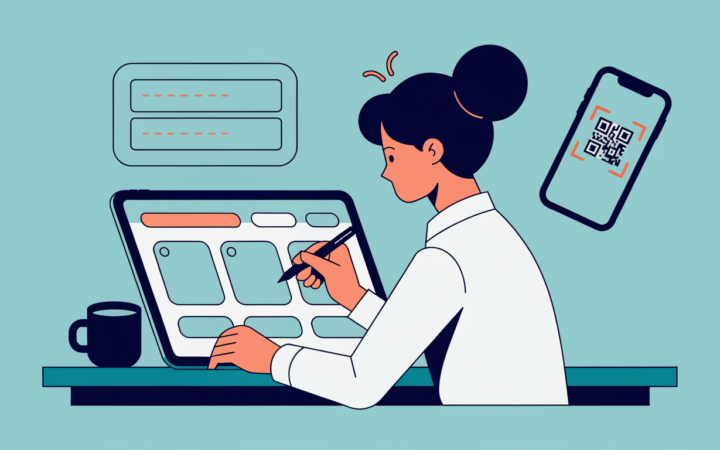
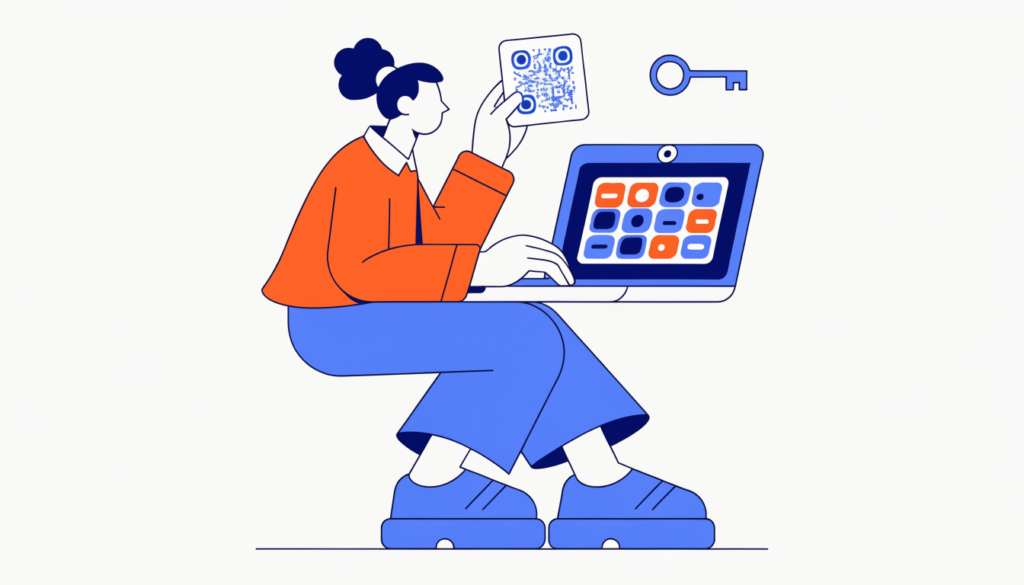
A Clever Badge is a printed QR code, popular with younger students who can’t type passwords yet:
- Open the Clever login page or the Clever app on an iPad.
- Choose Log in with Clever Badges.
- Allow camera access and hold your badge up to the camera.
Keep your badge private. It works like a password, so anyone who scans it can log in as you. If it’s lost, tell your teacher so they can issue a new one.
Clever not working? Try this
- Check you’ve picked the right school or district.
- Use your school account. A personal Gmail won’t work with Google sign-in for school.
- Allow camera access in your browser or app if a badge won’t scan, and hold it steady in good light.
- Clear your browser cache or try a private window.
- App not showing in your Portal? Your school controls which apps appear. Ask your teacher.
- Still stuck? Contact your teacher or school IT help desk. They manage your Clever account, so they can see what’s wrong.
For parents
- Your child’s Clever account belongs to the school. Ask the school for the right login page and method for your child.
- If your child uses a badge at home, the school can usually give you a copy. Keep it somewhere safe.
- Clever is often used alongside other school tools such as RapidIdentity for sign-in, or GoGuardian for filtering.
Frequently asked questions
What is the website for Clever student login? Go to clever.com and choose student login, or use your school’s direct link (often clever.com/in/your-district).
Can I log in to Clever with Google? Yes, if your school uses Google. Choose Log in with Google and use your school account.
What is a Clever Badge? A printed QR code that logs you in when you hold it up to the camera. Keep it private, like a password.
I forgot my Clever password. What should I do? Ask your teacher or school IT team. Clever accounts are managed by your school.
Related guides on WebTechHelp
- RapidIdentity explained
- Edpuzzle Join: how to join a class
- How to join Google Classroom with a class code
Sources
- Clever Help Center: For students: how do I log in to Clever using a Badge?
- Clever Help Center: For students: troubleshooting logging in to Clever
- Lawrence Public Schools: How do I log into Clever? (students)