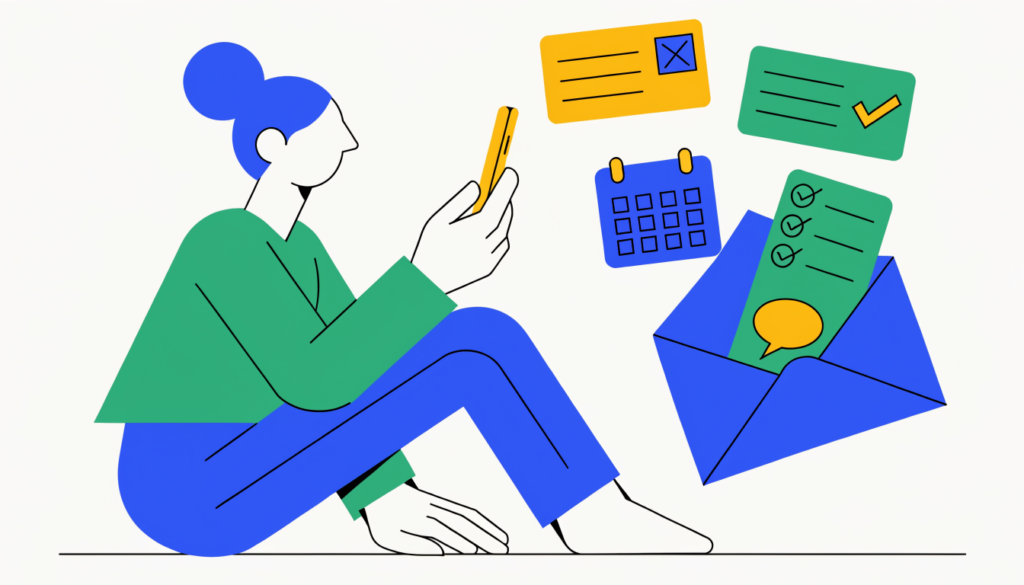
Parents can’t log in to their child’s Google Classroom, but they can get guardian email summaries: regular emails showing missing work, upcoming assignments and class announcements.
In this guide I’ll explain how to start getting them, what’s included (and what isn’t), and how to change or stop them.
What are guardian email summaries?
They’re emails from Google Classroom that tell parents and guardians about their child’s classes. According to Google, each summary includes:
- Missing work: assignments not turned in
- Upcoming work: due today and tomorrow (daily emails) or in the coming week (weekly emails)
- Class activity: recent announcements, assignments and questions from teachers
They don’t include grades. For grades, ask your child or the teacher, or check your school’s grade portal, such as PowerSchool.
How to start getting summaries
You can’t sign up yourself. The teacher or school must invite you:
- Your child’s teacher or school administrator adds your email address.
- You get an invitation email from Google Classroom.
- Open it and click Accept, then Accept again to confirm. Google gives you 120 days to accept.
If you haven’t had an invite, ask the teacher. Teachers also have to switch summaries on for their class.
Requirements:
- Your child must use Classroom with a school Google Workspace account (like name@school.edu).
- You can receive summaries at any email address, but you need a Google Account to change your settings.
How to change how often you get them
- Click Settings at the bottom of any summary email.
- Sign in to your Google Account.
- Under Frequency, choose Daily (Monday to Friday), Weekly or No summaries.
- You can also set your time zone.
How to unsubscribe or remove yourself
- Unsubscribe: click Unsubscribe at the bottom of any summary. If you have a Google Account, you stay linked as a guardian but stop getting emails. Without a Google Account, unsubscribing removes you as a guardian.
- Remove yourself: in Settings, delete your child’s name and click Remove. Your child is notified.
Not getting summaries?
- There may be nothing to report. Google doesn’t send a summary when there’s no activity.
- Teachers may have turned summaries off for their classes.
- Check your spam folder and add Google Classroom to your contacts.
- Your invite may have expired. Ask the teacher to resend it.
- Changed email address? Ask the school to remove your old address and invite your new one.
Tips for parents
- Weekly summaries are usually enough unless your child is behind.
- Use the missing work list as a calm conversation starter, not a telling-off. Sometimes work has been handed in another way.
- Ask the teacher about preview links. On some school plans, summaries include links to preview your child’s classwork.
Teachers setting up a class can use my guide on how to create a class in Google Classroom, and students can see how to join with a class code.
Frequently asked questions
Can parents log in to Google Classroom? Not as their child. Parents get guardian email summaries instead, after the school invites them.
Do guardian summaries show grades? No. They show missing work, upcoming work and class activity.
How do I get Google Classroom updates as a parent? Ask your child’s teacher or school to invite you to guardian email summaries, then accept the invite.
Can I choose daily or weekly emails? Yes. Use the Settings link at the bottom of any summary.
Related guides on WebTechHelp
- How to join Google Classroom with a class code
- How to create a class in Google Classroom
- PowerSchool parent portal login
Sources
- Google Classroom Help: About guardian email summaries
- Google Classroom Help: Get Classroom email summaries (for guardians)