Google’s NotebookLM has a new name: since July 2026 it’s called Gemini Notebook. The idea is the same, and it’s one of the most useful AI tools for studying, because it answers from your own class materials rather than the whole internet.
In this guide I’ll explain what changed, how to use it to revise, what’s free, and the age and school rules.
NotebookLM is now Gemini Notebook
On 16 July 2026, Google announced that NotebookLM is now Gemini Notebook, with a new logo. Google says:
- it stays a standalone research tool
- existing notebooks and shared links redirect automatically
- notebooks also sync with the Gemini app
So if you search for NotebookLM, you’ll find Gemini Notebook.
How it works
- Create a notebook for a subject or topic.
- Add sources: your notes, PDFs, Google Docs, slides, web pages or YouTube videos. The free plan allows up to 50 sources per notebook.
- Ask questions. Answers are based on your sources and include citations, so you can click through to check where each answer came from.
- Use the Studio panel to create study materials.
Study tools you can make
- Study guides and briefing documents that summarise the key points
- Flashcards for revision
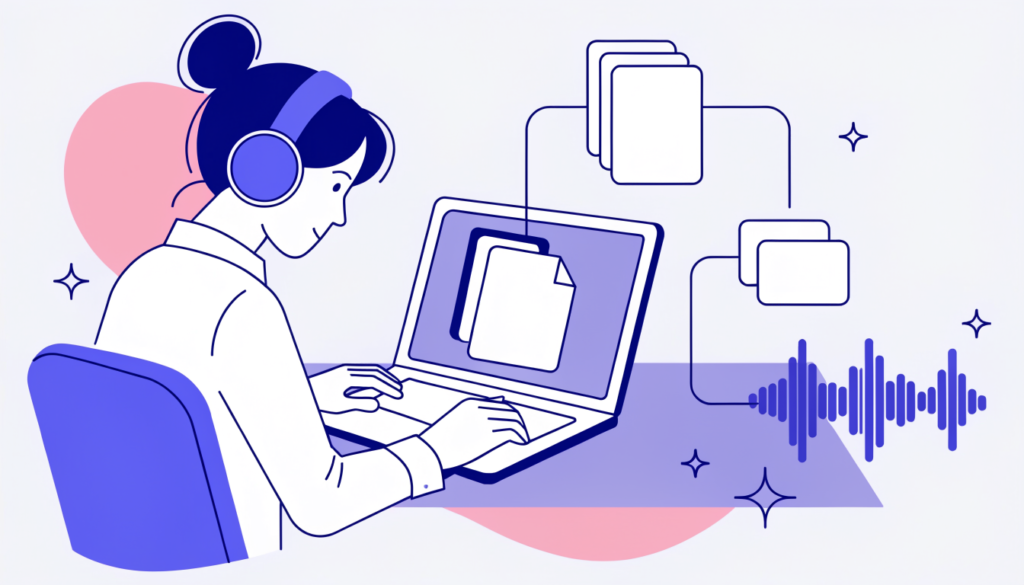
- Audio Overviews: a podcast-style conversation about your sources, which you can listen to on the bus
- Video Overviews, mind maps and timelines to see how ideas connect
Good ways to use it for school
- Upload your class notes and textbook chapter before a test and ask: “What are the 10 most important ideas?”
- Ask it to quiz you, then check your answers against the cited sources.
- Generate an Audio Overview of a long reading, then read the original afterwards.
- Compare sources for an essay: “Where do these two articles disagree?”
Because it answers from your sources, it’s less likely to make things up than a general chatbot. It can still misread or oversimplify, so check the citations, especially for anything you’ll hand in.
What’s free?
The free plan includes up to 100 notebooks with 50 sources each and all the Studio formats, with lower usage limits. Paid Google AI plans (from about $4.99 a month in the US) raise the limits. Prices are from a 2026 pricing guide, so check Google’s current plans.
Age and school rules
- Personal Google Accounts: generally 13 and over in the US (higher in some countries). Younger children need a supervised Family Link account where it’s available.
- School accounts: your school decides whether it’s switched on.
- Google Classroom: since April 2026, students aged 18 and over in higher education can create personal class notebooks from the Gemini tab, grounded in their teacher’s materials, where their school allows it.
Use it honestly
Gemini Notebook is a brilliant revision tool, but handing in its summaries or writing as your own work can break your school’s rules. Use it to understand and practise, then write in your own words. My guides on how to use ChatGPT for school and Google Gemini for students cover the same principles.
Frequently asked questions
Is NotebookLM still available? Yes, under its new name, Gemini Notebook. Old links redirect automatically.
Is Gemini Notebook free? Yes. The free plan includes 100 notebooks with 50 sources each, with usage limits.
Can Gemini Notebook make flashcards? Yes. The Studio panel can create flashcards, study guides, audio and video overviews and more from your sources.
Can I use NotebookLM with a school account? Only if your school’s administrator has switched it on.
Related guides on WebTechHelp
- Google Gemini for students
- How to use ChatGPT for school the right way
- How to create a class in Google Classroom
Sources
- Google Workspace Updates: NotebookLM is now Gemini Notebook (July 2026)
- Google Workspace Updates: Students can now create personal class notebooks with NotebookLM in Google Classroom (April 2026)
- PPC Land: Google moves NotebookLM users to Gemini Notebook
- Kortex: Is Gemini Notebook (formerly NotebookLM) free? (updated October 2026)