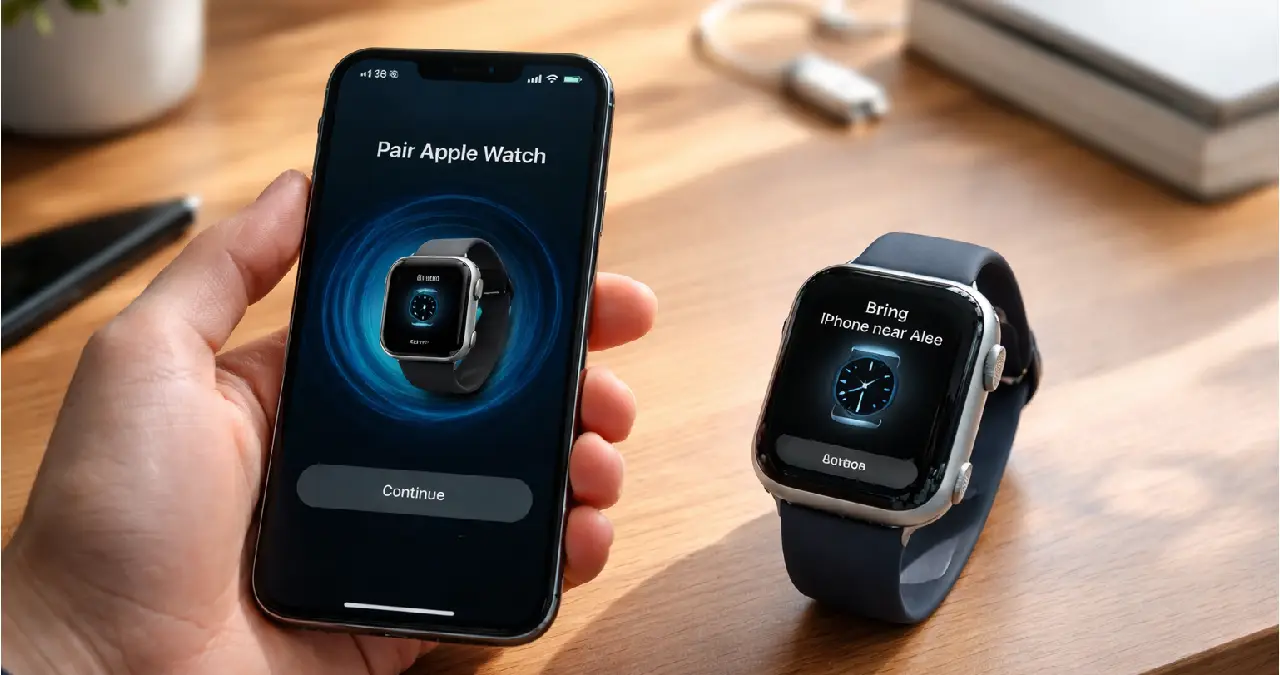
Knowing the fundamental details for how to pair Apple Watch to new iPhone is important. It does not matter whether you are a new user, someone who has been using it for a while, or someone who wants to repair it again.
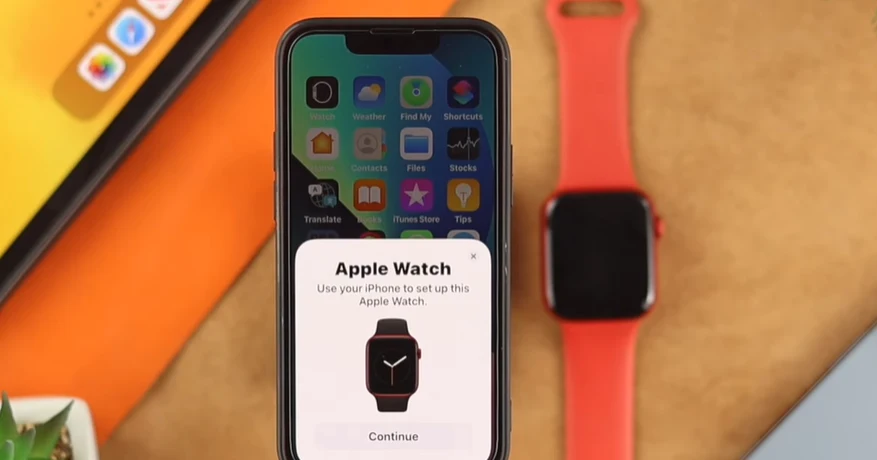
Knowing the A to Z of pairing your Apple Watch to your iPhone helps you gauge your sports performance through the device, helping to keep track of your weightlifting time.
For anyone who wants to avoid procrastination and keep track of their regular progress, having an Apple Watch in hand with an iPhone is a true advantage that no one denies. Lets roll to know the complete process without any further ado.
Things to Know Before Pairing
To guarantee a seamless transition with no data loss, you need to keep certain things in mind so that you don’t regret it for any reason. Data backup is invaluable before you pair your Apple Watch to a new iPhone.
First, you need to keep an eye on the battery percentage on your old iPhone device. If it has a low battery, plugging it into a power source is indispensable. Both iPhone and Apple Watch require updating.
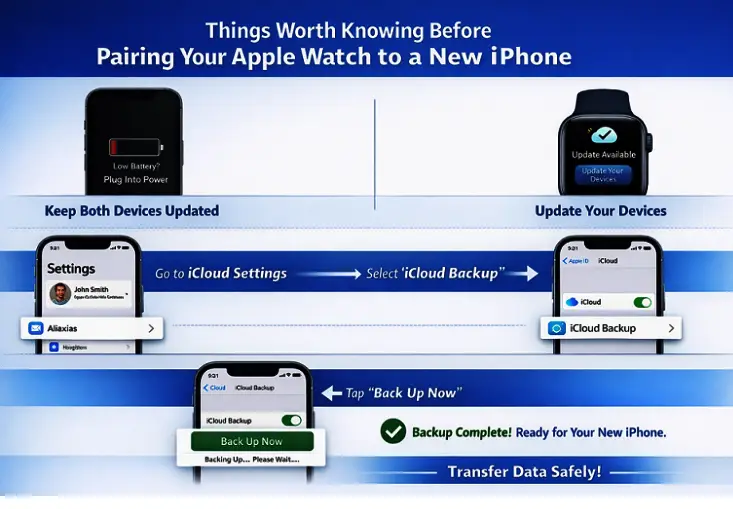
Now open the settings from your iPhone and tap on your name located at the top of the screen. Tap the ” iCloud ” option and scroll until you see the “iCloud Backup” option. Now, click on the ” Backup Now ” option and wait for a while. Now you sort things easily. All your Apple Watch backups are transferred to your new iPhone.
How to pair your Apple Watch – Step-by-step guide
Pairing an Apple Watch with an iPhone is not an arduous task; you just need to follow some basic steps to get things happening for you. Just turn on your Apple Watch and let’s begin the process. To make the pairing successful, you just need to follow the stepwise instructions.
The watch on your wrist needs to be turned on.
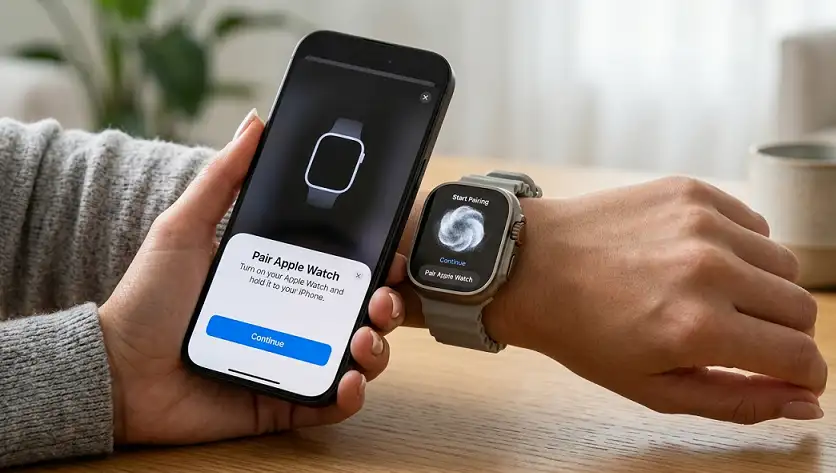
After enabling the process of turning your watch on, hold the iPhone close to your Apple Watch until the pairing is done. You need to wait for a while before the pairing screen appears. After tapping on the ‘Continue’ option, you are redirected to the settings option. Lets have a look at the stepwise guide to make it easily understandable.
Step-by-step guide to pair Apple Watch with iPhone
Set up your Apple Watch
- Choose who the user is. Is it for yourself or for a family member?
- Sign in with your Apple ID.
- Set up your own passcode. Setting the passcode helps you to protect your invaluable data from being forged.
- Now you have to choose the features you want to enable. It may be Fitness, Health & so on.
Pair your Apple Watch to a new iPhone
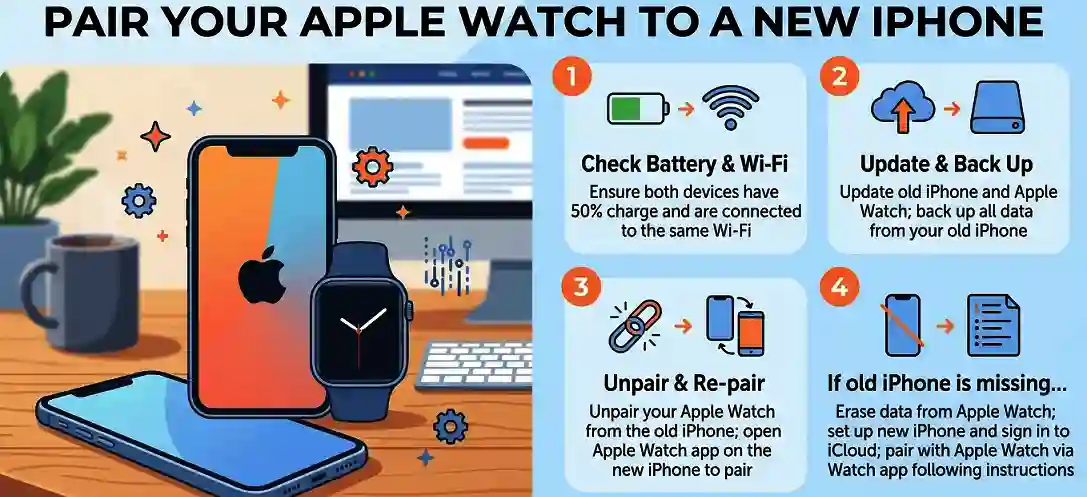
If you have misplaced or want to make an upgrade for your new iPhone device, pairing with an Apple Watch is not a difficult task. Meanwhile, to do it, make sure you have already kept all details of your Apple account. Both devices must have the same wifi connectivity and at least have 50% charge.
If you still have your old iPhone
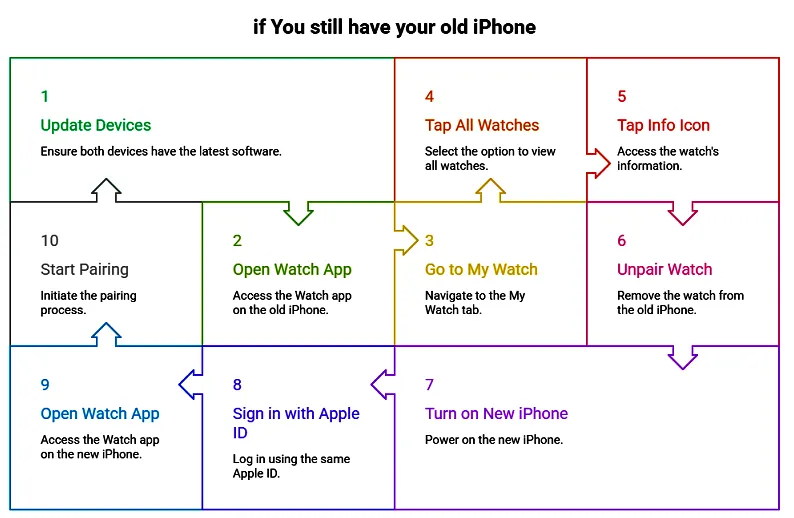
Make sure you have done the update for your Apple Watch and iPhone to the latest version. You need to back up all the old iPhone data. Visit my watch tab and tap on the watch app of your iPhone to do the unpairing with the selected device of interest. Now, after opening your iPhone, select the Apple Watch app to perform the pairing steps.
If you don’t have your old iPhone
Erase Apple Watch: You need to erase your data from your Apple Watch.
Set up a new iPhone: Now, after setting up your iPhone, you need to sign in with your Apple ID details.
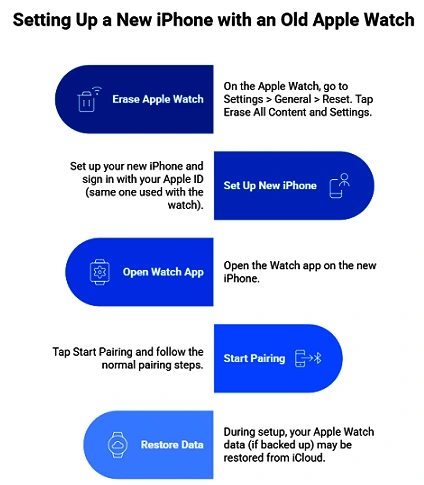
Open the watch app: After opening the watch app, the iPhone is paired with the Apple Watch.
Start pairing: Above, I already shed light on the step-by-step guide to pair the Apple Watch with the iPhone. Make sure you have followed all the information I mentioned earlier to set up your iPhone & Apple Watch.
What to do if pairing fails
Suppose you have done the setup process for the Apple Watch. Now you try pairing your iPhone with Apple Watch, but eventually fail to pair. Let’s follow the troubleshooting steps mentioned below:
- You need to unpair and erase the data of the Apple Watch from the paired iPhone
- Erase Apple Watch without a paired iPhone
- Reset all data from Apple Watch without using a passcode
- Reset Apple Watch immediately if the pairing process stalls
Pairing without a QR code
If you are unable to pair your Apple Watch with your iPhone through a QR code, you need to do it manually. Before proceeding to the next step, you need to make sure your iPhone is updated to the latest iOS version. Above all, it needs to be connected with a cellular network or wifi.
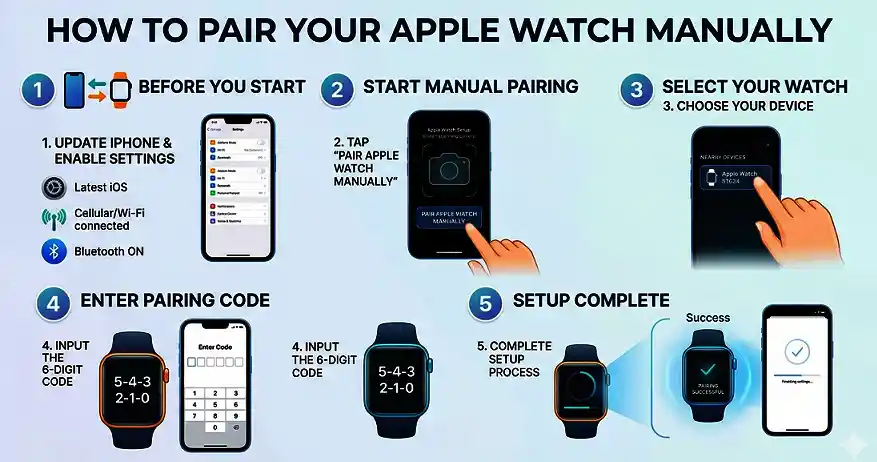
Also, the Bluetooth needs to be turned on. When you see the camera view appear on your device screen, you need to click on the bottom of your device showing “Pair Apple Watch Manually”. Now you choose your device from the nearby devices and enter the 6-digit code to finish the entire setup process.
Unpairing steps worth knowing
Unpairing an Apple Watch from an iPhone seems an intimidating process for a new user. But having a knowledge of the basic fundamental details easily helps you to get out of trouble.
- Keep devices close: You need to keep your devices close.
- Open Apple Watch app: Now you open the Apple Watch app on your iPhone, which will redirect you to My Watch.
- Tap into “i info button”: Now, from the All Watches, tap into the “i info button” that is next to your watch.
- Unpair the device: You have to select the ” Unpair Apple Watch ” button. This process will erase the watch, remove the activation lock, and create a backup.
Different Apple Watch models behavior
Let’s have a look at the distinct Apple Watch and the model behaviour it holds.
| Feature | Series 11 | SE 3 | Ultra 3 |
| Case Sizes | 42mm / 46mm | 40mm / 44mm | 49mm |
| Material | Aluminum or Titanium | Aluminum | Titanium |
| Key Sensors | ECG, Blood Oxygen, Temp | No ECG, Blood Oxygen, Temp | ECG, Blood Oxygen, Temp + Depth |
| Water Resistance | 50m | 50m | 100m (diving capable) |
| Display Brightness | Up to 2000 nits | Up to 1000 nits | Up to 3000 nits |
| Battery Life | Up to 24 hours | Up to 18 hours | Up to 42 hours |
| Best For | Premium everyday use | Budget / Essential use | Extreme sports & adventure |
iOS version requirements for pairing
To make the pairing of an Apple Watch with an iPhone, you need to have an iPhone 8 or later model running on iOS 16 or later. The newest models like Series 10/11, Ultra 3, SE 3 need iOS version 18 or later and an iPhone 11 or later version.
Wrapping up
Before pairing the Apple Watch to your iPhone, make sure both devices are at least 50% charged to avoid an unnecessary synchronization error. I think you know the process of pairing your Apple Watch with your iPhone. To get updates on Smiler Tech Blog, visit the webtechhelp to discover more technical content like this.
Frequently asked questions (FAQs)
Keep checking to ensure Bluetooth is on, devices are updated, and both are close together to never face such an issue further.
Only if you don’t have your old iPhone.