

A small white dot or bright patch on your iPad screen is easy to ignore at first, until you notice it every time you open a white web page. The good news is that some causes are harmless and easy to fix. The bad news is that others are hardware problems that only a repair will solve.
In this guide I’ll help you work out which one you have, what you can safely try at home, and when it’s time to book a repair.
First, check what kind of dot it is
Open a plain white image or web page, then a plain black one, and look closely.
| What you see | Likely cause |
|---|---|
| A speck that moves or wipes away | Dust or dirt on the glass or screen protector |
| One tiny, sharp dot that’s always white or a colour | Stuck or dead pixel |
| A soft, cloudy bright patch, most visible on white or grey | Pressure damage or a backlight problem |
| Bright glow along the edges, most visible on black | Backlight bleed |
| An irregular grey or white speck that doesn’t wipe off | Dust trapped inside the display |
| Dots that appear only in one app or flicker | Software glitch |
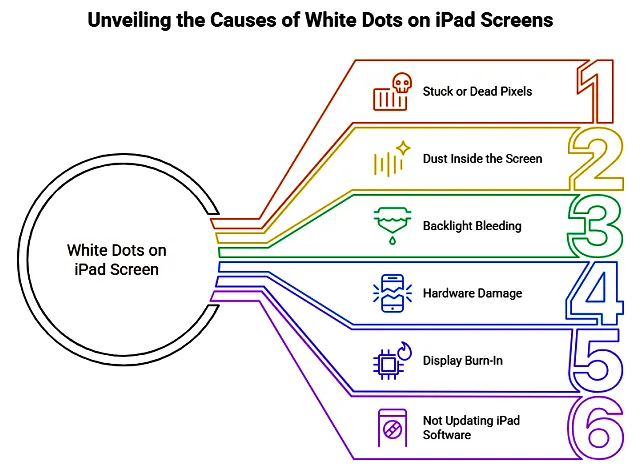
Common causes
1. Dust or debris. Apple notes that dust or foreign material on or inside a display can look like a pixel problem, usually with an irregular shape. Dust on the surface wipes off. Dust trapped inside the screen has to be removed by Apple or an Authorized Service Provider.
2. Stuck or dead pixels. A transistor that doesn’t work properly can leave a single pixel stuck bright or dark. Apple says this happens in a small percentage of LCD panels.
3. Pressure damage. A drop, a tight backpack, or pressing hard on the screen can damage the layers that spread light across the display. This usually shows as a soft white spot that’s worse on light backgrounds. It’s one of the most common causes of “white spot on iPad screen” searches.
4. Backlight problems. iPads with LCD screens use a backlight. If the layers inside shift or separate (for example after heat or an impact), light can leak through as bright spots or uneven patches.
5. Software glitches. Less common, but a buggy app or iPadOS issue can cause temporary dots or flicker.
How to fix white dots on an iPad screen
1. Clean the screen properly
Turn the iPad off. Wipe the screen with a soft, lint-free microfibre cloth, using light pressure only. If you use a screen protector, check whether the dot is on the protector or under it. Bubbles and dust under protectors often look like white dots.
2. Remove the case and check for pressure
Take the iPad out of its case. Some cases or keyboard covers press on the screen when closed. If the spot fades after a while out of the case, pressure was the likely cause.
3. Restart your iPad
Go to Settings > General > Shut Down, then turn it on again. If the iPad is frozen, use a force restart (the button steps depend on your model; Apple’s guide is linked below).
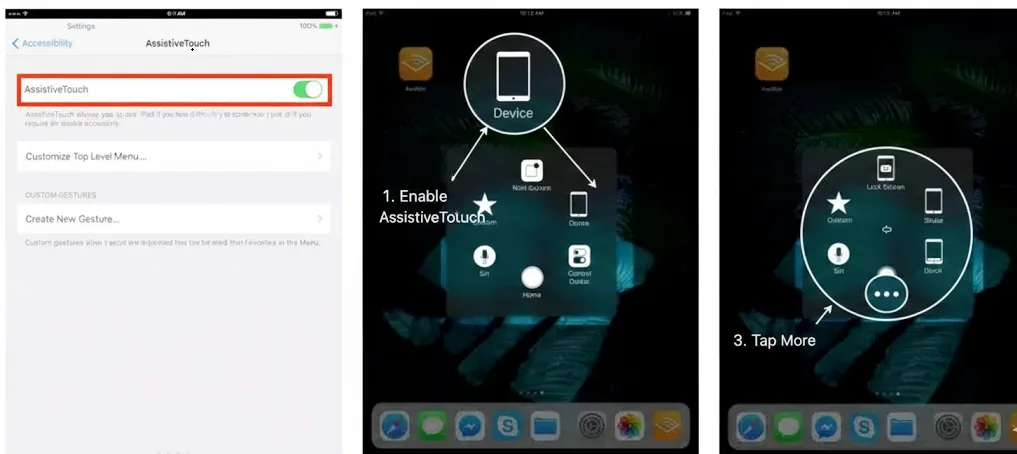
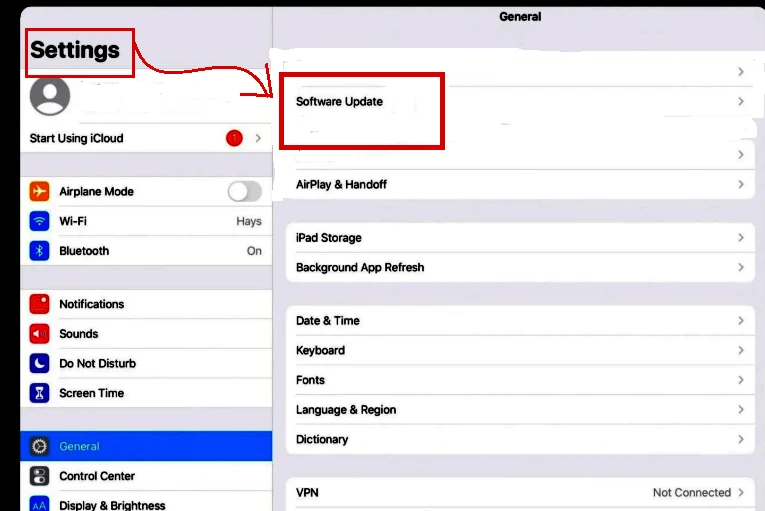
4. Update iPadOS
Go to Settings > General > Software Update and install any update. This fixes known display bugs.
5. Check whether it’s a software issue
Take a screenshot while the dot is visible. If the dot appears in the screenshot, it’s software (or something in the image itself). If it doesn’t appear, it’s the screen hardware.
6. Try a stuck-pixel video (carefully)
For a single stuck pixel, a full-screen video that flashes colours rapidly can sometimes “unstick” it. Don’t press or rub the screen. That can make pressure damage worse.
7. Get it checked by Apple
If the dot doesn’t wipe off and isn’t in screenshots, it’s a hardware issue. You can book a check at an Apple Store or an Apple Authorized Service Provider. If your iPad is under warranty or AppleCare+, check your coverage first.
Before you hand it in, follow Apple’s checklist: back up your iPad, and turn off Find My (or turn on “Ready for Repair” on newer iPadOS versions). I explain the Find My step in how to turn off Find My iPhone and iPad.
How to prevent white spots
- Use a case that doesn’t press on the screen when closed.
- Don’t carry the iPad loose in a packed bag.
- Avoid leaving it in hot places, such as a car in summer.
- Use a good screen protector to keep dust and scratches off the glass.
- Take care with Apple Pencil pressure on older screens. If you’re new to it, see whether Apple Pencils work on iPhones for compatibility basics.
If you see shadows or ghosting on a laptop or desktop monitor instead, my guide to the computer screen shadow problem covers those causes.
Frequently asked questions
Why are there two white dots on my iPad screen? Two sharp dots are often stuck pixels or dust inside the display. Soft, cloudy spots are more likely pressure or backlight damage.
Will a white spot on my iPad screen go away? Dust on the surface and software glitches can be fixed. Pressure and backlight damage usually don’t go away on their own and may slowly get bigger.
Does AppleCare cover white spots? It depends on the cause. Manufacturing defects are usually covered under warranty, while accidental damage is covered under AppleCare+ with a service fee. Ask Apple to check your device.
Can I fix a white spot on my iPad myself? You can fix dust, case pressure and software issues. Internal display problems need a professional repair.
Sources
- Apple Support: About LCD display pixel anomalies
- Apple Support: Force restart iPad
- Apple Support: Prepare your iPhone or iPad for a service appointment
- ESR: White dots on iPad screen: why and how to fix it