
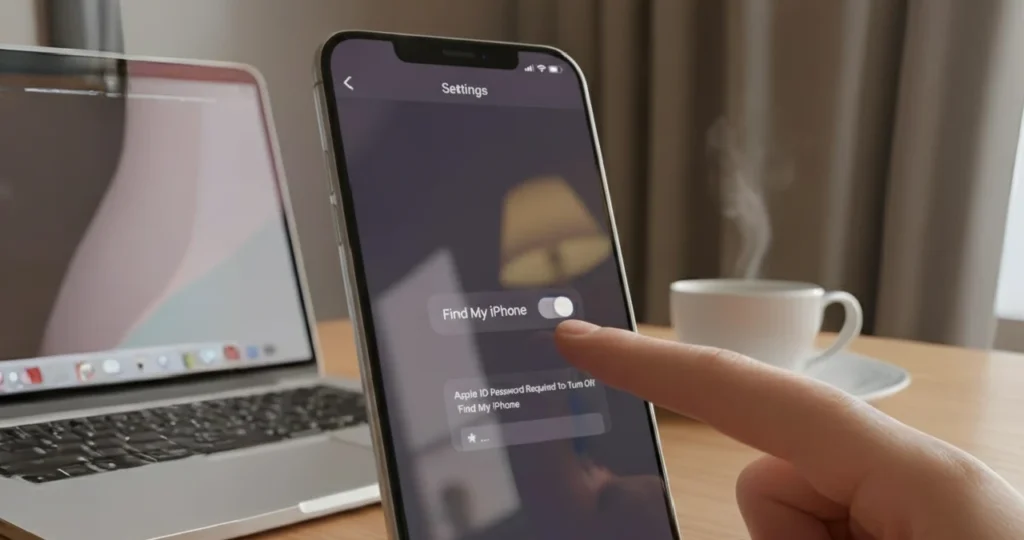
If you’re selling, trading in or giving away your iPhone, turning off Find My is one step you shouldn’t skip. While Find My is on, the phone stays locked to your Apple Account through Activation Lock, and the next owner can’t set it up.
The good news: it takes about two minutes when you have your Apple Account password. In this guide I’ll show you three ways to do it — on the iPhone itself, from a computer, and from another Apple device — plus what to do when the switch won’t turn off.
What Find My and Activation Lock actually do
Find My lets you see your iPhone on a map, play a sound, mark it as lost or erase it remotely. When it’s on, it also switches on Activation Lock. That’s the part that matters when you sell: Activation Lock ties the phone to your Apple Account, so nobody can erase and reuse it without your password.
That’s great protection if your phone is stolen. It’s a problem if you hand the phone to a buyer without removing it.
Before you start, have these ready:
- Your Apple Account (Apple ID) email and password
- Your iPhone passcode
- A Wi-Fi or mobile data connection
Method 1: Turn off Find My on the iPhone itself
This is the easiest way if you still have the phone and it works.
- Open Settings.
- Tap your name at the top.
- Tap Find My, then Find My iPhone.
- Turn off Find My iPhone.
- Enter your Apple Account password and tap Turn Off.
If you’re selling the phone, the cleanest order is: back up, turn off Find My, sign out of your Apple Account, then erase the phone (Settings > General > Transfer or Reset iPhone > Erase All Content and Settings). On recent iOS versions, erasing while signed in also asks for your password and turns off Find My and Activation Lock as part of the process.
Method 2: Remove the iPhone from iCloud.com (when you no longer have it)
Already sold the phone, or it’s broken and won’t turn on? You can do it from any browser.
- Go to icloud.com/find and sign in with your Apple Account.
- Select the iPhone from your device list.
- If you’ve given the phone away, choose Erase This Device first. Because the phone isn’t lost, don’t enter a phone number or message.
- When the erase is complete, select Remove This Device.
What happens next depends on whether the phone is online:
- If it’s offline, Activation Lock is removed straight away, and the phone leaves your Find My list after 30 days.
- If it’s online, Apple won’t let you remove it outright, but you can mark it as Ready for Repair or Trade In for 30 days.
Apple’s own guide to this is here: Remove a device from Find Devices on iCloud.com.
Method 3: Remove it using another Apple device
If you have an iPad or Mac signed in to the same Apple Account:
- Open the Find My app.
- Tap Devices and select the iPhone.
- Scroll down and choose Erase This Device (if you’re giving it away), then Remove This Device.
Can’t turn off Find My? Common causes and fixes
1. Stolen Device Protection is on
Stolen Device Protection adds extra checks when your iPhone is away from familiar places like home or work. Turning off Stolen Device Protection itself can come with a one-hour security delay in that situation, and you need Face ID or Touch ID both before and after the wait.
Fix: Go to Settings > Face ID & Passcode > Stolen Device Protection. If you’re at home or another familiar location, you can usually change it right away. If not, start the delay and come back after an hour. Apple explains the rules here: About Stolen Device Protection.
2. You don’t remember your Apple Account password
Find My can’t be turned off without it, and that’s by design. Reset the password at iforgot.apple.com or in Settings > your name > Sign-In & Security, then try again.
3. The toggle is greyed out
This usually means Screen Time restrictions or a work or school management profile is blocking account changes. Check Settings > Screen Time > Content & Privacy Restrictions, and if your phone is managed by an employer or school, ask their IT team.
4. There’s no internet connection
Your iPhone has to reach Apple’s servers to turn Find My off. Connect to Wi-Fi or mobile data and try again.
Should you leave Find My on?
Unless you’re selling, trading in or sending the phone for certain repairs, I’d keep it on. Find My is the reason a stolen iPhone is worth very little to a thief: Activation Lock stops anyone from erasing and reselling it, Lost Mode locks it and shows a contact message, and you can erase your data remotely if you can’t get it back.
My simple rule: turn it off only at the moment you hand the phone over, never “just in case”.
Quick checklist before you sell your iPhone
- Back up to iCloud or your computer
- Unpair your Apple Watch
- Turn off Find My (Method 1 above)
- Sign out of your Apple Account
- Erase All Content and Settings
- Remove the phone from your account on icloud.com/find if it still appears
Frequently asked questions
Can I turn off Find My iPhone without a password? No. Apple requires your Apple Account password (or, in some cases, your device passcode). If you’ve forgotten it, reset it through Apple first. Any tool that claims to bypass Activation Lock should be avoided: these are often scams and can leave the phone unusable.
Does turning off Find My erase my iPhone? No. Turning off Find My only stops tracking and removes Activation Lock. Your data stays on the phone until you choose Erase All Content and Settings.
Do I need to turn off Find My before an Apple repair? Usually, yes, or Apple will ask you to mark it Ready for Repair. Check with the repair provider when you book.
How long does Activation Lock take to clear after removing the device? If the phone is offline, Activation Lock is removed immediately when you choose Remove This Device on iCloud.com. If it’s online, you can mark it Ready for Repair or Trade In instead.
Related guides on WebTechHelp
- How to pair Apple Watch to a new iPhone
- How to Unhide Apps on iPhone: Find Hidden and Missing Apps in Minutes
- White Dots or Spots on iPad Screen: Causes and How to Fix Them
Sources
- Apple Support: Remove a device from Find Devices on iCloud.com
- Apple Platform Support: About Stolen Device Protection
- SlashGear: Can’t Turn Off Find My iPhone? Here’s What You Need To Do