If you use a school Chromebook, there’s a good chance GoGuardian is on it. Students often ask the same thing: what can my teacher actually see? Parents want to know too.
In this guide I’ll explain what GoGuardian is, what each part does, what teachers can and can’t see, the privacy concerns that have been raised, and what I’d want students and parents to know.
What is GoGuardian?
GoGuardian is a set of tools that schools use to filter, monitor and manage student devices. It was founded in 2014 in California. In 2020 it merged with Pear Deck, the interactive slides tool many teachers use. I explain Pear Deck in my guide on how to use Pear Deck.
The school, not the student, decides which GoGuardian tools are switched on and how they’re set up.
The main GoGuardian tools
| Tool | What it does | Who uses it |
|---|---|---|
| GoGuardian Admin | Web filtering: blocks sites and categories the school doesn’t allow | School IT team |
| GoGuardian Teacher | Classroom management: live view of student screens during a class session | Teachers |
| Beacon | Flags online activity that may suggest a student is at risk of self-harm | Selected school staff |
What can teachers see with GoGuardian Teacher?
According to GoGuardian’s own documentation, during a class session a teacher can see:
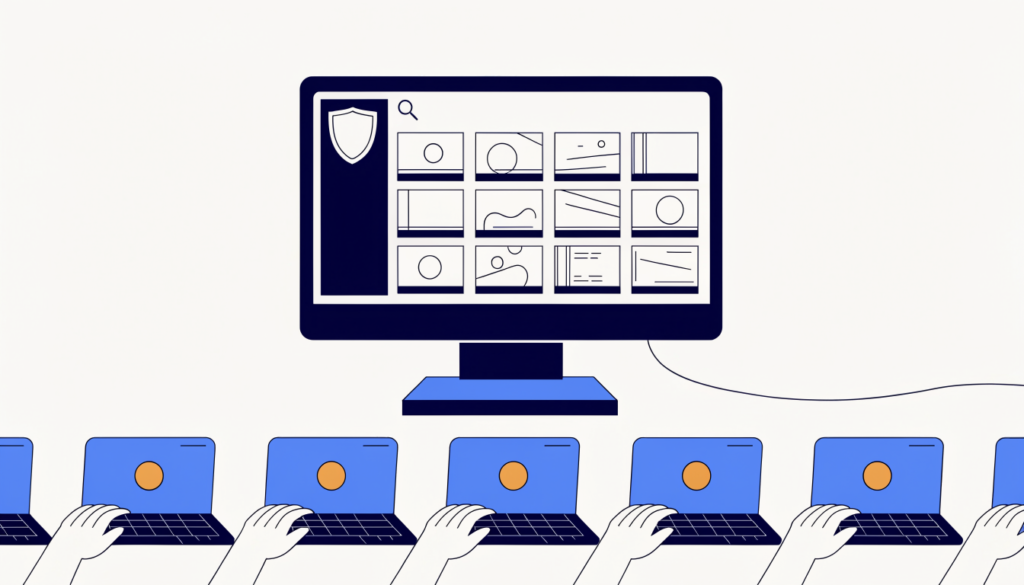
- a live thumbnail of each student’s screen
- the active tab: its page title and web address
- the icons of other open tabs
- the student’s browsing history for that session
Teachers can also:
- close tabs and open a website on everyone’s device
- lock a device or keep students on one Focus Tab
- apply Scenes, which are saved lists of allowed or blocked sites
- share their screen, send messages and start class calls
- take screenshots and mark students as on or off task
GoGuardian Teacher works on Chromebooks, Windows, Mac and, depending on the school’s setup, iPad.
When is GoGuardian watching?
The teacher view is tied to class sessions. A teacher starts a session, and signed-in students connect automatically. A session has a scheduled end time, and teachers can extend it or end it early.
Filtering is different. GoGuardian Admin applies the school’s filter all the time, on school accounts and school devices, whether or not a class is running.
What GoGuardian can’t do (based on current documentation)
- It’s managed through your school account and school device. Your personal phone and personal accounts are outside it, unless your school has installed its software there too.
- GoGuardian used to be able to log keystrokes and turn on webcams, but those features were removed in 2015, according to reporting summarised on Wikipedia.
- Teachers only see students during a session they’ve started. Seeing the history of everything a student did outside class depends on what the school’s admins have access to, not the teacher view.
If you’re not sure what your school uses, the honest answer is: ask. Many school districts publish a GoGuardian page explaining their settings.
Privacy concerns
GoGuardian has supporters and critics:
- Supporters say it keeps students on task, blocks harmful content and, through Beacon, can help staff spot students who need support.
- Critics include the Electronic Frontier Foundation. In an October 2023 report, it called GoGuardian a “red flag machine”, saying it flagged and blocked lots of harmless educational content, including health, LGBTQ and history sites. It also questioned how much student data administrators can access, and whether staff without mental health training should act on Beacon alerts.
I think both points deserve a hearing. Monitoring school devices is now widespread, but families should know exactly what’s collected and who can see it.
Tips for students
- Assume your school device and school account are monitored. Use your own device for anything personal.
- Don’t try to bypass the filter with proxies, VPNs or extensions. It usually breaks school rules and can get your device locked.
- If a site you need for schoolwork is blocked, ask your teacher or IT team to review it. Filters do get things wrong.
Tips for parents
- Ask the school which GoGuardian tools they use and when monitoring applies, for example only during school hours or also at home.
- Ask who can see the data and how long it’s kept.
- For your own family devices, use your own controls, such as Google Family Link or Apple Screen Time. My guide to blocking a website on Chrome covers the basics.
Schools often use other tools alongside GoGuardian, such as Securly Pass for digital hall passes and RapidIdentity for sign-in.
Frequently asked questions
Can GoGuardian see my screen? Yes, during a class session your teacher can see a live view of your active screen and tabs on a school-managed device or account.
Can GoGuardian see my browsing history? Teachers can see the sites you visit during their session. School administrators may have broader access depending on how the school has set it up.
Does GoGuardian work at home? It can. If you’re signed in to your school account on a school device, filtering usually still applies at home. Whether teachers can view you outside school hours depends on the school’s settings.
Can GoGuardian see my personal phone? Not unless your school has installed its software on it or you’re signed in to a managed school account on it.
Related guides on WebTechHelp
Sources
- GoGuardian Docs: GoGuardian Teacher overview
- GoGuardian Docs: Active Screens View
- Electronic Frontier Foundation: How GoGuardian invades student privacy (October 2023)
- Wikipedia: GoGuardian