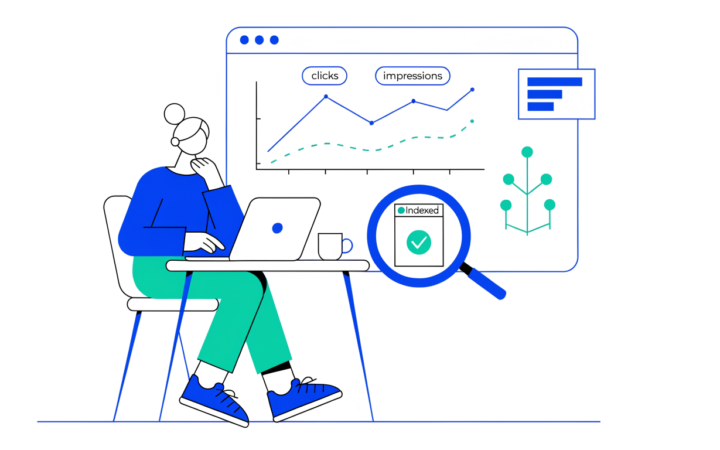
You can write the best content on the web, but if search engines can’t crawl it, can’t index it, or keep finding broken pages, it won’t rank. A technical SEO audit checks the foundations: can Google reach, understand and show your pages?
In this guide I’ll walk you through a technical SEO audit step by step, in the order I’d do it on a small or medium website. You don’t need to be a developer, and most checks use free tools, starting with Google Search Console. I’ve based each step on Google’s own Search Central documentation.
What is a technical SEO audit?
A technical SEO audit is a review of the parts of your website that affect how search engines crawl, render and index it. It covers things like robots.txt, sitemaps, redirects, duplicate pages, site speed, mobile usability, HTTPS and structured data.
It’s different from:
- on-page SEO, which is about the content, titles and headings on each page (see my on-page SEO checklist)
- off-page SEO, which is about links and mentions from other websites
Tools you’ll need
| Tool | Cost | What you’ll use it for |
|---|---|---|
| Google Search Console | Free | Indexing, sitemaps, Core Web Vitals, manual actions. See my Google Search Console tutorial. |
| PageSpeed Insights | Free | Speed and Core Web Vitals for a single page |
| A site crawler | Free versions available | Finding broken links, redirects, missing titles and duplicates. Screaming Frog SEO Spider has a free version limited to 500 URLs. |
| Your browser | Free | Checking robots.txt, viewing the page source |
Step 1: Check that Google can crawl your site
Crawling is how Google discovers your pages. Start here, because nothing else matters if Google is blocked.
- Open
yourdomain.com/robots.txtin your browser. - Make sure it doesn’t contain
Disallow: /underUser-agent: *unless you really want to block your whole site. That single line is a common reason new sites never appear in Google. - Check that important folders (such as
/wp-content/uploads/for images) aren’t blocked by mistake.
Important: Google says robots.txt is “not a mechanism for keeping a web page out of Google”. It controls crawling, not indexing. A blocked page can still appear in results if other sites link to it. To keep a page out of Google, use a noindex tag or password-protect it, and don’t block it in robots.txt, or Google won’t see the noindex.
Step 2: Check what’s indexed
In Search Console, open Indexing › Pages. Look at:
- How many pages are indexed compared with how many you expect.
- Why pages aren’t indexed. Some reasons are normal (redirects, alternate canonicals). Others need action, such as important pages marked “noindex”, “Not found (404)” or “Crawled – currently not indexed”.
Then use the URL Inspection tool on your homepage and two or three key pages to confirm they’re indexed and that Google picked the canonical you expected.
Step 3: Review your XML sitemap
A sitemap tells Google which URLs you want crawled.
- Make sure you have one (WordPress SEO plugins create it automatically).
- It should list only indexable, canonical pages that return a 200 status: no redirects, 404s or noindexed pages.
- Submit it in Search Console under Indexing › Sitemaps and check that the status is Success.
Step 4: Fix duplicate content with canonical tags
The same content often appears at several URLs: with and without www, with tracking parameters, or through category and tag archives. Google groups duplicates and chooses one canonical URL to show.
- Check that each important page has a
rel="canonical"tag pointing to its preferred URL (view the page source and search for “canonical”). - Make sure only one version of your site works:
https://and either with or withoutwww. The others should 301 redirect to it. - Use URL Inspection to see whether Google agrees with your chosen canonical.
Duplicate content isn’t a penalty, but it can split signals and waste crawling.
Step 5: Find broken links and redirect problems
Run a crawl of your site with a crawler tool and look for:
- 404 errors linked from your own pages. Fix the link, or redirect the old URL to the closest relevant page.
- Redirect chains (A → B → C). Point links and redirects straight to the final URL.
- Redirect loops, which break the page completely.
- 5xx server errors, which mean your server failed. If you see these on WordPress, my guide to fixing the 500 Internal Server Error can help.
Use 301 redirects for permanent moves.
Step 6: Check HTTPS and security
- Every page should load over HTTPS with a valid certificate.
http://URLs should redirect tohttps://.- Look for mixed content warnings (images or scripts loaded over http on an https page).
- In Search Console, check Security & Manual Actions. Both reports should say no issues were detected.
Step 7: Check mobile usability
Google uses the mobile version of your pages for indexing and ranking (mobile-first indexing). Open your key pages on a real phone and check that:
- text is readable without zooming
- buttons and links aren’t too close together
- nothing important is hidden on mobile that appears on desktop
- pop-ups don’t cover the content
Step 8: Measure page speed and Core Web Vitals
In Search Console, open Core Web Vitals to see groups of URLs rated Poor, Need improvement or Good, based on real Chrome user data. Then test individual pages in PageSpeed Insights.
Google’s “good” thresholds are:
| Metric | Measures | Good |
|---|---|---|
| Largest Contentful Paint (LCP) | Loading | 2.5 seconds or less |
| Interaction to Next Paint (INP) | Responsiveness | 200 milliseconds or less |
| Cumulative Layout Shift (CLS) | Visual stability | 0.1 or less |
My guide on how to improve Core Web Vitals explains the fixes.
Step 9: Check site structure and internal links
- Important pages should be reachable within a few clicks from the homepage.
- Look for orphan pages that no other page links to. Google mainly discovers pages through links, so orphans are easy to miss.
- Use descriptive anchor text, and link related guides together in topic clusters.
- Keep URLs short and readable.
Step 10: Validate structured data
If you use schema markup (for articles, products, breadcrumbs or your organization), check it with Google’s Rich Results Test and the enhancement reports in Search Console. Structured data must match what’s visible on the page.
Step 11: Check JavaScript rendering
If your site relies heavily on JavaScript to show content, use URL Inspection’s Test live URL › View tested page to see the rendered HTML Google gets. Make sure important text and links appear in it.
Prioritising what to fix
You’ll probably find more issues than you can fix at once. I’d prioritise like this:
- Blockers: robots.txt blocking the site, important pages noindexed, site-wide server errors.
- Indexing problems on your most valuable pages.
- Broken internal links and redirect chains.
- Duplicate URL versions and canonicals.
- Core Web Vitals on templates used by many pages.
- Nice-to-haves such as minor structured data warnings.
Repeat a quick audit every few months, and always after a redesign, migration or major plugin change.
Frequently asked questions
How often should I do a technical SEO audit? A full audit once or twice a year, a quick check monthly in Search Console, and always after a site migration or redesign.
Can I do a technical SEO audit for free? Yes. Google Search Console, PageSpeed Insights and the free version of a crawler cover most checks for a small site.
Does robots.txt stop a page from appearing in Google? No. It stops crawling, not indexing. Use a noindex tag or password protection to keep a page out of Google.
What’s the most common technical SEO problem? On small sites, it’s often accidental noindex tags or robots.txt blocks left from development, plus broken internal links after URLs change.
Related guides on WebTechHelp
Sources
- Google Search Central: Overview of crawling and indexing topics
- Google Search Central: Introduction to robots.txt
- Google Search Central: SEO Starter Guide
- web.dev: How the Core Web Vitals thresholds were defined