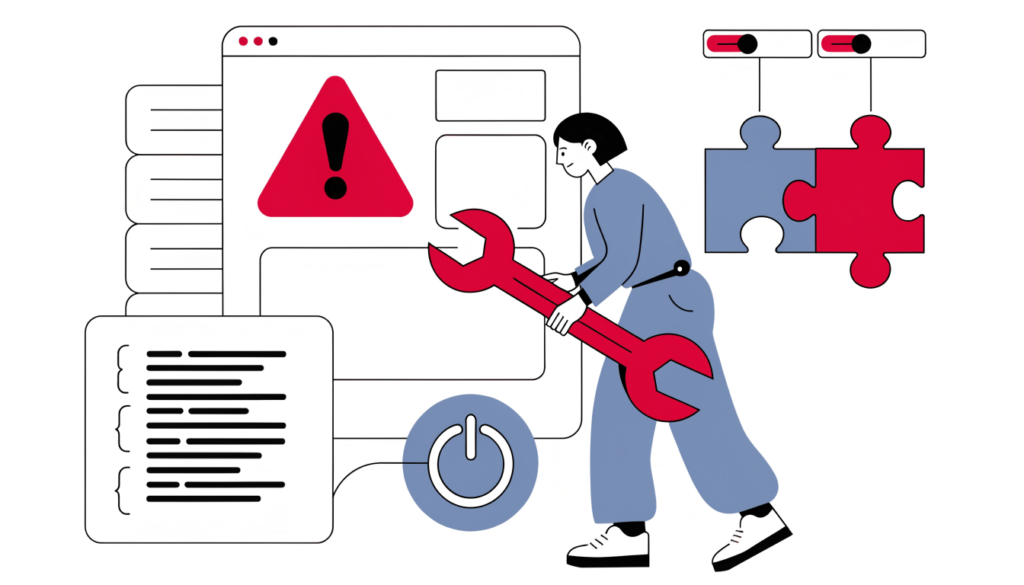
You open your website and instead of your homepage you see “500 Internal Server Error”, or WordPress’s own message, “There has been a critical error on this website.” It’s alarming, but it’s usually fixable in a few minutes once you know where to look.
In this guide I’ll show you how to find the cause and fix a 500 internal server error in WordPress, starting with the safest, quickest checks. I’ve based the steps on WordPress’s official debugging documentation and common hosting guidance.
What does a 500 Internal Server Error mean?
A 500 Internal Server Error is a general message from your web server. It means something went wrong while the server was building the page, but the server isn’t telling the visitor what. On WordPress, the usual causes are:
- a plugin or theme with a PHP error, often right after an update
- a corrupted .htaccess file
- the site running out of PHP memory
- a PHP version that a plugin or theme doesn’t support
- damaged WordPress core files (less common)
- a temporary problem on the hosting server
Since WordPress 5.2, many fatal PHP errors show “There has been a critical error on this website” instead of a plain 500 page. The fixes below work for both.
Before you start: take a backup
If your host offers backups or snapshots, take one now, or make sure a recent one exists. Several fixes involve renaming files, and a backup lets you undo anything. You’ll also need a way to reach your files: your host’s File Manager, SFTP/FTP, or SSH.
Step 1: Reload, and check if it’s only you
Refresh the page after a minute and try another browser or your phone on mobile data. Check your host’s status page too. If the error has cleared on its own, it was probably a brief server problem. If it’s still there, continue.
Step 2: Check your email for WordPress recovery mode
When WordPress catches a fatal error, it sends an email to the site’s admin email address with details of the error and a special recovery mode link. This feature arrived in WordPress 5.2.
- Look for an email from your site with a subject such as “Your Site is Experiencing a Technical Issue”.
- It usually names the plugin or theme that caused the problem.
- Click the recovery link (it’s valid for a limited time), log in, and deactivate or update the plugin or theme it names.
- Click Exit Recovery Mode when you’re done.
If you don’t get the email, carry on with the next steps.
Step 3: Read the error logs
Logs usually tell you the exact cause, so check them before you start switching things off.
- Hosting error log: most hosts show PHP and server error logs in their control panel (on Cloudways, cPanel, Plesk and others it’s usually under “Logs”).
- WordPress debug log: add these lines to
wp-config.php, just above the line that says/* That's all, stop editing! */:
define( 'WP_DEBUG', true );
define( 'WP_DEBUG_LOG', true );
define( 'WP_DEBUG_DISPLAY', false );
@ini_set( 'display_errors', 0 );
Reload the broken page, then open wp-content/debug.log. Look at the last few lines for a “Fatal error”. It normally shows a file path such as wp-content/plugins/plugin-name/..., which tells you which plugin or theme is at fault.
WordPress’s documentation says these debug settings are meant for testing and staging sites, so turn them off again when you’ve fixed the problem (set WP_DEBUG to false), and delete the debug.log file.
Step 4: Reset the .htaccess file (Apache servers)
A broken .htaccess file is a classic cause of a plain 500 error.
- In your site’s root folder (where
wp-config.phpis), rename.htaccessto.htaccess-old. You may need to show hidden files. - Reload your site. If it works, the old file was the problem.
- Log in to WordPress and go to Settings › Permalinks, then click Save Changes. WordPress creates a fresh
.htaccesswith its default rules.
If your site runs on Nginx only, there’s no .htaccess to reset, so skip this step.
Step 5: Deactivate all plugins
If the log points to a plugin, or you can’t tell, rule plugins out.
If you can reach the dashboard: go to Plugins, select all, choose Deactivate, and check the site. Then reactivate them one at a time until the error returns. The last one you activated is the culprit.
If you can’t log in: in wp-content, rename the plugins folder to plugins-off. WordPress will deactivate every plugin. If the site comes back, rename the folder to plugins again, then rename individual plugin folders inside it one by one to find the faulty one.
Once you’ve found it, check for an update, roll back to the previous version, or replace it with an alternative. Tell the plugin developer about the error too.
Step 6: Switch to a default theme
If plugins aren’t the problem, test your theme. In wp-content/themes, rename your active theme’s folder. WordPress will fall back to a default theme such as Twenty Twenty-Five, if one is installed. If the site loads, the problem is in your theme or a recent edit to its functions.php. Undo the change or restore the theme from a backup.
Step 7: Increase the PHP memory limit
If the log mentions “Allowed memory size … exhausted”, the site is running out of memory. Add this line to wp-config.php:
define( 'WP_MEMORY_LIMIT', '256M' );Your host’s own PHP memory limit still applies, so if that’s lower you’ll need to raise it in the hosting panel or ask your host. If you keep hitting the limit, a plugin may be using far more memory than it should.
Step 8: Check your PHP version
A plugin or theme that doesn’t support your PHP version can cause fatal errors, especially right after your host upgrades PHP. In your hosting panel, check which PHP version the site uses. If the error started after a PHP change, temporarily switch back, update the plugin or theme, then move forward again. Running a supported, current PHP version is better for security and speed in the long run.
Step 9: Re-upload WordPress core files
If nothing else works, core files may be damaged. Download the same version of WordPress from wordpress.org, then upload the wp-admin and wp-includes folders over your existing ones. Don’t overwrite wp-content or wp-config.php, because they contain your themes, plugins, uploads and settings.
Step 10: Contact your host
If the error remains, contact your hosting support with:
- the exact time the error started
- what changed just before (updates, new plugins, PHP changes)
- anything you found in the error logs
- the steps you’ve already tried
Server misconfiguration, resource limits and file permission problems are things your host can check quickly.
How to prevent 500 errors
- Take automatic daily backups and test restoring one.
- Update plugins one at a time, and on important sites test updates on a staging copy first.
- Remove plugins you don’t use.
- Avoid editing theme files in the dashboard. Use a child theme and SFTP so you can undo mistakes.
- Monitor uptime so you hear about errors before your visitors do. See my guide on why monitoring your application is important.
Frequently asked questions
What causes the 500 internal server error in WordPress? Most often a faulty plugin or theme, a corrupted .htaccess file, exhausted PHP memory or an incompatible PHP version. The error log usually tells you which.
Is a 500 error my fault or my host’s? It can be either. Errors that start right after an update are usually caused by the site’s plugins or theme. Errors with nothing changed on your side may be a server problem your host should check.
Will a 500 error hurt my SEO? A short outage won’t usually cause lasting harm. If Google keeps getting 500 errors over a longer period, it may crawl your site less and eventually drop affected pages, so fix it quickly.
What’s the difference between a 500 error and “There has been a critical error”? They often have the same cause. “There has been a critical error on this website” is WordPress’s friendlier message for a fatal PHP error, and it comes with a recovery mode email.
Related guides on WebTechHelp
- Why monitoring your application is important
- Best payment gateways for WooCommerce
- Web development tutorials and guides
Sources
- WordPress Developer Resources: Debugging in WordPress
- Plesk: WordPress 500 Internal Server Error: what to do (April 2024)
- Themeisle: WordPress recovery mode explained (updated October 2023)