
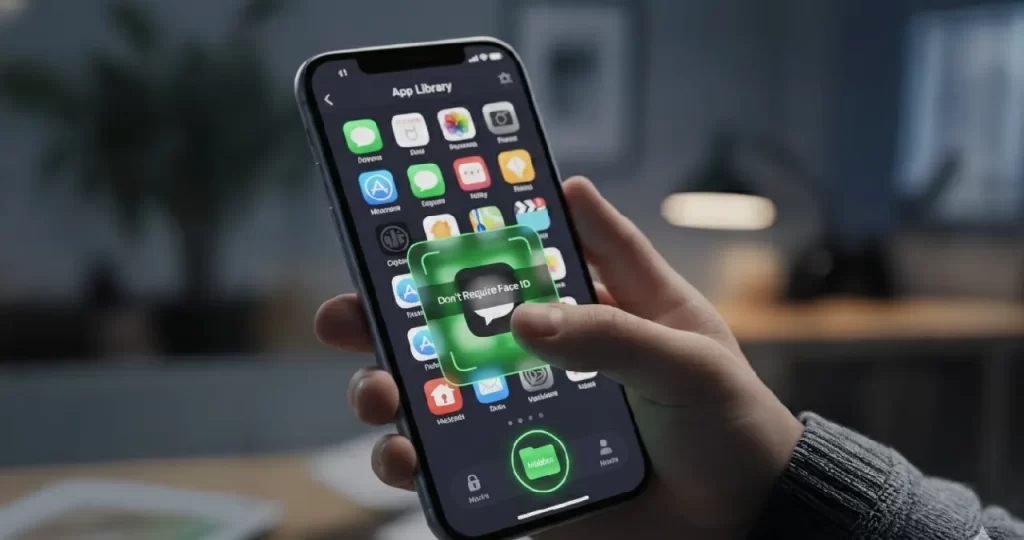
An app has gone missing from your iPhone. Maybe you hid it on purpose and forgot where it went, or maybe someone else tidied up your Home Screen. Either way, the app is almost always still on your phone, just in a different place.
In this guide I’ll walk you through every place an “invisible” app can be, starting with the most likely one. Most people find their app at Step 1 or Step 2.
First: was the app hidden, or just removed from the Home Screen?
iPhones have two different ways of making an app disappear, and they need different fixes:
- Hidden apps (iOS 18 and later) are locked away in a Hidden folder at the bottom of the App Library. They need Face ID, Touch ID or your passcode to open.
- Apps removed from the Home Screen are still installed. They live in the App Library like any other app, just without an icon on your Home Screen pages.
If you’re not sure which one you’re dealing with, follow the steps below in order.
Step 1: Check the Hidden folder in App Library
- Swipe left past your last Home Screen page to open the App Library.
- Scroll to the very bottom and find the Hidden folder.
- Tap it and unlock it with Face ID, Touch ID or your passcode.
- Your hidden apps appear inside.
To unhide an app: touch and hold its icon, then tap Don’t Require Face ID (or Touch ID or Passcode). The app moves back into the App Library, and it can send you notifications again.
Step 2: See a full list of hidden apps in Settings
If you’d rather see everything in one list:
- Open Settings > Apps.
- Tap Hidden Apps and authenticate.
This list is handy when you can’t remember the app’s name or icon.
Step 3: Put the app back on your Home Screen
Unhiding an app returns it to the App Library, not your Home Screen. To put the icon back where you can see it:
- Open the App Library and find the app (you can use the search bar at the top).
- Touch and hold the app icon.
- Drag it to the Home Screen page you want, then tap Done.
Tip: if new apps never show up on your Home Screen, go to Settings > Home Screen & App Library and choose Add to Home Screen for newly downloaded apps.
Step 4: Unhide whole Home Screen pages
Sometimes it isn’t one app that’s hidden but a whole page of them.
- Touch and hold an empty area of your Home Screen until the icons jiggle.
- Tap the dots near the bottom of the screen.
- Tick any pages that are unchecked, then tap Done.
Step 5: Search for the app
Swipe down from the middle of your Home Screen and type the app’s name. If the app is installed, Search shows it, and you can open it straight from there.
If Search finds nothing, the app may have been deleted or offloaded.
Step 6: Check for offloaded or deleted apps
iOS can offload apps you don’t use to save space. The icon stays, but it shows a small cloud symbol. Tap it to download the app again; your data is kept.
If the app was deleted, open the App Store, tap your profile picture, then Apps (or Purchased). Find the app and tap the download button. Apps you’ve bought before are free to download again with the same Apple Account.
Step 7: Check Screen Time restrictions
If an app such as Safari, Camera or the App Store itself has disappeared, Screen Time may be hiding it.
- Open Settings > Screen Time > Content & Privacy Restrictions.
- Check Allowed Apps & Features and make sure the missing app is switched on.
This is common on phones set up for children or managed by a family organiser.
Why hide apps at all?
Hiding is useful when you share your phone with family, hand it to a child, or simply want a calmer Home Screen. Hidden apps also stop showing notifications and don’t appear in Search, so they stay genuinely private. Just keep in mind that anyone who knows your passcode can still open the Hidden folder.
Frequently asked questions
Why can’t I see the Hidden folder? The Hidden folder only appears once at least one app is hidden, and only on iOS 18 or later. If it isn’t there, the app was probably removed from the Home Screen instead. Look for it in the App Library or Search.
Do hidden apps still send notifications? No. Hidden apps don’t send notifications until you unhide them.
Can I hide built-in Apple apps? Some built-in apps can’t be hidden. If you touch and hold an app and don’t see the option to hide it, it’s one of them. Most apps you download can be hidden.
Will unhiding an app delete its data? No. Hiding and unhiding only changes where the app appears. Your data stays the same.
Related guides on WebTechHelp
- How to Turn Off Find My iPhone (and Remove Activation Lock Before You Sell)
- How to See Blocked Numbers on iPhone (and Unblock Them)
- How to block a website on iPhone
Sources
- Apple Support: If you can’t find an app on the Home Screen on your iPhone