
When Facebook starts acting up, loading slowly, showing old posts, or eating phone storage, clearing its cache is one of the quickest fixes. It takes less than a minute, and you won’t lose your account, posts or messages.
In this guide I’ll show you exactly where the option is on Android, iPhone and a computer, and what clearing it actually does.
What is the Facebook cache?
The cache is a set of temporary files (images, videos, page data) that Facebook saves on your device so it can load faster next time. Over time these files can grow to hundreds of megabytes and sometimes get corrupted. That’s when you see broken images, a feed that won’t refresh, or a link preview that won’t update.
Clearing the cache will:
- Free up storage space
- Fix many loading and display glitches
- Force Facebook to download fresh content
Clearing the cache won’t:
- Log you out (on Android, clearing cache is different from clearing storage/data. More on that below)
- Delete your posts, photos, messages or friends
Option 1: Clear Facebook’s in-app browser cache (iPhone and Android)
Facebook opens links in its own built-in browser, and it keeps a separate cache for that. You can clear it from inside the app:
- Open Facebook and tap the Menu (☰ or your profile picture).
- Tap Settings & privacy, then Settings.
- Scroll to Preferences and tap Browser.
- Next to Cookies and cache, tap Clear.
This is the only cache option Facebook offers on iPhone inside the app.
Option 2: Clear the full app cache on Android
Android lets you clear an app’s cache from the system settings:
- Open Settings on your phone.
- Tap Apps (on some phones it’s Apps & notifications or Application manager).
- Find and tap Facebook.
- Tap Storage (or Storage & cache).
- Tap Clear cache.
Avoid Clear storage or Clear data unless you want a full reset. That logs you out and removes the app’s saved settings, as if you’d just installed it.
Option 3: “Clear” the cache on iPhone by offloading or reinstalling
iPhones don’t have a Clear cache button for individual apps. You have two options:
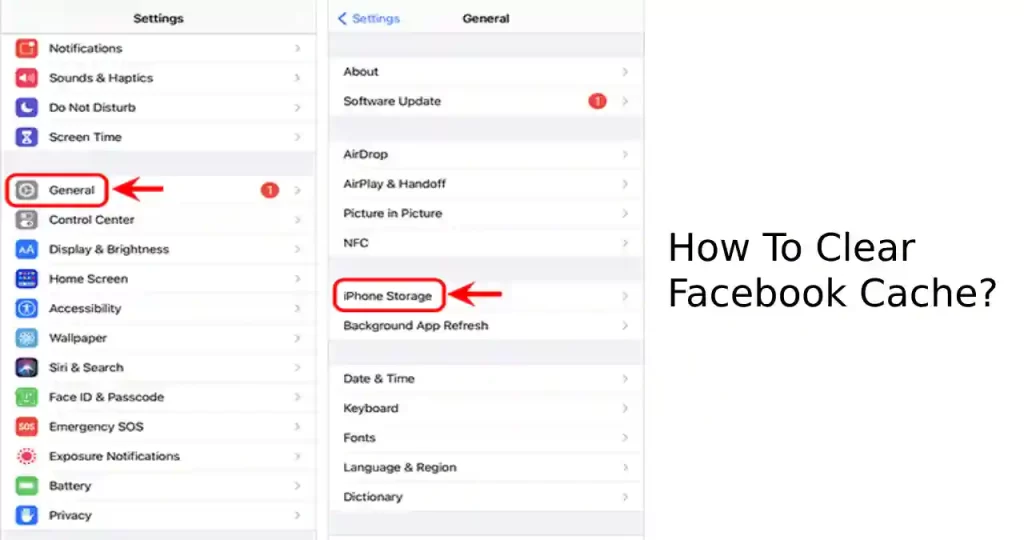
- Offload the app: Go to Settings > General > iPhone Storage > Facebook > Offload App, then tap Reinstall App. This removes the app but keeps your documents and data.
- Delete and reinstall: Same menu, choose Delete App, then download Facebook again from the App Store. This clears everything, so make sure you know your password before you do it.
To see how much space Facebook is using, look at Documents & Data on the same screen. If it’s very large, reinstalling is worth it.
Option 4: Clear Facebook cache on a computer
On a computer, Facebook’s cache is stored by your web browser. You can clear it just for Facebook instead of wiping everything:
Google Chrome
- Go to facebook.com and click the icon to the left of the address bar.
- Choose Site settings, then Delete data.
Safari (Mac)
- Open Safari > Settings > Privacy > Manage Website Data.
- Search for facebook, select it, then click Remove.
Firefox
- Open Settings > Privacy & Security > Cookies and Site Data > Manage Data.
- Search for facebook, select it, then click Remove Selected.
This will sign you out of Facebook in that browser, so have your password ready.
Still having problems?
If clearing the cache didn’t help, try these in order:
- Update the app from the App Store or Google Play.
- Restart your phone.
- Check Facebook’s status. Sometimes the problem is on Facebook’s side, not yours.
- Check your storage. Phones with almost no free space slow down every app.
How often should you clear Facebook cache?
You don’t need a schedule. I’d clear it when you notice a problem or when storage is running low. Clearing it every day just makes Facebook re-download the same images and use more data.
Frequently asked questions
Will clearing Facebook cache delete my messages? No. Messages are stored on Facebook’s servers, not in the cache.
Will I be logged out? Clearing the cache on Android or the in-app browser cache won’t log you out. Clearing storage/data on Android, reinstalling on iPhone, or deleting site data in a browser will.
Why is Facebook using so much storage? Videos and images you scroll past are saved temporarily so they load faster. On a heavy-use day this can add up quickly.
Does this work for Facebook Lite and Messenger? Yes. The same Android steps work for both. Just choose Facebook Lite or Messenger in the Apps list.
Related guides on WebTechHelp
- “Search Google or Type a URL”: What It Means and How to Use It
- Does Instagram Notify When You Screenshot? Stories, Posts and DMs Explained
- How to block a website on iPhone
Sources
- iGeeksBlog: How to Clear Facebook Cache on iPhone, iPad, and Android (updated July 2026)