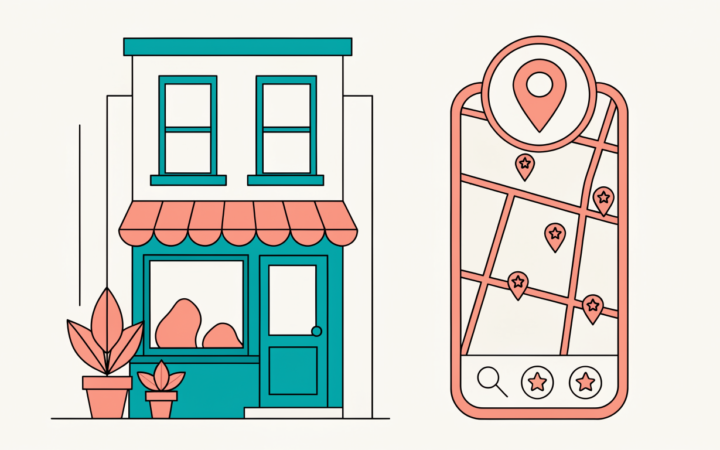
Your Google Business Profile (it used to be called Google My Business) is the listing that appears in Google Maps and in the map pack at the top of local search results. For many local businesses it brings in more calls and visits than the website does, and it’s free.
In this guide I’ll walk you through optimizing every part of your profile, in the order I’d do it. I’ve stuck closely to Google’s own help pages and guidelines, because breaking them is the fastest way to get a profile suspended.
If you want the bigger picture first, read my local SEO guide for beginners.
Before you start: check you’re eligible
Google only allows a profile for a business that makes in-person contact with customers during its stated hours, either at your location or at theirs. According to Google’s guidelines, these are not eligible:
- virtual offices and addresses where you don’t actually operate
- co-working spaces without your own signage, staff and customer reception
- online-only businesses with no in-person contact
Step 1: Claim and verify your profile
Search for your business on Google or Maps. If a profile already exists, claim it; if not, create one at Google Business Profile.
Then verify it. Google decides which verification methods you’re offered. Depending on your business, that might be a video recording of your location and signage, a phone call, a text, an email or a postcard. Google says a submitted video can take up to five business days to review. If it’s rejected, Google tells you why and you can record a new one.
I’d avoid editing your name, address or category while verification is pending, because big changes to key details can send a profile back for review.
Step 2: Use your real business name
Use the name customers see on your sign, website and stationery. Google’s guidelines say not to add taglines, keywords, locations, phone numbers or URLs.
| Allowed | Not allowed |
|---|---|
| Sharma Dental Clinic | Sharma Dental Clinic, Best Dentist in Salt Lake Kolkata |
| Green Leaf Café | Green Leaf Café, Coffee, Cakes, Free Wi-Fi |
Keywords in a business name do correlate with rankings (local SEO experts ranked it highly in Whitespark’s 2026 survey). That’s exactly why competitors abuse it, and why Google removes or suspends profiles that do. If your real name includes a keyword, great. If not, don’t add one. You can suggest an edit to report competitors who do.
Step 3: Choose the right categories
Your primary category is the most important single setting on your profile.
- Pick the most specific category that describes your core business (for example “Pediatric dentist” rather than “Dentist” if that’s what you mainly do).
- Add a few secondary categories for other main services. Google’s guidelines say to use as few as possible and to describe what your business is, not what it sells.
- Look at the top three businesses in your map pack for your main keyword and note their categories. Tools such as a Business Profile category checker can show them.
Step 4: Set your address or service area
- Storefront business: show your exact address. Use suite or floor numbers if relevant. P.O. boxes aren’t allowed.
- Service-area business (you travel to customers): hide your address and set the areas you serve. Google says these should generally be within about two hours’ drive of your base.
- Hybrid (customers visit you and you travel to them): show your address and add a service area.
Check your map pin is in the right place. Pin placement was one of the top ten local pack factors in Whitespark’s survey.
Step 5: Add accurate hours, including special hours
Whitespark’s 2026 survey added a new factor: whether your business is open at the time of the search. So:
- enter your regular customer-facing hours
- add special hours for public holidays and festivals before they happen
- add more hours (for example delivery or takeaway hours) where relevant
Step 6: Phone number and website link
- Use a local phone number that reaches your business directly, not a central call centre.
- Link to the most relevant page on your website. For multi-location businesses, that’s the location page, not the homepage.
- Add UTM parameters to the website link (for example
?utm_source=google&utm_medium=organic&utm_campaign=gbp) so you can see profile traffic in Google Analytics. My Google Analytics 4 tutorial shows where to find it.
Step 7: Write a helpful business description
You get up to 750 characters. Use it to say:
- what you do and who for
- where you’re based and the areas you serve
- what makes you different (experience, specialities, guarantees)
Write it for customers, not search engines. Don’t include links, prices or promotional claims like “best in town”.
Step 8: Fill in services, products and attributes
- Services: add each service you offer, with a short description and price if you’re comfortable sharing it.
- Products: add your main products or packages with photos.
- Attributes: tick everything that applies, such as wheelchair accessibility, Wi-Fi, parking, payment options, women-owned or online appointments.
These details help Google match you to specific searches (“dentist open Sunday with parking”) and feed the AI answers Google now shows in Maps.
Step 9: Add real photos and videos
Google recommends adding photos and videos to show what you offer. Good ones to start with:
- your logo and a cover photo
- the outside of your building (helps people find you)
- the inside, your team at work and your products
- short videos of your work
Use real photos, not stock images. Add new ones every month or two.
Step 10: Get reviews and reply to every one
Reviews are a major ranking and conversion factor. BrightLocal’s 2026 Local Consumer Review Survey found that 97% of consumers read reviews for local businesses and 89% expect owners to respond.
- From your profile, use Ask for reviews to get your review link or QR code.
- Ask every customer, not just the happy ones.
- Reply to every review within a few days. Thank people for positive reviews, and respond to negative ones calmly and helpfully.
Google’s policies prohibit offering incentives for reviews, asking only satisfied customers, pressuring customers on your premises, and reviews from staff or anyone with a conflict of interest.
Step 11: Publish posts regularly
Google lets you publish three kinds of posts:
- Updates: news, tips or photos, with an optional button such as “Book” or “Learn more”.
- Offers: a sale or deal with dates and an optional coupon code.
- Events: something happening at your business, with start and end dates.
Google archives posts older than six months unless you set a date range. One post a week or fortnight is a realistic target.
Step 12: Prepare for AI answers instead of Q&A
Google has removed the old public questions and answers section from Business Profiles. In the Google Maps app, people can now ask a question and get an AI-generated answer drawn from your profile, reviews, menus and website.
You can’t edit those answers directly, so feed them good information: complete every field, ask for reviews that mention specific services, and answer common questions clearly on your website.
Keep your profile healthy
- Check your profile monthly for suggested edits from Google or the public, and correct anything wrong.
- Keep your name, address and phone identical on your website and other directories.
- Watch the Performance section for calls, direction requests and website clicks.
Frequently asked questions
Is Google Business Profile free? Yes. Creating, verifying and managing a profile costs nothing. Google also says you can’t pay for better local ranking.
Why was my profile suspended? Common causes are keywords in the business name, an ineligible address (such as a virtual office), duplicate profiles, or sudden changes to key details. Fix the issue, then request reinstatement through Google’s Business Profile support.
How often should I update my profile? Review your hours before every holiday, add photos every month or two, and publish a post every week or two.
Do posts help rankings? There’s no clear evidence posts boost rankings much. They help you convert people who find your profile, which is reason enough to keep them up.
Related guides on WebTechHelp
- Local SEO: a beginner’s guide
- 7 best tools for local SEO
- On-page SEO checklist
- Understanding online reputation management
Sources
- Google Business Profile Help: Guidelines for representing your business on Google
- Google Business Profile Help: How to improve your local ranking on Google
- Google Business Profile Help: Verify your business with a video recording
- Google Business Profile Help: Tips to get more reviews
- Google Business Profile Help: Create posts on your Business Profile
- Google Maps: Prohibited and restricted content
- Whitespark: Local Search Ranking Factors 2026
- BrightLocal: Local Consumer Review Survey 2026
- Whitespark: With Google Q&A gone, you need a Maps “Ask a question” strategy