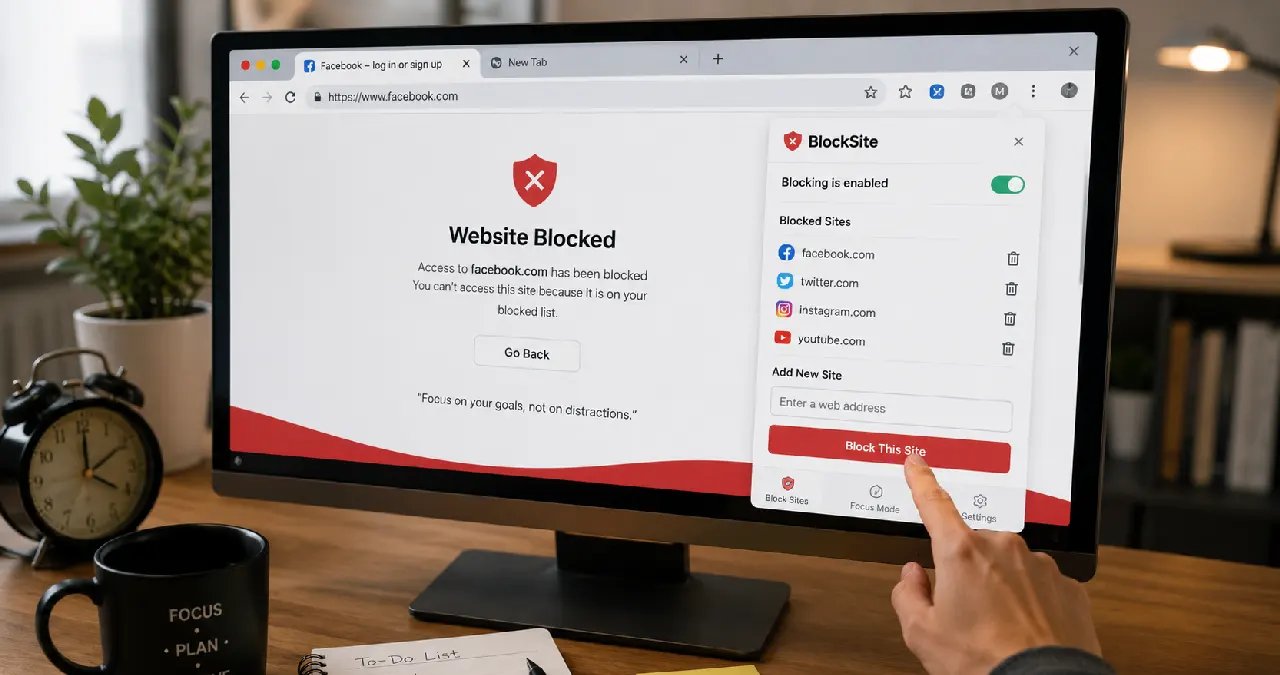
We’ve all been there. You open Google Chrome with the best intentions to study, work, or finish that project. Then, this quick little impulse leads you to your favorite social media feed, and suddenly an hour is just… gone. Or maybe you’re a parent trying to make sure your child doesn’t stumble into inappropriate corners online.
Whatever the reason is, taking control of your digital space is a big win for better focus and also for peace of mind. Now, Google Chrome doesn’t really come with one single massive “Block This Site” toggle tucked away in the settings, but restricting unwanted websites is actually surprisingly easy once you know the little workarounds.
Here’s your ultimate guide on how to block a website on Chrome, from fast browser add-ons to the more rock-solid, system-wide options.
Why Choose to Block Websites on Chrome
1. Cybersecurity & Threat Prevention
- Phishing & Scams: When signing up to any shopping site, the site aims to collect essential information such as card numbers, passwords, etc which is some time causes money scams.
- Malware & Adware Hubs: Downloading unwanted software hubs provides unwanted pop-ups and adds to forced downloads to the computer
- Expired or Invalid SSL Certificates: When Chrome throws that “Your connection is not private” warning, it’s basically saying the stuff moving between you and the site isn’t encrypted. Unless you truly, absolutely trust both the network and the site, you shouldn’t go past it or click the bypass options.
2. Productivity & Focus
If you are bored and wasting your crucial time by scrolling on social media and online websites, then you need to consider setting up a block during a specific time.
- Social media & entertainment: Social sites like X, Reddit, youtube makes you engaged with them. This causes you to spend more and more time online
- Online shopping & gaming: If checking deals or playing casual browser games is pulling you away from work or studies.
3. Parental Controls & Child Safety
It becomes more important to block such websites on Chrome to keep your kids away from the attractions.
- Explicit or Adult Content: Restricting access to adult content websites or highly violent websites.
- Unmoderated chatrooms: Platforms where children could easily interact with strangers without oversight.
4 methods to block a website on Chrome
Here are some of the easiest ways to block any unwanted websites on Chrome
Method 1: The Easiest Way – Use a Chrome Extension
If you want a quick setup, something you can turn on and off, browser extensions are usually your best bet.
One of the most popular and really well-reviewed options is BlockSite.
Step-by-step instruction
Step 1. Open Google Chrome and head over to the Chrome Web Store.
Step 2. Search for BlockSite (or a similar trusted blocker like StayFocusd).
Step 3. Click Add to Chrome, and confirm by clicking Add extension.
Step 4. Once installed, click the Extensions icon (the jigsaw puzzle piece) in the top-right corner
Step 5. Chrome and pin BlockSite for easy access.
Step 6. Navigate to the website you want to block.
Step 7. Click the BlockSite icon and click Block this site.
Method 2: The Family-Friendly Way – Use Google Family Link
In most cases, it has been found that tech-savvy kids are very familiar with the idea of uninstalling the blocking extension. Instead of using the extension, use the Family Link tool to give administrative control to block websites.
Step-by-step instruction
Step 1. Get the Google Family Link app from the Play Store or log into the web dashboard
Step 2. Select your kid’s profile
Step 3. Go to Settings> Content restrictions> Google Chrome
Step 4. Select one of the two options under Manage sites
- Approved sites only
- Try to block explicit sites
Step 5. Click on Blocked and add the specific URL you want to restrict
Method 3: The System-Wide Lockdown – Edit the Hosts File
If you’re trying to find a kinda foolproof way to block a website across all browsers Chrome, Safari, Firefox, and whatever else and you really don’t want it to be dodged just by clearing your browser cache… You can go ahead and edit your operating system’s Hosts file.
Step-by-step guide for Windows users
Step 1. Click on the Windows key> type Notepad> right-click, and select Run as administrator
Step 2. Inside Notepad, go to File > Open and navigate to this folder: C:\Windows\System32\drivers\etc
Step 3. Change the file type from text document to all files
Step 4. Open the named hosts file
Step 5. Scroll to the bottom and add a new line
Step 6. Save the file and restart Chrome
Step-by-step guide for Mac users
Step 1. Open Terminal through Spotlight Search or go to Applications > Utilities; it’s basically the same thing.
Step 2. Now type this command, and press Enter right after:
Step 3. Enter your Mac’s administrator password.
Step 4. When it asks, enter your Mac administrator password.
Step 5. Scroll using the arrow keys, and move it all the way toward the end of the file.
Step 6. At the bottom, type 127.0.0.1, then a space, then the domain
Step 7. Press Ctrl + O to write it out, press Enter, then use Ctrl + X to close and quit.
Method 4: The Ultimate Nuclear Option – Block via Your Router
If you want to block a website for pretty much every device hanging off your home Wi-Fi network, like phones, tablets, and smart TVs running Chrome, you can do it straight from your internet router.
Step-by-step instructions
Step 1. Find the router IP address
Step 2. Type the IP address into Chrome
Step 3. Search for parental controls, URL filtering, and firewall
Step 4. Put the domain name of the website to block
Step 5. Save the setting and reboot
Different website blocking methods in Chrome, Safari, Microsoft Edge, Mozilla Firefox, and Opera
| Browser | Built-in Settings / Parental Controls | Extensions / Add-ons | Enterprise / Admin Group Policy |
| Google Chrome | No native URL blocklist for general users. Relies on Google Family Link (for managed child accounts) or mobile Digital Wellbeing settings. | Yes (Highly supported via Chrome Web Store). Popular options include BlockSite, StayFocusd, and LeechBlock. | Yes. Admins can deploy URLBlocklist and URLAllowlist policies via the Google Admin Console or Windows Registry. |
| Apple Safari | Managed entirely via macOS/iOS system settings (Screen Time > Content & Privacy Restrictions > Web Content > Limit Adult Websites). | Limited. Supports native content blockers available through the Mac/iOS App Store rather than traditional extension stores. | Yes. Managed via Mobile Device Management (MDM) configuration profiles natively built into Apple’s ecosystem. |
| Microsoft Edge | Integrated natively with Microsoft Family Safety. Allows blocking specific URLs for members of a family group when signed into their Microsoft account. | Yes (Supported via Microsoft Edge Add-ons store and Chrome Web Store extensions). | Yes. Fully manageable via active Windows Group Policy objects (URLBlocklist and URLAllowlist). |
| Mozilla Firefox | Offers partial blocking via Privacy & Security settings (under Cookies and Site Data > Manage Exceptions to block specific domains from storing data/loading). | Yes (Robust support via Firefox Add-ons). Popular options include LeechBlock NG and BlockSite. | Yes. Supported using custom configuration files (policies.json) or Active Directory Administrative Templates. |
| Opera | Features an integrated Ad Blocker. Users can go to Settings > Privacy & Security > Manage Lists and add custom URLs to a domain filter list. | Yes. Supports Opera-native add-ons and is fully compatible with Chrome Web Store extensions. | Limited. Usually managed at the local user profile level rather than through robust enterprise-level cloud directory controls. |
Conclusion
Taking control over the website does not mean that you are blocking your internet connection. Rather, it is a way to prevent unwanted premises available online and protect our kids from unwanted risks. Take five minutes to set up one of these blocks today, and enjoy a cleaner, safer, and much more productive browsing experience!
FAQs
Not directly for individual websites. Chrome has built-in features to block intrusive ads, pop-ups, and malware-heavy websites under its Privacy and Security settings.
If you use a Chrome extension to block a website, it will not work in Incognito Mode by default. To fix this, go to chrome://extensions, click Details on your blocker extension, and toggle the switch labeled “Allow in Incognito.”
Yes, tech-savvy kids can easily right-click an extension and remove it.
Yes. If you don’t want to install third-party extensions, you can block websites system-wide by editing your computer’s Hosts file (available on both Windows and Mac).
Google Chrome for mobile doesn’t support traditional desktop browser extensions, but you can still block sites in Chrome using the Family link app.