
Have you ever noticed any white dots on ipad screen while enjoying drawing, spending time with your favourite movie, or just simply immersing yourself in web browsing? Initially, it looked like a trivial matter stemming from any smudges or dust. Eventually, it becomes your cause of concern when you apply cleaning, but nothing works for you.
Above all, this instance worries & frustrates you a lot. Here in the blog I will discuss a complete walkthrough for the reason behind the white dots and ways to fix it up. Go through the blog from scratch to figure this out in a jiffy.
What is the White Dot on the iPad Screen?
White dots on iPad screens may be a sign of a hardware hiccup or sometimes caused by a software glitch. Before proceeding further to understand the way of fixing the troubleshoot it is important to understand the true cause.
Is it any backlight issue, dust, pixel glitch, or hardware damage that is causing the flickering on your screen as a visible spot? If it arises from smudges, then it will clear away with subtle cleaning. Go through the blog to discover possible reasons for White Dots on the iPad Screen in the latter part.
Common Reasons for White Dots on iPad Screen
If you are persistently facing the annoying white dots on your iPad screen, there are multifaceted reasons behind it. Let’s discover the common reasons mentioned below, along with their justification.
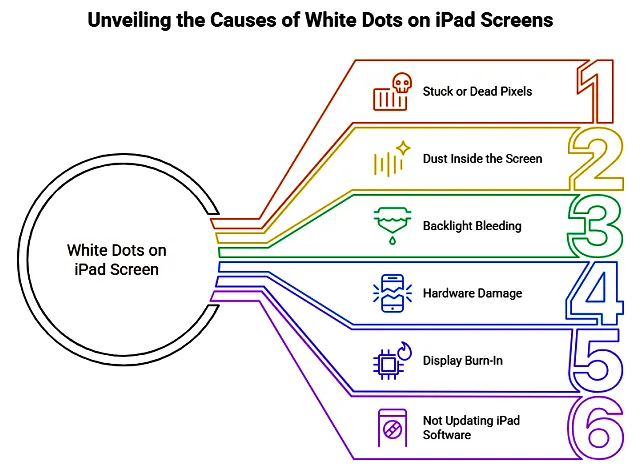
➡️Stuck or Dead Pixels
The reason behind pixel malfunctions may be due to either a dead pixel or a stuck pixel. Sometimes, a single pixel is noticed to be turned on either in white or any other color. This is called a stuck pixel, and the issue with this concern resolves on its own without much trouble. Pixel malfunction is happening due to dead pixels, while it stops working entirely, appearing as black or white. Applied pressure on the screen and long-term use, followed by manufacturing flaws, give rise to white dots on the screen.
➡️Dust inside the screen
Exposing the device to any dusty environment causes the iPad display to show dust or debris inside the device’s screen. The dusty particle looks like grey spots or small white spots. The wear & tear and improper sealing during the repairing & manufacturing processes welcome the dust to enter the iPad display. It is somehow necessitating the need for a professional to remove the dust without causing any damage.
➡️Backlight Bleeding
Backlight bleeding is a “liquid-crystal display (LCD)” panel issue where the LCD backlight seeps across the display layers in an uneven manner. This is somehow causing an appearance of visible patches or white spots that are visible on the edge or corner of your iPad. Poorly fitted LCD and heating may cause alignment issues, likely to render backlight bleeding.
➡️Hardware Damage
If you accidentally drop your iPad from your hand and put too much pressure on your device’s screen, it may cause severe damage to your LCD panel. If the internal layer of your device cracked, then it would show visible white spots whose discolouration will worsen over time.
➡️Display Burn-In
The manifestation of display burn-in shows in the iPad, which is showing the same display with the same image for a longer period. Although it is rarely seen on screen it still shows some white blotches that are truly irritating.
➡️Not Updating iPadOS Software
Not updating the iPad Software can make you face an annoying white dot issue on your device screen. All you need to do is just keep the iPad Software Up to date to fix the identified bugs, like white patches or dots on the screen. If you forget about iPadOS Software you may face an annoying disturbance.
Carve out the actual issue & Fix White Dots on iPad Screen
👉 Visual Inspection
☑️ How to find the issue
→ You may go for a dark or black wallpaper for visual inspection
→ Check with a good lighting source
→ Now you need to gently tap across the white dots to see whether any flickering is visible or not
☑️ How to fix the glitch
→ If yes, then it may be for a loose connection.
→ Check properly and fix it at your earliest convenience.
👉 Check for Pressure Marks
☑️ How to find the issue
→ You may also eventually face pressure marks on the screens of your iPad
→ It appears that if you accidentally drop your iPad from your hand
→ Putting too much pressure on your device’s screen also elevates the chaos.
☑️ How to fix the glitch
→ Compare this with the online available photos or official Apple support.
👉 Restart iPad
☑️ How to find the issue
→ Not restarting the ipad for a long time sometimes renders visible white dots on ipad screen.
☑️ How to fix the glitch
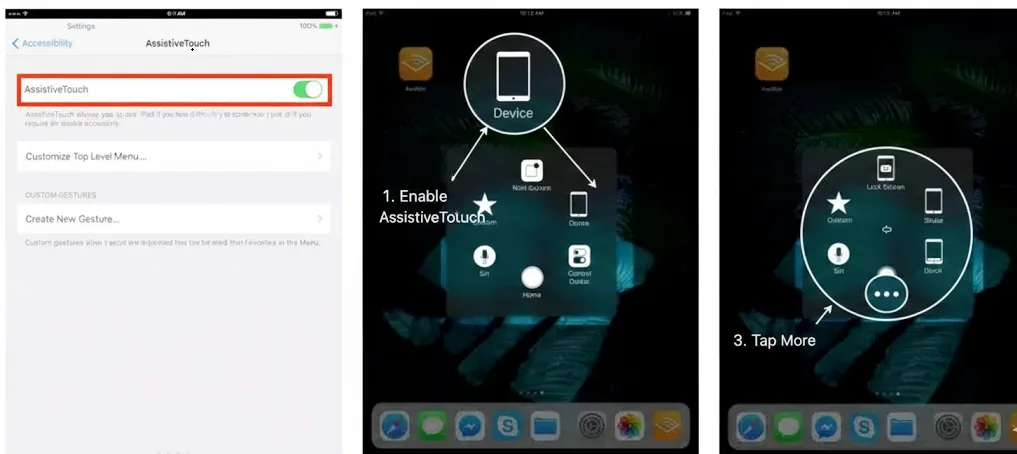
→ Go to Settings > General > Restart
→ AssistiveTouch will help an individual to restart an iPad without relying on any physical buttons entirely by making a virtual & on-screen menu.
→ Below I share the snippet to show the process of restarting the iPad.
👉 iPadOS Software Update
How to find the issue
→ Not updating the iPad Software can create an annoying white dot issue on your device screen.
How to fix the glitch
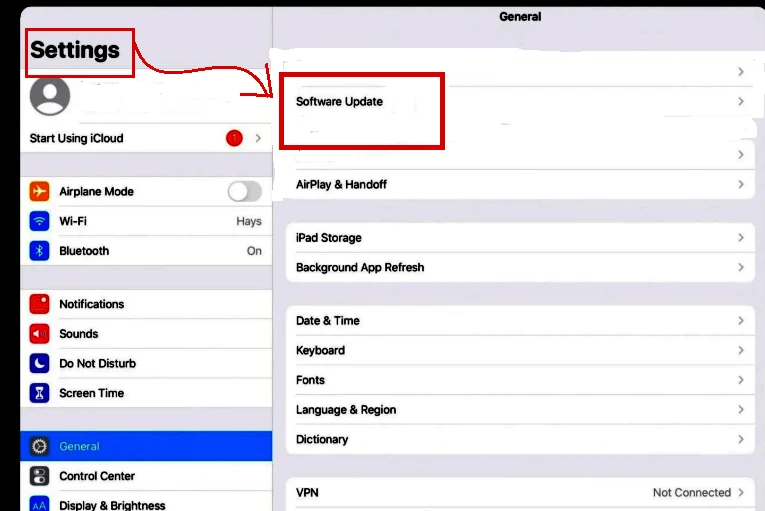
→ Go to Settings > General > Software Update.
→ Apple releases a new software update periodically that covers all security updates and comes with newly launched features.
→ All you need to do is just keep the iPad Software up to date to fix the identified bugs, like white patches or dots on the screen.
When to Seek Professional Help
If all your effort is lost in vain showing a persistent white spot on the ipad screen, then it’s high time to go directly to Apple support assistance or just visit the official Apple store. If the dead pixel arises due to a white spot, the software can never fix the problem. In this scenario, professional support is a prerequisite for resolving the issue.
Wrapping up
Manufacturing defects, backlight bleeding, dead Pixels and aging devices are causing white dots on the ipad screen that require identifying the prime cause before fixing. Noticeable white dots on screens are becoming more prominent and grow larger if regular inspections are carried out. Embracing proactive care is crucial for retaining the overall device performance. If your issue persists & turns from bad to worse never hesitate to contact Apple support or get professional assistance.