Do not disturb feature has been an important aspect in every phone that helps users limit distractions and pave the way to enjoy some time alone. It is seen on almost every phone today, no matter whether you are an iPhone, a desktop or an Android user. This smart feature helps users keep call alerts, messages, and other notifications muted until they are turned on by them.
But what if you missed something urgent for keeping this feature on? Isn’t it frustrating? To get back every detail of call alerts, messages, and other notifications, knowing how to turn off do-not-disturb is significant.
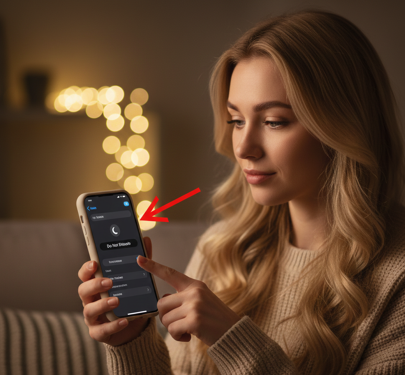
Here in the blog, we learn everything about how to turn off do not disturb on iPhone, Android, and Windows. In the blog, I also let you know about Troubleshooting Common Issues despite turning off the do-not-disturb feature. Apart from that, I also cover certain tips to manage Do Not Disturb better.
What Is Do Not Disturb Mode?
Do not disturb, also called DND, is an important feature of smartphones that can block sounds, alerts, and notifications on the phone. The same thing for Mac or iPhone users is known as focus.
The same things are termed as a focus assistant if an individual is a Windows user. Keeping the Do Not Disturb Mode on can cause you to miss important app updates, texts, and calls. If you never want to miss any app updates, texts, or missed calls, you need to know how to turn off Do Not Disturb.
How to Turn Off Do Not Disturb on iPhone
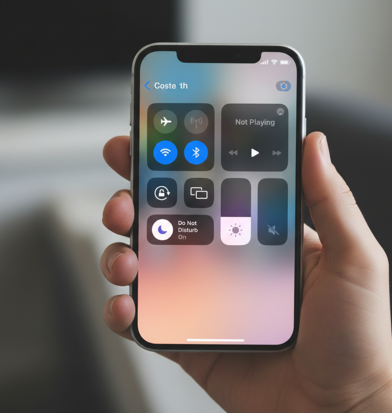
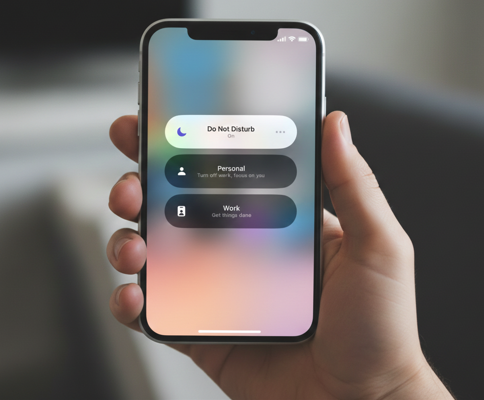
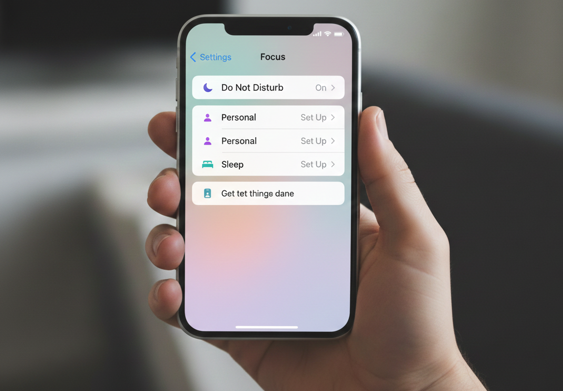
If you are an iPhone user and want to know how to turn off Do Not Disturb on iPhone, you need to launch the Settings app. Now, after the settings menu appeared, click on the focus option. It will show do not disturb. All you need to do is just keep it off. Below, I share some screenshots to make it easily understandable for you.
How to Turn Off Do Not Disturb on Android
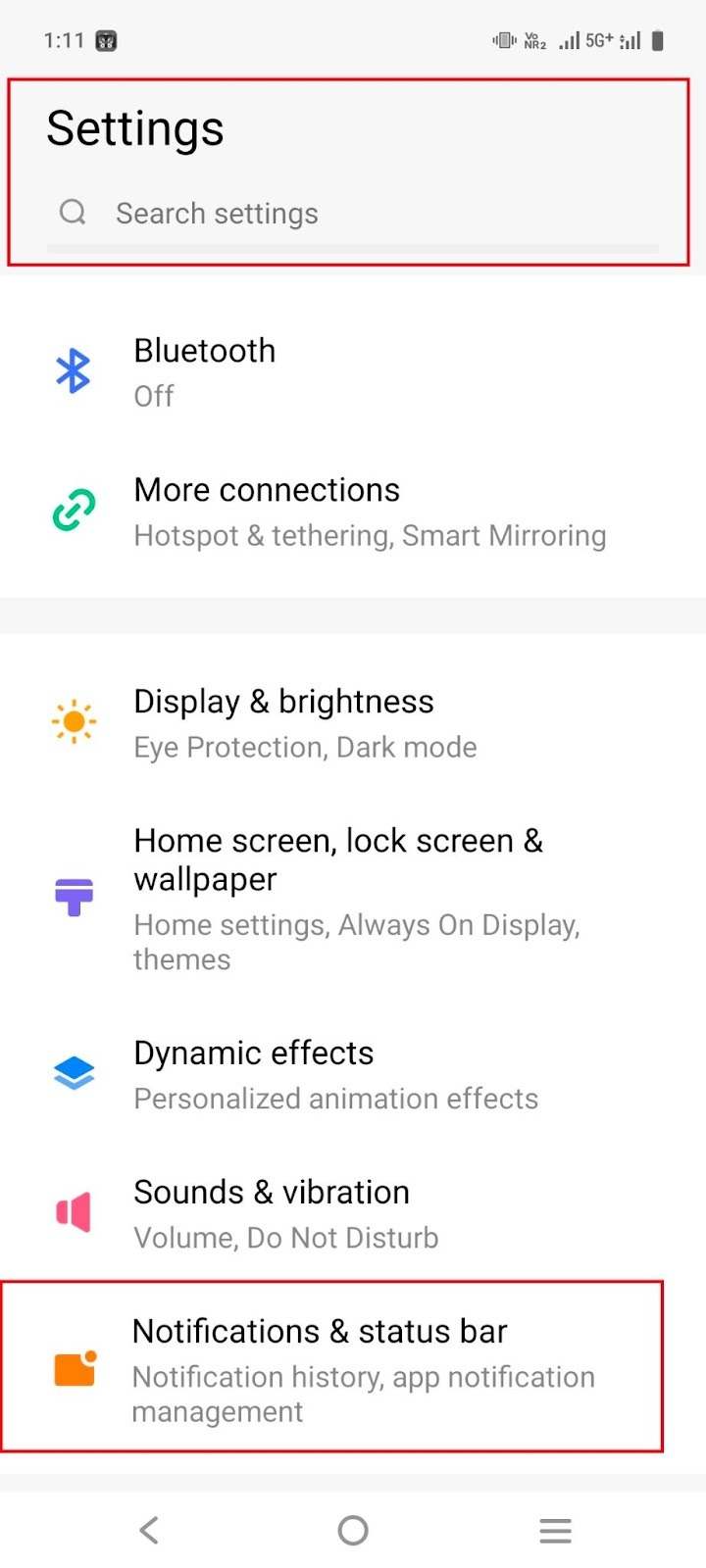
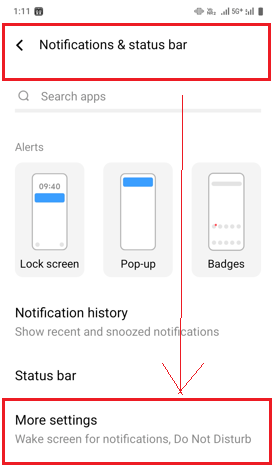
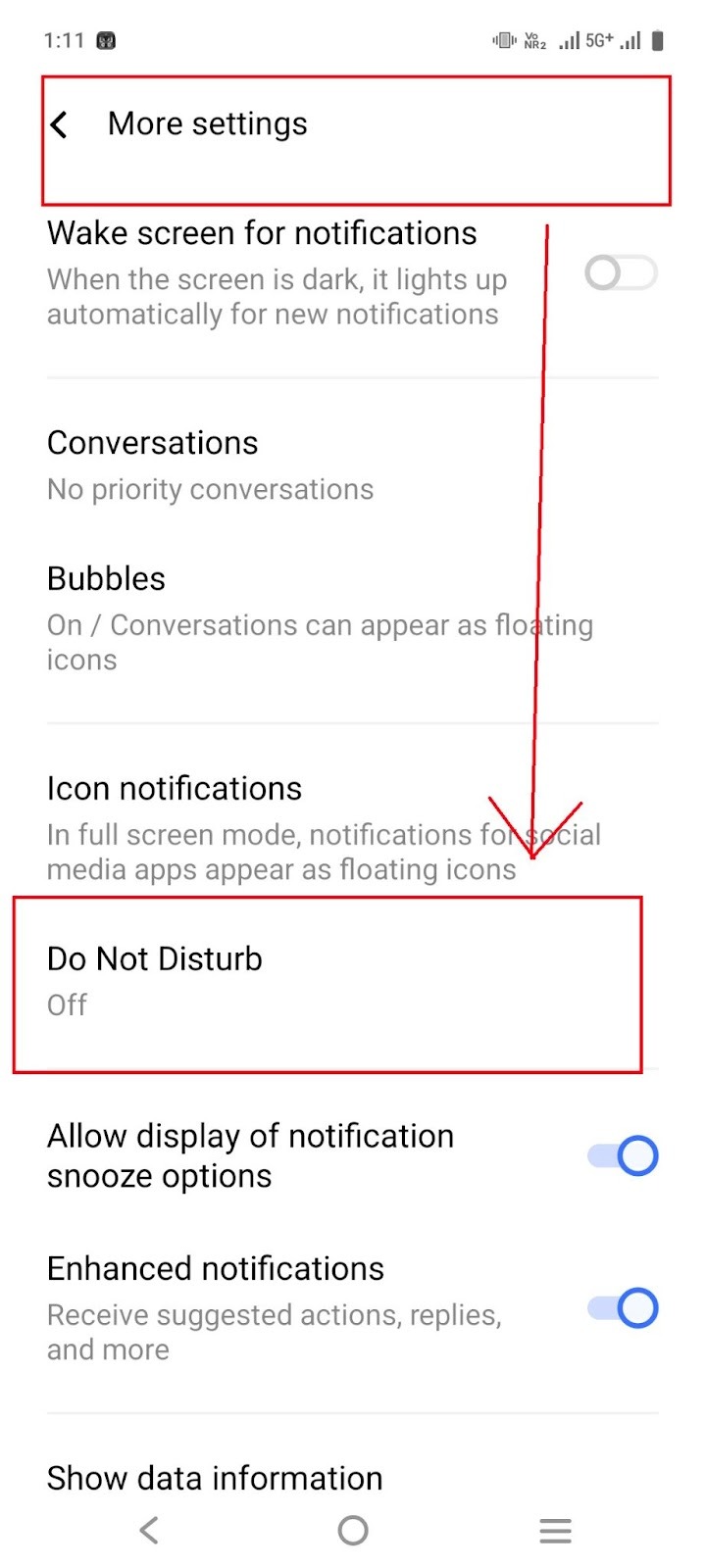
If you are an Android user, then I will give you a complete walkthrough on how to Turn Off Do Not Disturb on Android. I share some screenshots of my own device that help you to understand it better. First, open the settings app on your Android. Now select the notifications & status bar option. After that, go to more settings options. Then click on Do Not Disturb and turn it off. That’s all. Follow the screenshot step-by-step and check the red-highlighted box to make them easily understandable.
How to Turn Off Do Not Disturb on Windows
If you are a Windows user, then turning off the feature is not very difficult. You just need to know about the process. In Windows, the DND mode is known as focus assist. Let me show you how to make it off from your windows, especially for Windows
11 and Windows 10 users. Press Windows + I key from the keyboard to open the settings. Now it shows various options.
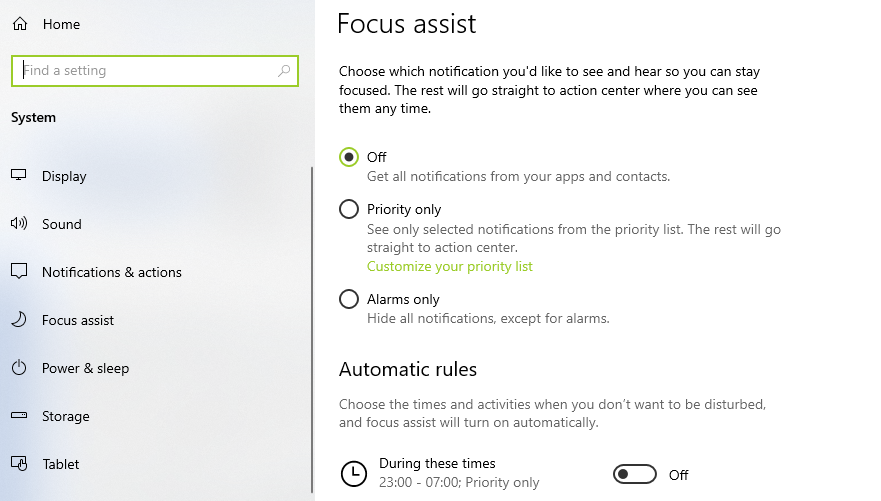
You need to select the system option and afterwards go straight to the focus setting. Choose the off option. You now answer all the notifications popping up in front of your eyes. Now, click the automatic rules and turn them off. Below, I share some screenshots of my Windows system so that you can easily turn it off by checking it.
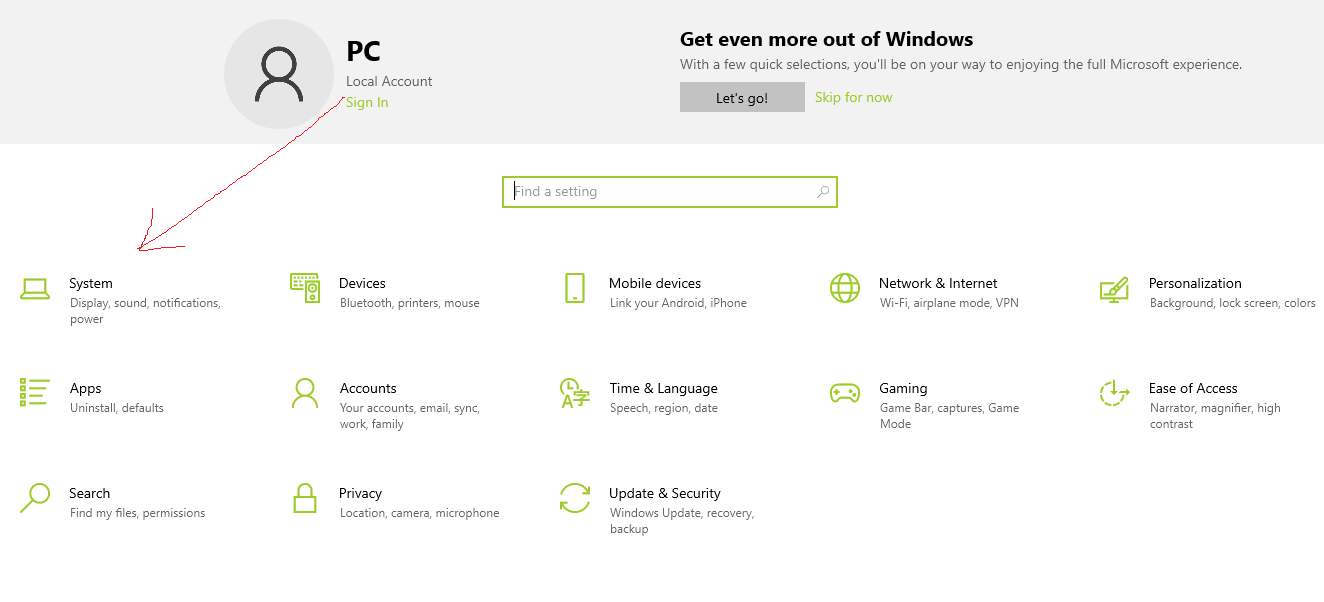
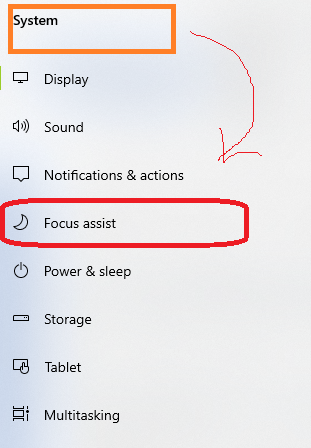
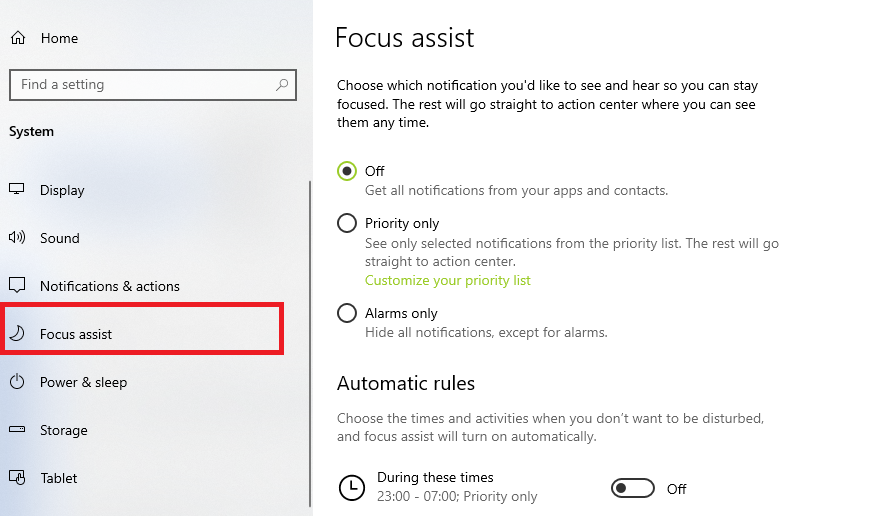
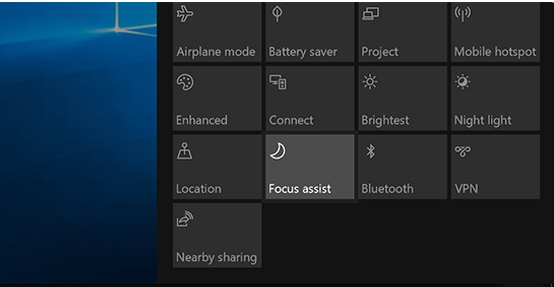
There is also a quicker way that helps to turn it off in just seconds. Just go to the taskbar and open the notification centre. It will show the option focus setting. Just go and click on it to turn off the focus assist.
Troubleshooting Common Issues
Unable to turn off do-not-disturb mode
If you are unable to turn off the do-not-disturb mode on your phone, then you need to restart your device. Meanwhile, you also need to check the OS update, and if it shows pending, do the updates as required. You also need to cross-check whether any other focus is activated on your device or not. If active, then turn it off to resolve the issues that prevent you unable to turning off do-not-disturb mode.
Scheduled DND is activated on the phone
Sometimes, scheduled DND activation prevents you from turning off do-not-disturb mode. If you are an iPhone or Android user, go straight to the DND or focus option. Now you need to turn off the scheduled activation.
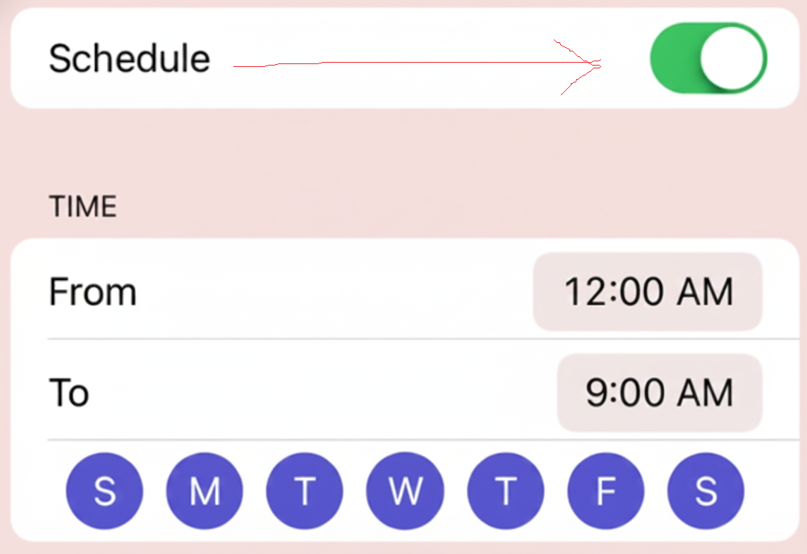
Enabling the scheduled DND mode can automatically enable DND at the stipulated time. If you dont want to let it happen, you just need to make a turning off for scheduled DND option. Now tap on the option scheduled time and just toggle it off to resist the activation.
If you are a Windows user, disabling the Automatic rules from Focus Assist helps you troubleshoot the intermittent issues.
Turning on by accident
You need to go to Quick Settings on your Android and remove the DND tile. Never make a long press to the focus icon, which may accidentally turn on by you. Review the automation, whether it is tied to the app or not.
Notification not reached on phone
If the notification won’t reach your phone, you can just go to the app notification settings and allow the alert option. You also check the ring volume both from Android and iPhone. You also need to ascertain that gaming and driving mode won’t be active on your device. Now test yourself by self-call to ascertain whether the notification reach option still works or not.
Wrapping up
Having the right knowledge of how to turn off do not disturb is invaluable, as it gives users immediate access to receive calls and notification alerts instantly. So if you are one who never wishes to miss any meeting and emergency updates on the phone, turning off do not disturb is your only viable option for it. Meanwhile, you also need to troubleshoot and fix earlier if DND turns on your phone accidentally, which leads to missing important updates you never anticipated.
Frequently asked questions (FAQs)
If you add the option “allowed people” from your phone contact settings, this can cause these specific calls not to get muted while DND is activated. This means these contacts will still be able to contact you, even with DND mode enabled.
Bedtime mode seamlessly integrates with the DND feature, dimming your screen to create a peaceful and serene night, free from notifications.