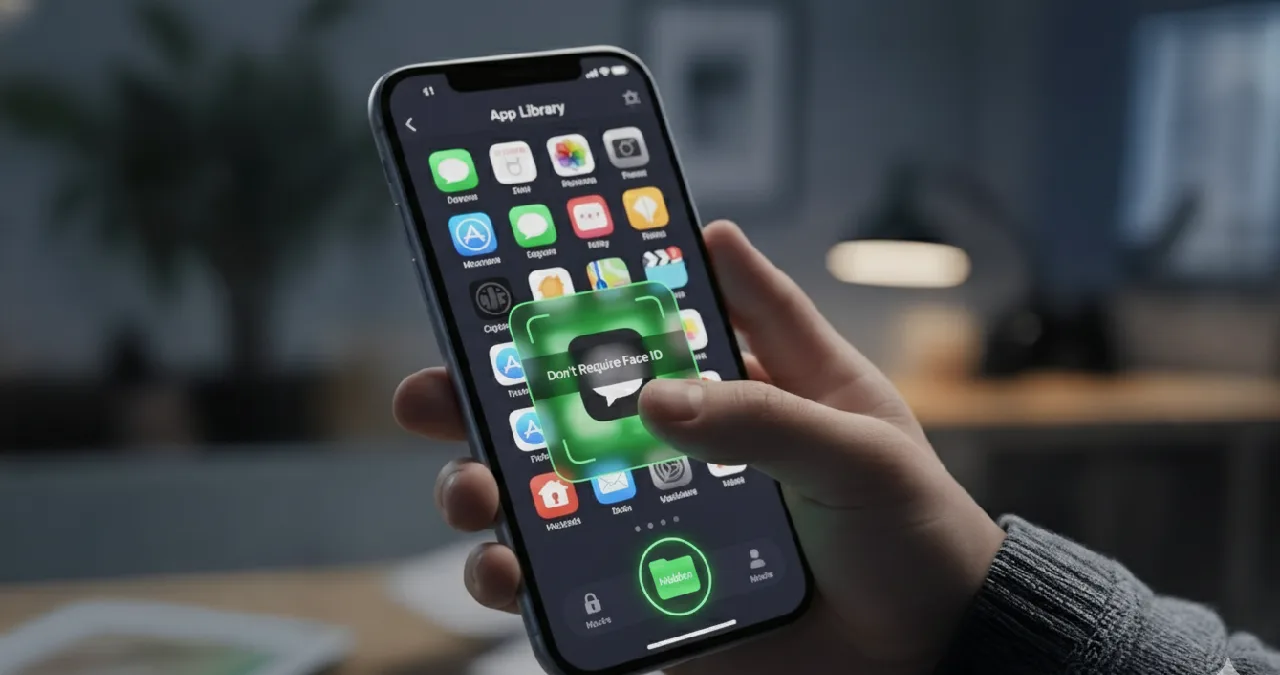
Suppose you have an app on iPhones that you want to share with no one, no matter how close the person is to you. It may be your siblings or your bosom friend who accidentally opens the private app on iPhones, which makes you feel embarrassed. Is it so?
This is why knowing how to hide and unhide apps is necessary. Apple lets you lock and hide apps with a passcode, Touch ID, or Face ID, making them harder for others to access and keeping your private apps secure. Despite this, many iPhone users struggle hard to find the apps on iPhones once hidden by them. Here in the article, I will share insights to sharpen your understanding of various ways that will assist you in making apps unhide in iPhone settings step by step.
Why Apps Disappear from iPhone
There are several reasons that cause your iPhone app to disappear from the home screen. Sometimes users hide the app with the motive not to see the app that appears on their iPhone home screen. Setting a limit on screen time also causes the app to be hidden from the iPhone. Sometimes any upgrade of iPhone leads to a move of the app to another location where they previously located.
Suppose a student hides the social media application from his/her iPhone to limit distractions from study, and then, after a while, cannot recall where it was ultimately moved. Meanwhile, it is important to be alert and aware of the hidden apps in iPhones to avoid the need for further reinstallation and save time altogether.
How to Open Hidden Apps on iPhone
Suppose you want to unhide an app from your iPhone that you once hid for any of your reasons. Knowing the way to find the hidden app helps you to bypass further reinstallation and save time altogether. Here I mention the way of how you execute it.
- At first, you visit the home screen of your iPhone, swiping left to reach until the past pages redirect you to the app library.
- Now you need to scroll it down until you discover the hidden app, and after discovering the hidden app, you need to tap on it.
- Now it’s time for authentication to make it accessible for you. All you need is just authenticate the app with your provided Passcode, Touch ID, and Face ID. Soon after authentication, you see all your hidden apps appearing in front of you on your iPhone.
- Tap the app you wish to open whenever and wherever necessary.
After opening the hidden app and switching to another app, the former won’t display in your recent screen on your iPhone. Instead, you gain accessibility to the app again, and you can locate the hidden app inside your app library.
How to Unhide Apps on iPhone
Unhiding the app on the iPhone is important to gain accessibility to the app back directly from your app library, which was once kept hidden by you. Now you feel the thrill of enjoying the access to the app freely, soon after unhiding it. All you need to do is just follow these steps mentioned below to move the app directly from your hidden folder to the app library.
- At first, you visit the home screen of your iPhone, swiping left to reach until the past pages redirect you to the app library.
- Scroll down until you see the hidden folder and tap immediately after discovering the app
- Now you make your user authentication by giving details of your passcode, face ID, and touch ID to check the details about the app located on your iPhone.
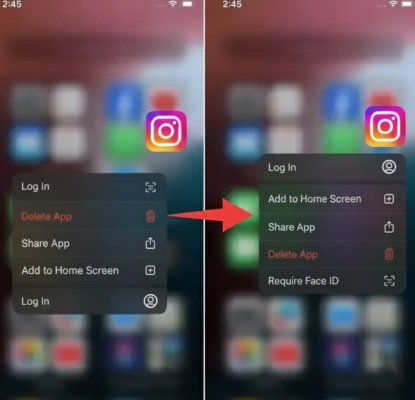
- After next, you need long long-press the app icon you are willing to unhide from your iPhone, and now from the overflow menu of your phone, select Don’t Require Face ID
- Now, if you wish to view the app on your iOS home screen, you just long press it and add it to your home screen as per your wish.
Unhiding Purchases From the App Store
Hiding and unhiding the purchase option from the app store is quite simple. Opening the App Store on iPhone by tapping on the user icon shows the list of purchased apps. Now tapping the hide button leads to the mask of its purchased app information from history.
To unhide the app, all you need to do is go directly to the history section of the App Store and click the app icon, which redirects you directly to the account settings options. Now you are promptly directed to authenticate details by giving a Passcode, Touch ID, or Face ID.
Now, tapping the unhide button does exactly what you are looking for. All your hidden purchase lists will reappear at your fingertips.
Final thought
It can be concluded that everyone must know the tricks and appropriate means to unhide the app once hidden by them on iPhones. Despite the app disappearing, it is still possible to find them again if the appropriate steps are followed.
I think this guide gives you an idea of how to unhide apps on your iPhone in 2025 seamlessly without any trouble. If you are an iPhone user, I think the guide will assist you with every detail of hiding and unhiding apps from the App Library. If you have anything to share, feel free to connect with me in the comment section.