

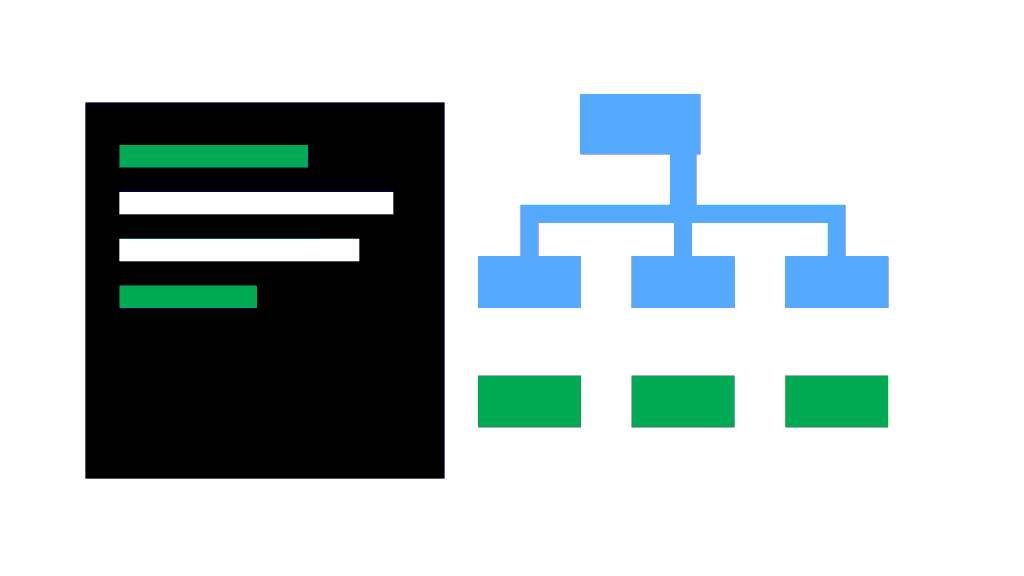
Two small files sit quietly at the root of most websites and shape how search engines explore them: robots.txt and the XML sitemap. One tells crawlers where they may go; the other gives them a list of the pages you want found.
Get them right and you’ll rarely think about them again. Get them wrong, and you can accidentally hide your whole site from Google. I’ve seen that happen after a site launch more than once. In this guide I’ll explain both in plain English, with examples you can copy.
If you’re new to how search works, start with my beginner’s guide to SEO.
Robots.txt vs XML sitemap at a glance
| robots.txt | XML sitemap | |
|---|---|---|
| Purpose | Controls which URLs crawlers may request | Lists the URLs you want search engines to discover |
| Location | Must be at the root: example.com/robots.txt | Anywhere, usually example.com/sitemap.xml |
| Format | Plain text | XML |
| Keeps pages out of Google? | No (use noindex) | No; it’s a hint, not a command |
| Required? | No, but recommended | No, but strongly recommended |
Part 1: robots.txt
What robots.txt does (and doesn’t do)
Google describes robots.txt as a way to tell crawlers which URLs they can access, mainly to avoid overloading your server with requests.
The most important thing to understand: robots.txt is not a way to keep a page out of Google. If a blocked page is linked from elsewhere, Google can still index its URL, just without a description. To keep a page out of search results, use a noindex meta tag (and let Google crawl it so it can see the tag) or password-protect it.
Google’s basic rules
- The file must be named robots.txt and placed at the root of the host (for example
https://www.example.com/robots.txt). - It applies only to that protocol, host and port. A subdomain like
shop.example.comneeds its own file. - It must be a plain text file encoded in UTF-8.
- Rules are grouped by
User-agent, followed byDisallowandAllowlines. Paths are case-sensitive. - Anything not disallowed is allowed by default.
- You can add one or more
Sitemap:lines with full URLs.
Example robots.txt files
A simple file that allows everything and points to your sitemap:
User-agent: *
Disallow:

Sitemap: https://www.example.com/sitemap_index.xml
A typical WordPress setup:
User-agent: *
Disallow: /wp-admin/
Allow: /wp-admin/admin-ajax.php

Sitemap: https://www.example.com/sitemap_index.xml
Blocking internal search results and filter URLs that waste crawl budget:
User-agent: *
Disallow: /?s=
Disallow: /search/
Disallow: /*?filter=
The file that hides your entire site (the classic launch-day mistake):
User-agent: *
Disallow: /
What not to block
- CSS and JavaScript files that your pages need. Google renders pages like a browser; blocking these can make your pages look broken to Google.
- Pages you want removed from search. Use
noindexinstead, otherwise Google can’t see the noindex tag. - Images you want to appear in Google Images.
What about AI crawlers?
Many AI companies publish crawler user agents you can control in robots.txt, such as OpenAI’s GPTBot or Google’s Google-Extended token (which controls whether content is used for Gemini models, without affecting Google Search). Whether to block them is a business decision. I discuss the trade-offs in my guide to SEO for AI search.
Part 2: XML sitemaps
What an XML sitemap does
A sitemap is a file that lists the URLs you want search engines to know about, often with the date each page last changed. It’s especially useful for:
- New sites with few external links
- Large sites with many pages
- Pages that aren’t well linked internally
- Sites with lots of images or video
Submitting a sitemap is a hint: it helps discovery, but it doesn’t guarantee crawling or indexing.
Google’s sitemap rules
- A single sitemap can hold up to 50,000 URLs or 50 MB uncompressed. Larger sites split them up and list them in a sitemap index file.
- Use full, absolute URLs (https://www.example.com/page/, not /page/).
- Use UTF-8 encoding.
- Google ignores
priorityandchangefreq. - Google uses
lastmodonly if it’s consistently accurate. Update it when the content meaningfully changes, not for trivial edits.
What to include and exclude
Include only canonical, indexable pages that return a 200 status. Leave out:
- Redirected URLs
- Pages with
noindex - Duplicate or parameter URLs
- 404 pages
- Thin tag or archive pages you don’t want indexed
A sitemap full of errors sends mixed signals and makes your Search Console reports harder to read.
Setting this up in WordPress
- Sitemap: WordPress has a built-in sitemap at
/wp-sitemap.xml. SEO plugins like Yoast SEO and Rank Math replace it with their own (usually/sitemap_index.xml) and let you exclude post types, taxonomies and individual pages. My WordPress SEO guide covers the settings. - robots.txt: WordPress serves a virtual robots.txt by default. SEO plugins let you edit it from the dashboard, or you can upload a physical robots.txt file to your site’s root folder.
- Search visibility: check that Settings > Reading > Discourage search engines from indexing this site is unticked on live sites.
How to test and submit
- Open both files in a private browser window to confirm they load publicly.
- Check the robots.txt report in Google Search Console to see the version Google fetched and any errors.
- Submit your sitemap in Search Console under Indexing > Sitemaps. Also add the
Sitemap:line to robots.txt so other search engines find it. - Use URL Inspection to check whether an important page is blocked or excluded.
- Review the Pages report regularly for “Blocked by robots.txt” or “Excluded by noindex” on pages you actually want indexed.
These checks are a core part of any technical SEO audit, and they’re critical during a website migration.
Frequently asked questions
Does every website need a robots.txt file? No. Without one, crawlers assume everything is allowed. But a simple file with your sitemap location is good practice.
Will blocking a page in robots.txt remove it from Google? Not reliably. Use noindex or password protection for that, and don’t block the page in robots.txt at the same time.
How often should my sitemap update? Automatically, whenever you publish, update or delete content. WordPress and SEO plugins handle this for you.
Do I need to resubmit my sitemap after every change? No. Once submitted, Google re-reads it periodically.
Related guides on WebTechHelp
- Technical SEO audit checklist
- Google Search Console tutorial
- WordPress SEO guide
- Schema markup guide for beginners
- Website migration SEO checklist
Sources
- Google Search Central: Introduction to robots.txt
- Google Search Central: How to write and submit a robots.txt file
- Google Search Central: Build and submit a sitemap