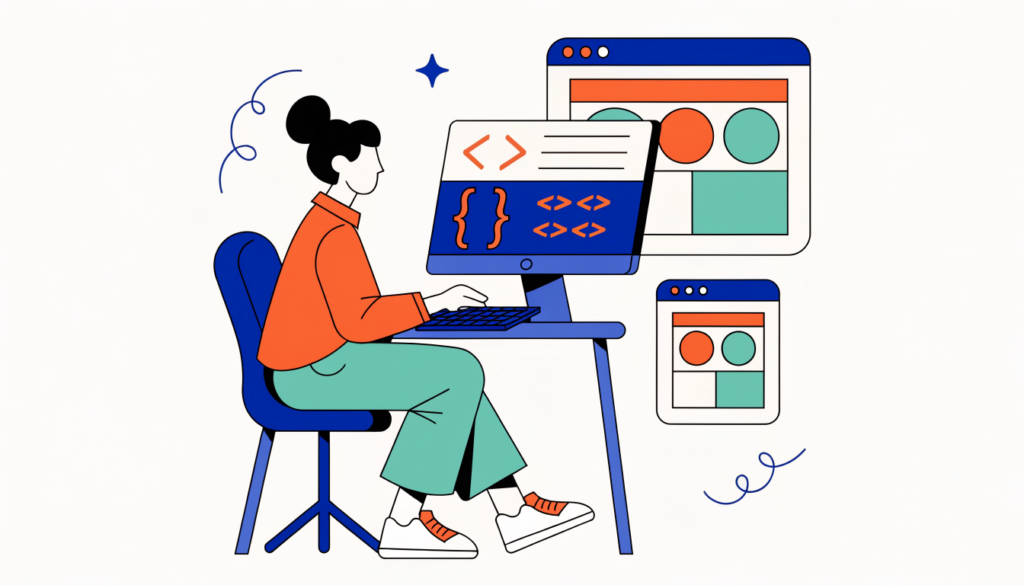
Every website you visit, from a small blog to Google itself, is built on two languages: HTML for structure and CSS for style. Learn them and you’ll understand how the web works, be able to fix and customise your own WordPress site, and have the foundation for JavaScript and web development.
In this tutorial you’ll build a simple personal web page from scratch. You only need a computer, a free code editor and a web browser. I’ll explain each part as we go and point you to MDN Web Docs, the free reference I’d recommend for going further.
What are HTML and CSS?
- HTML (HyperText Markup Language) describes the structure and content of a page: headings, paragraphs, lists, links, images and tables.
- CSS (Cascading Style Sheets) describes how that content looks: colours, fonts, spacing and layout.
- JavaScript, which you’ll learn next, adds interactivity.
A simple way to remember it: HTML is the frame of a house, CSS is the paint and furniture, and JavaScript is the electricity. For a deeper comparison, see our older post on the difference between HTML and CSS.
What you need
- A code editor. Visual Studio Code is free and popular. Any plain-text editor works.
- A web browser such as Chrome, Firefox, Edge or Safari, ideally more than one for testing.
- A folder for your project, for example
my-first-site.
Step 1: Create your first HTML file
Inside your folder, create a file called index.html and paste this in:
<!DOCTYPE html>
<html lang="en">
<head>
  <meta charset="UTF-8">
  <meta name="viewport" content="width=device-width, initial-scale=1">
  <title>My First Web Page</title>
  <link rel="stylesheet" href="style.css">
</head>
<body>
  <header>
    <h1>Hi, I'm Asha</h1>
    <p>I'm learning web development.</p>
  </header>

  <main>
    <section>
      <h2>About me</h2>
      <p>I live in Kolkata and I love photography and cricket.</p>
      <img src="photo.jpg" alt="Asha holding a camera at sunset" width="600" height="400">
    </section>

    <section>
      <h2>Things I'm learning</h2>
      <ul>
        <li>HTML</li>
        <li>CSS</li>
        <li>JavaScript</li>
      </ul>
      <a href="https://developer.mozilla.org/" class="button">Learn with MDN</a>
    </section>
  </main>

  <footer>
    <p>Built by me, from scratch.</p>
  </footer>
</body>
</html>
Save the file and double-click it. It opens in your browser. Plain, but it’s your first web page.
What the HTML means
<!DOCTYPE html>tells the browser this is a modern HTML document.<html lang="en">wraps the whole page and sets the language, which helps screen readers and search engines.<head>holds information about the page: the character set, the viewport setting that makes the page work on phones, the<title>shown in the browser tab (and often in Google), and the link to your CSS file.<body>holds everything visitors see.<header>,<main>,<section>and<footer>are semantic elements. They describe what each part of the page is, which helps accessibility and SEO.<h1>is the main heading;<h2>headings mark sections.<img>needs analtdescription for people who can’t see the image, andwidthandheightso the browser reserves space and the page doesn’t jump as it loads.<a href="...">creates a link.
Add any photo to the folder, rename it photo.jpg, and refresh the page.
Step 2: Add CSS
Create a second file in the same folder called style.css:
* {
  box-sizing: border-box;
}

body {
  margin: 0;
  font-family: system-ui, sans-serif;
  line-height: 1.6;
  color: #1f2933;
  background: #f7f9fc;
}

header {
  background: #1e3a8a;
  color: #ffffff;
  padding: 3rem 1.5rem;
  text-align: center;
}

main {
  max-width: 900px;
  margin: 0 auto;
  padding: 1.5rem;
  display: grid;
  gap: 1.5rem;
}

section {
  background: #ffffff;
  padding: 1.5rem;
  border-radius: 12px;
}

img {
  max-width: 100%;
  height: auto;
  border-radius: 8px;
}

.button {
  display: inline-block;
  padding: 0.75rem 1.25rem;
  background: #f97316;
  color: #ffffff;
  text-decoration: none;
  border-radius: 8px;
}

.button:hover {
  background: #ea580c;
}

@media (min-width: 768px) {
  main {
    grid-template-columns: 1fr 1fr;
  }
}

footer {
  text-align: center;
  padding: 2rem;
  color: #52606d;
}
Refresh your browser. The page now has colours, spacing, rounded cards and a button.
What the CSS means
- A CSS rule has a selector (what to style, such as
bodyor.button) and declarations (property: value;). .buttonis a class selector. It styles any element withclass="button".box-sizing: border-boxmakes widths easier to reason about, because padding is included in the width.max-widthandmargin: 0 autocentre the content and stop lines from getting too long.display: gridwithgaplays out the sections neatly.img { max-width: 100%; height: auto; }stops images overflowing on small screens.:hoverstyles the button when the mouse is over it.
Step 3: Make it responsive
The @media (min-width: 768px) rule is a media query. On screens at least 768 pixels wide, the two sections sit side by side; on phones, they stack. This “mobile-first” approach, with simple styles first and extra layout for larger screens, is how most modern sites are built. Together with the viewport meta tag, it makes your page work on any device.
Test it by resizing your browser window, or open your browser’s developer tools (F12 on most browsers) and switch on the device toolbar.
Step 4: Use the browser developer tools
Right-click any part of your page and choose Inspect. You can see the HTML, see which CSS rules apply, and change values live to experiment. Nothing you change there is saved, so it’s a safe playground. This is the single most useful skill for fixing layout problems.
Step 5: Check your work
- Use the W3C Markup Validation Service to find HTML mistakes, such as unclosed tags.
- Check that every image has meaningful
alttext. - Make sure text has enough contrast against its background.
- Test on a real phone.
- Run PageSpeed Insights or Lighthouse in Chrome’s developer tools for performance and accessibility tips.
Step 6: Publish your page for free
You can put a simple HTML and CSS site online without paying for hosting. Free options include GitHub Pages, Netlify and Cloudflare Pages. Typically you upload your folder (or connect a GitHub repository) and get a free web address. You can connect your own domain later.
What to learn next
- More HTML: forms, tables and accessibility.
- More CSS: Flexbox, Grid, custom properties (variables) and animations.
- JavaScript basics: variables, functions, events and the DOM.
- Version control: Git and GitHub.
- Then choose a path: front-end frameworks such as React, back-end development, or WordPress theme development.
For a full overview, see my web development tutorials and guides.
Common beginner mistakes
- Forgetting the viewport meta tag, so the page looks tiny on phones.
- Using headings for size instead of structure. Use CSS for size.
- Leaving out
alttext on images. - Fixed widths in pixels that break on small screens.
- Not linking the CSS file correctly. Check the file name and path in
<link href="style.css">.
Frequently asked questions
How long does it take to learn HTML and CSS? You can build a simple page in a day and be comfortable with the basics in a few weeks of regular practice. Mastering advanced layout and responsive design takes longer.
Do I need to learn HTML and CSS to use WordPress? No, but basic HTML and CSS help a lot. You’ll be able to fix formatting, add custom styles and understand what your theme and plugins are doing.
Is HTML a programming language? Not strictly. HTML is a markup language that structures content, and CSS is a style sheet language. JavaScript is the programming language of the web.
What is the best free resource to learn HTML and CSS? MDN Web Docs from Mozilla is one of the most reliable free references, with beginner modules on HTML, CSS and JavaScript. freeCodeCamp is a good choice for interactive practice.
Related guides on WebTechHelp
- How to improve Core Web Vitals
- How to fix the 500 Internal Server Error in WordPress
- 10 useful CSS snippets every designer should have
Sources
- MDN Web Docs: Your first website
- MDN Web Docs: Web development tutorials
- web.dev: Optimize Cumulative Layout Shift