
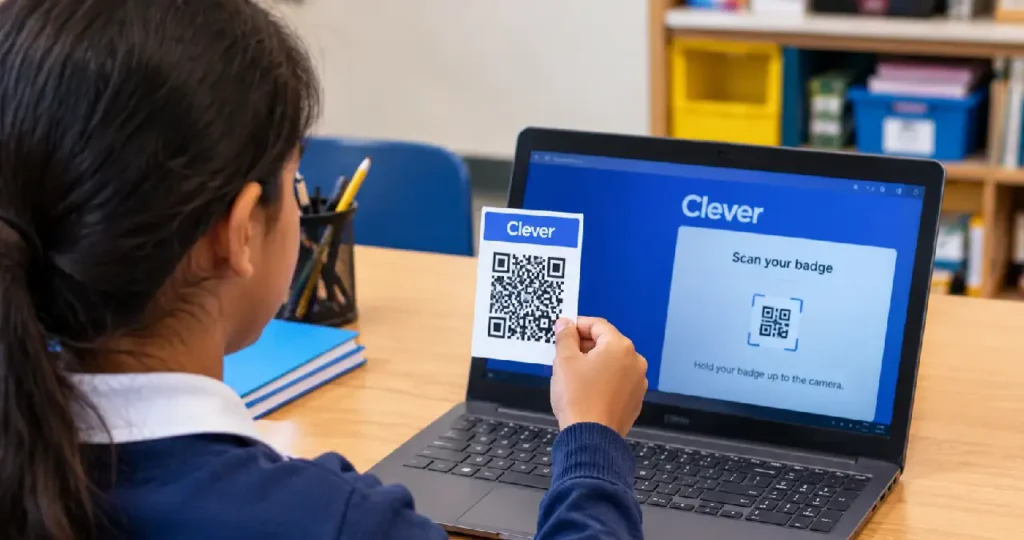
Clever Badges let young students sign in by holding a printed QR code up to a device’s camera, with no username or password to type. When it works, it’s quick. When it doesn’t, you get a class of five-year-olds waving paper at a webcam.
Most badge problems come down to the camera, the browser or the badge itself. Here’s how Clever Badges work, then nine fixes in the order I’d try them.
How Clever Badge login works
- Clever says badges work on Chromebooks, iPads and iPhones, Android and Windows devices, and in all major browsers.
- Younger students log in with the badge alone. Older students may need to add a 6-digit PIN.
- Your school’s admin decides which students get badges. Clever creates the badges, and schools print them or add them to student ID cards.
- Badges are voided each year, so last year’s badge won’t work.
- Some schools only allow badges for the Clever Portal, not for signing in to the device itself.
Fixes for students and parents
1. Scan again, slowly
If the badge has worked before, Clever may just be busy. One school district’s help guide suggests scanning a few more times before trying anything else.
2. Change the distance and angle
Hold the badge flat, still and about 15–30 cm from the camera, with the whole QR code visible. Tilt it slightly if the camera picks up a glare.
3. Improve the lighting
Low light and bright window glare both stop the camera reading the code. Turn on a light, or turn away from a window.
4. Allow camera access
The browser or Clever app needs permission to use the camera:
- Chromebook or Chrome: click the camera icon in the address bar and choose Allow.
- iPad or iPhone: go to Settings › Clever (or Safari) › Camera and set it to Allow.
- Android: go to Settings › Apps › your browser or Clever › Permissions › Camera.
5. Turn off private browsing
On iPads, Safari Private mode can stop badge login from working. Switch to a normal tab and try again.
6. Check the internet connection and restart
Make sure the device is online, then restart it. This fixes many camera glitches.
7. Check the badge itself
- Is it this year’s badge? Old badges stop working.
- Is the QR code creased, smudged or cut off? Print a new one.
- Does it belong to the student using it? Badges are tied to one student.
Fixes for teachers and school admins
8. Use a backup login code, or reissue the badge
Clever says teachers can create backup login codes for students with lost badges. Coaches and admins can void and regenerate badges if one stops working or goes missing.
9. Check the Clever status page
If badges stop working for a whole class at once, check status.clever.com. Clever has reported past incidents affecting badge logins on its iOS app and on Windows devices.
When the badge works but an app won’t open
If the badge logs the student in but an app inside Clever won’t load, the problem is usually that app’s connection to Clever, not the badge. Ask your school’s tech lead to check the app’s Clever setup. My Clever login guide covers the other sign-in methods too.
Frequently asked questions
Common causes are camera permissions on the home device, Safari Private mode, poor lighting, or a school setting that only allows badges on school devices. Ask your child’s teacher if badges work at home.
No. Badges come from the school. Ask the teacher for a new copy or a backup code.
Yes. Clever voids badges every year, so students get new badges each school year.
Some schools add a 6-digit PIN for older students as extra security. The school sets it up, and the teacher can help if your child has forgotten it.