How to drop a pin on Google Maps is becoming an important, unignorable matter. Let’s make me simplify. It’s seemingly easy to contact your friend and meet him. But that just happens flawlessly if you have the right address with the actual location. Isn’t it so? Have you ever thought that if you are in a big area with a huge number of people in the surroundings, then how can you spot him easily?
You don’t need to tell him to go right to the banayan tree or just turn left from the shop. All you do is just drop a pin on Google Maps. Now you think about how to drop a pin on Google Maps. Here in my blog, I cover everything about it. Stay with me till the end to know more about it.
What does a dropped pin on Google Maps mean?
When you share your live location with your friends, you save the actual GPS coordinates on Google Maps. It makes location sharing incredibly easy and tracks the location of any place, anywhere.
Meanwhile, it helps your friends to track you, not the street name or beyond, which might be a mile away. How to drop a pin on Google Maps is no longer remains as just information we must be aware of, but it has become a daily necessity in our daily lives.
What is Google Maps?
Google Maps is a service of Google for assisting users in locating a spot for easier navigation. Meanwhile, it also helps to find anywhere around through the coordinate updates by a dropped pin feature. It provides the user with the exact details of coordinates covering latitude and longitude.
It also has an important feature to mark any location with a pin. So it helps anyone to pinpoint a location on a map anywhere. You can also save the location and share it with whom you want to meet from anywhere around the globe. In my blog, I discuss the complete walkthrough for how to drop a pin on Google Maps by mobile, computer or laptop.
Understanding Pins in Google Maps
A pin is nothing but a marker that shows the exact location on a map for any place around the globe. Now you think about how to understand where the pin is on the map. It’s not much tougher. It looks like an arrow or a balloon on the maps.
How to Drop a Pin on Google Maps on Mobile
It does not matter whether you are an iOS or Android user; Google Maps allows everyone to pin a location on the map in just a second. Let’s see the actual guide on how to drop a Pin on Google Maps on Mobile, both for iPhone and Android users. If not on your device, go to the Google Play Store or Apple Store to find the Google Maps app. Click on install and start exploring it.
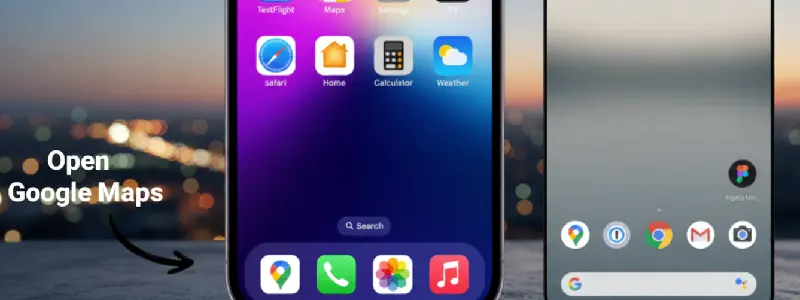
Open the Google Maps app
Firstly, take your device in your hand, no matter whether it may be an iPhone or an Android. Now search for the “Google Maps” app on your device and open the app.
Location finding
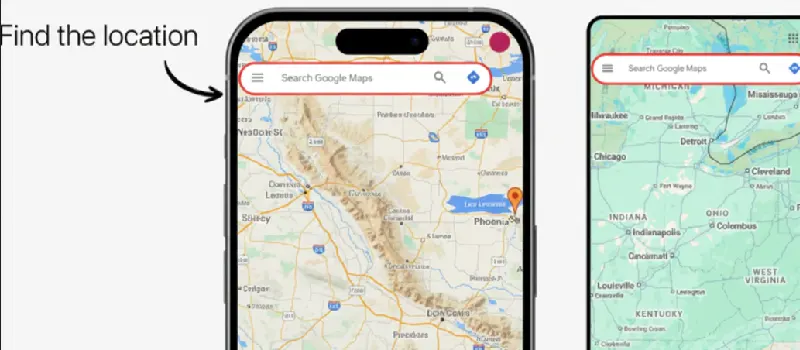
Now you have to choose the location where you decide to drop the pin and zoom it accordingly to view the location properly without any mistake.
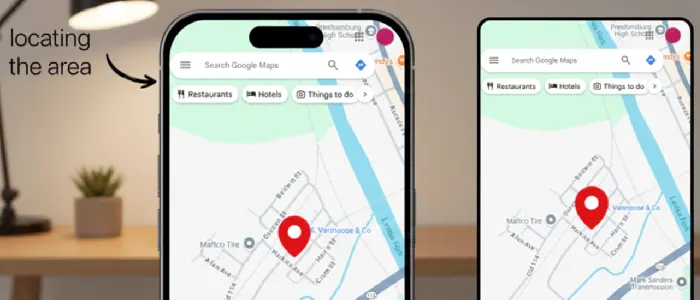
Locating the area of interest
After you track the area location, you just need long long-press your finger on the location of interest you decide to drop the pin until you discover the red-coloured pin pop up just under your finger.
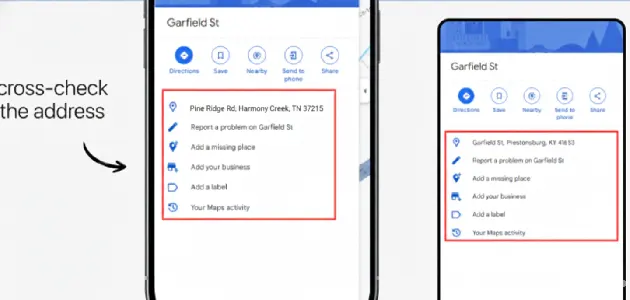
Cross-check everything
In order to precisely position the pin, you just need to drag the pin exactly to the spot you want to select. Now you need cross cross-check everything about the location and other information of the identified location before tapping on it.
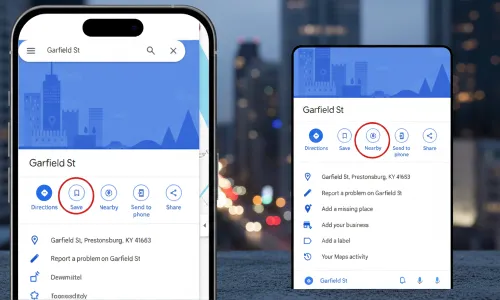
Click on the save button
Now, clicking on the save button shows all the information on the bottom screen of your Android device. For iPhone users, click on the option labels, and you have just saved the dropped pin by the name you need for it.
Now I think you have no query on how to drop a Pin on Google Maps through Mobile. If you still have any issues, feel free to contact me through my blog. I will guide you in every possible way to drag you out of your concern.
How to Drop A Pin on Google Maps from Desktop
If you are a laptop or desktop user, eager to know how to drop a pin on Google Maps, just follow the steps that I share on the blog. Keep a close eye on each of the steps to help your friend find your exact location on Google Maps on the go.
Access Google Maps via Browser
You first need to choose your favourite web browser. Now you type “maps.google.com” in your browser address bar, or just type Google Maps in your search engine. Both options redirect you directly to the map section, where you can find and share location details effortlessly.
Type your Address in the search field
Now you type the address you want to explore, either for any itinerary plan or just to meet your closest one in the search bar, which is precisely located on the top left part of your Google map.
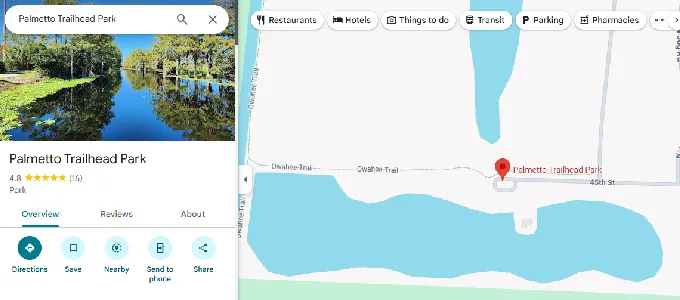
Suppose I want to explore Palmetto Trailhead Park. Now I type it in the search bar of Google Maps, showing me its precise location as seen in the image above.
Drop the Pin
Now I click on the spot on any place of Google Maps where I want to drop the pin. A grey-coloured pin icon looks like a balloon appears on my screen. A pop-up box provides detailed information about it just the bottom of the desktop display screen. Now I take my cursor on the map, and it shows me an info box on my desktop screen.
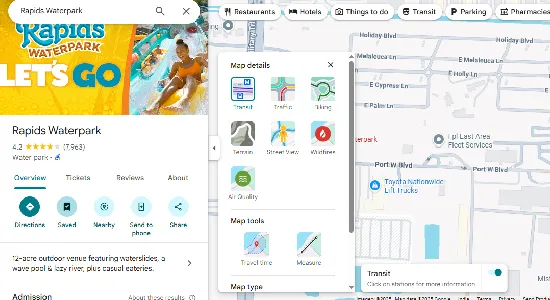
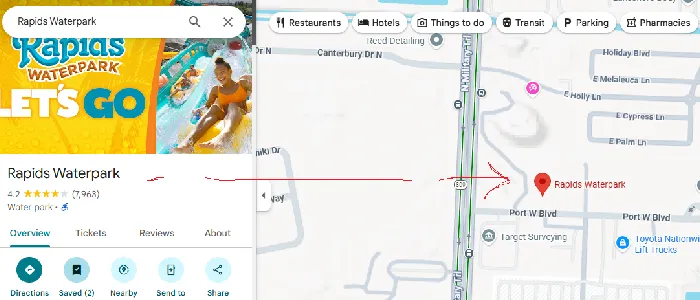
As seen in the image above, suppose I want to explore Rapids Waterpark on Google Maps. A layer option shows just below the map. Clicking on it, you find the map details option to find traffic, travel time, air quality, street view and all details.
Save the Location
Now, if you want to save location details, click on the save button with your cursor. You can also share it with others.
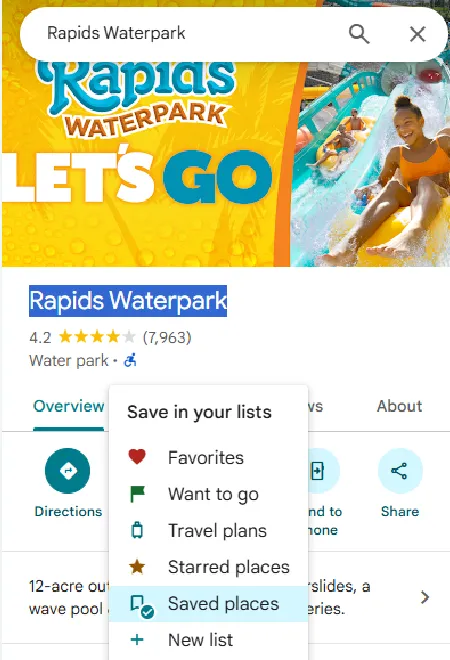
The image shows how you saved the place from your desktop by accessing the Google map on your web browser.
Benefits of Dropping A Pin on Google Maps
Accurate location finding
No matter whether you have information on the exact location or not, searching the place on Google Maps pinpoints the exact location. It even shows the coordinates to make your location finding accurate.
Easy to share location access
Are you planning to meet with your bosom friend, or planning to enjoy lunch together after a while? So, the dropped pin features make this a done-for-you.
No matter whether it is a beloved or someone in your family, sharing on Google Maps helps to connect. Just a message, text or social media at your fingertips helps you connect flawlessly.
Seamless navigation
The Google map helps you reach your location easily. You can even give an idea of the exact distance between your location and the person you want to meet.
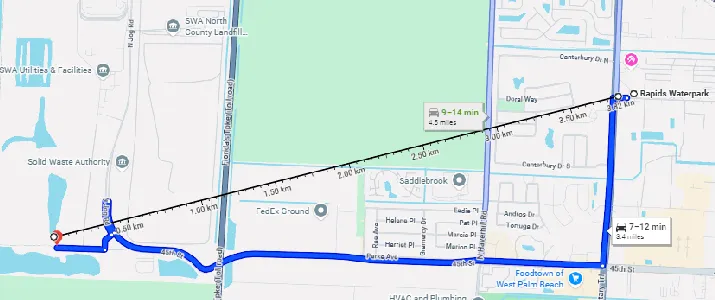
Suppose you want to calculate the distance between Rapids Waterpark and Palmetto Trailhead Park from Google Maps. Right-click on the map and select the option “distance to here” to provide you with the distance.
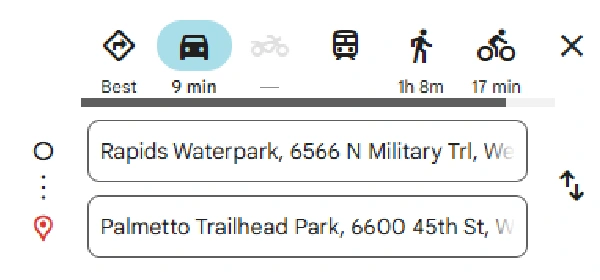
The Google Map also shows you the time taken on cars, cycles and walking as seen above.
Option to save for later
Are you planning to search for the best fit itinerary you are planning for your next journey of trip. Now pin option through Google Maps gives you access to the most anticipated travel spot on the map.
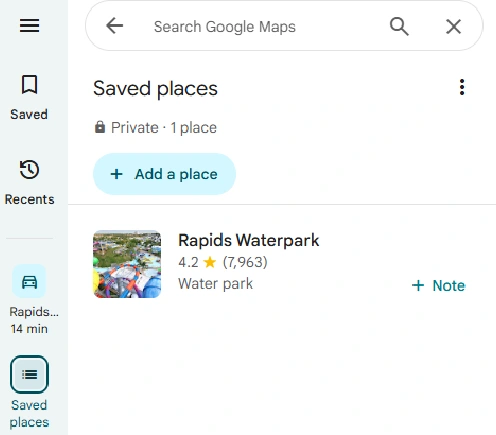
Suppose you decide to go to Rapids waterpark on your upcoming vacation, clicking on the save option saves the details of it in the saved places. Meanwhile, it helps you to show the information whenever you need. This is how the option to save for later helps you to fulfil your itinerary plan.
Option to mark important spots
Suppose you are looking for a place for vehicle parking or getting in touch with a newly discovered place. Save all information on Google Maps to help you never forget the details.
Offline benefits
Did you have any idea that Google Maps can assist you in downloading a pinned location on the map for offline accessibility? Yes, you read absolutely right. Meanwhile, it helps you to surpass low battery and network connectivity issues without any headache, as you access it offline.
Wrapping up
In the end, you find how Google Maps is an incredibly useful apps that make the journey experience a bliss. Understanding how to drop pins on Google Maps not only helps you to find or track someone, but also helps you to plan a journey to any place. All you need is a desktop or a mobile device in your hand. That’s all. And above all, all the things can happen just in minutes without any need for manual planning or whatsoever.
Frequently asked questions (FAQs)
Yes, definitely, you can find the option for location editing on the dropped pin, both from the mobile and desktop versions of Google Maps. If you’re a desktop user, you need to just right-click on the pin and select the edit option for adjustment of the location. On mobile, there are also options for editing the location.
Yes, definitely, you can save or share a dropped pin on Google Maps.