iMessage not working is an occasional issue for some users who cannot receive or send messages from their iPhone. Have you ever in your life witnessed any service glitch by Apple, causing you to face iMessage not working? While a service glitch may be a possible cause for the issue, there are still various reasons for this. If yes, then no need to feel fretful, as there are distinct means to troubleshoot the issue.
Here in the blog, I discuss everything that stems from the issue and how you can fix it by just following some troubleshooting steps. All that is needed is to determine the root cause earlier for the fastest solution.
What is iMessage?
iMessage is an instant option for messaging service that assists users in sending or receiving videos, texts and photos and more by using cellular data or wifi. This option is available for iPad, iPhone and Mac users.
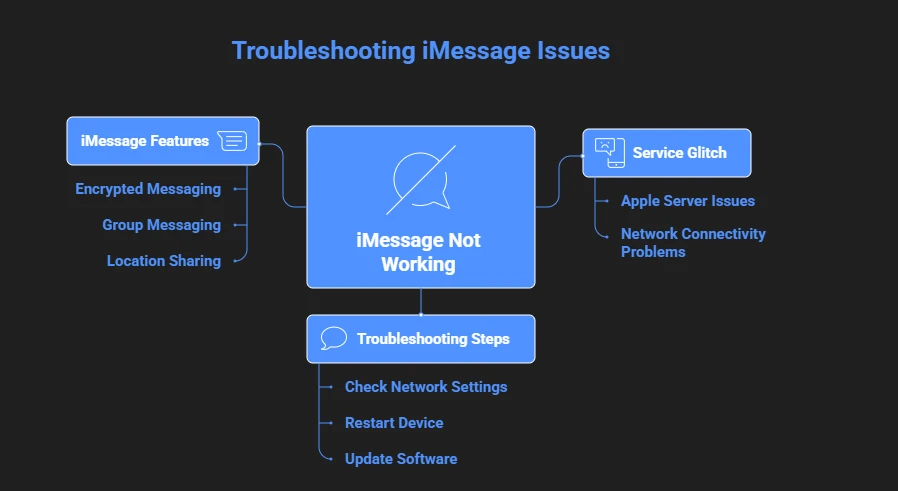
The iMessage is to be encrypted, which displays a blue colour while working properly. Text appears as a blue bubble, showing that everything works fine. iMessage also helps users to share group messages, location sharing is made easy with it. Next, we check what if iMessage is not working and how to tackle it.
Why iMessage not working? 10 reasons and Ways to fix it
1. Check whether iMessage is down or not
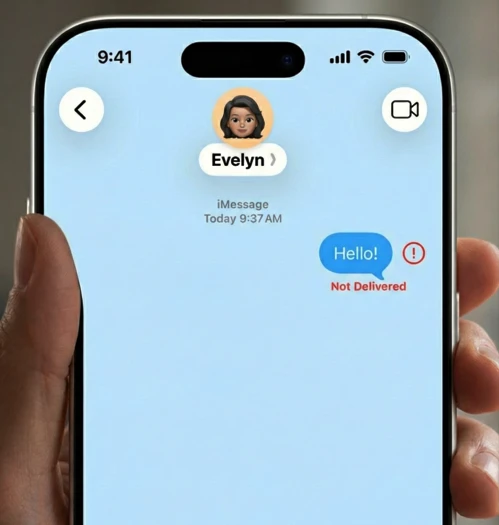
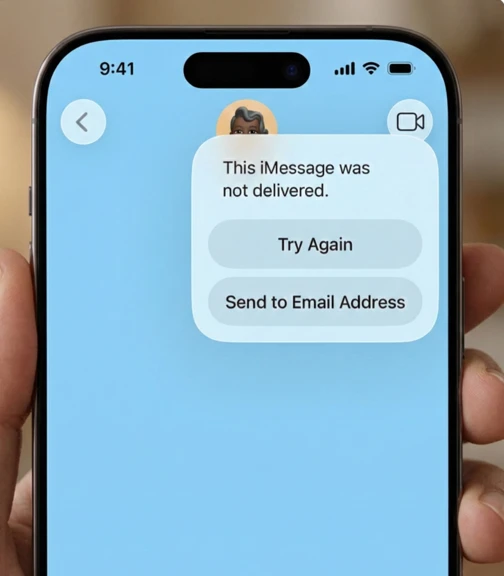
Sometimes, the server downtime for iPhone can lead to issues with iMessage not working. Despite its occurrence being rare, it still needs to be cross-checked or verity time to time to confirm whether iMessage is down or not.
For verification, one thing you can do is to send text messages to different users instead of a single individual. If you see that only a single person has faced an issue with iMessage not working, while the others reported nothing with iMessage, then nothing to worry about. It clearly depicts the issues with a single user who has experienced the iMessage not working problem.
Checking Apple system status through the link
If not, then it may be the server downtime, which leaves nothing but to wait. To fix the service outage, you wait for an Apple technician or local operator to resolve it. Now you think about how to make out the service downtime for iMessages. Click the link which shows something like www.apple.com/support/systemstatus/ to be sure about it. If you see any orange, yellow or red colour instead of green, then it indicates a service disruption that requires further escalation.
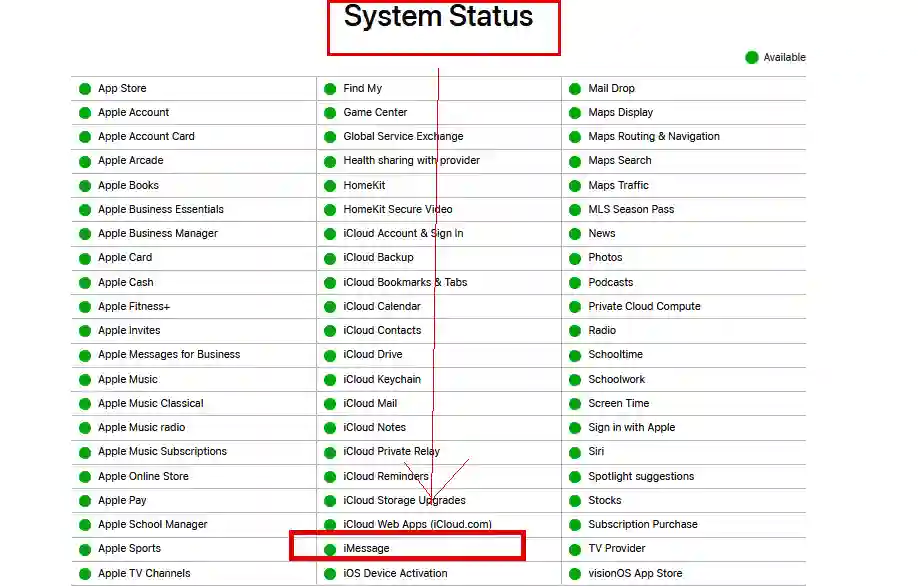
Even if no issue is shown by Apple’s System Status as seen on the above, there might be some local service outage issues that can lead to iMessage not working.
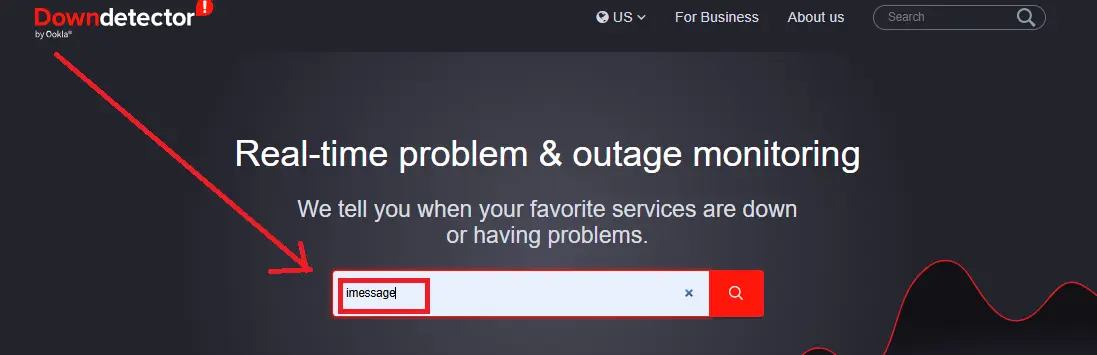
Downdetector for outage monitoring
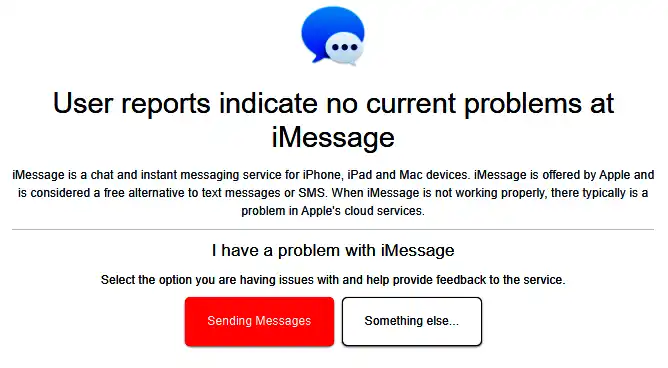
Now you can try for Down Detector (U.S.) to gain an outage map showing whether your area came under disruption or not. Below, I share step-by-step screenshots to make it easier for you to understand.

2. Check if you have stable internet connectivity
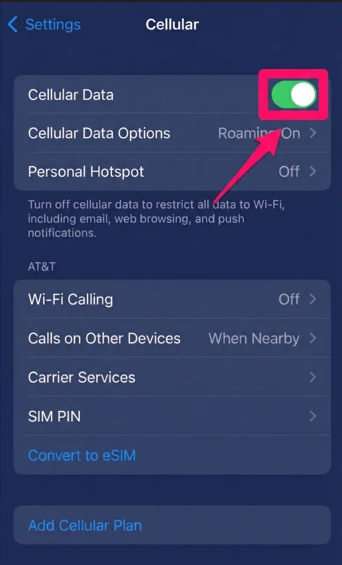
Having good cellular data and stable internet connectivity is a prerequisite for proper use of iMessages. A stable wifi signal, good cellular data connectivity (3G and above), enables you to send iMessages. Now the question arises, how to verify it. It’s simple. Just go to your browser and search for something. If no result is seen, then it will definitely be the root problem. The functionality of the iPhone won’t work if your network connectivity does not exist.
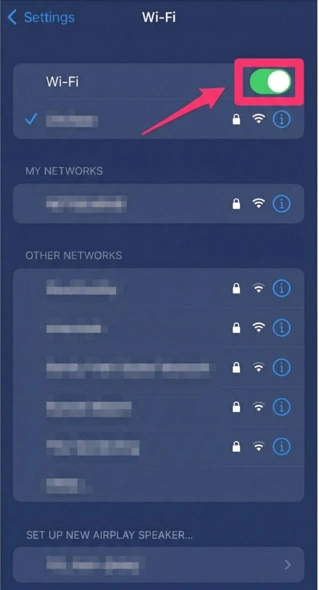
Now, if you get disconnected from the internet, you may see your message get stuck and won’t be sent. To fix the issue, you just need to visit your settings option and turn wifi on to have a stable network connectivity. If you are a mobile data user, go to the settings option to turn on cellular data. If you are still stuck, then toggle the aeroplane mode on your phone for 30 seconds and also turn it off again.
Make sure iMessage is on and set up correctly
3. Delete unnecessary messages
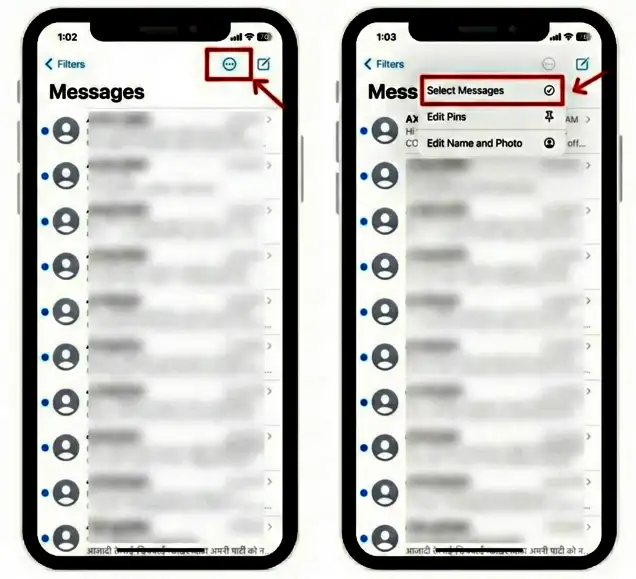
Sometimes the phones slow down a bit while lots of videos and photos are stored on the message app. Is there any solution? Absolutely, why not? Deleting unnecessary messages, especially the photos and videos, can help you clear your storage and fix the issues. Now, how do you curtail the storage space for your iMessage library?
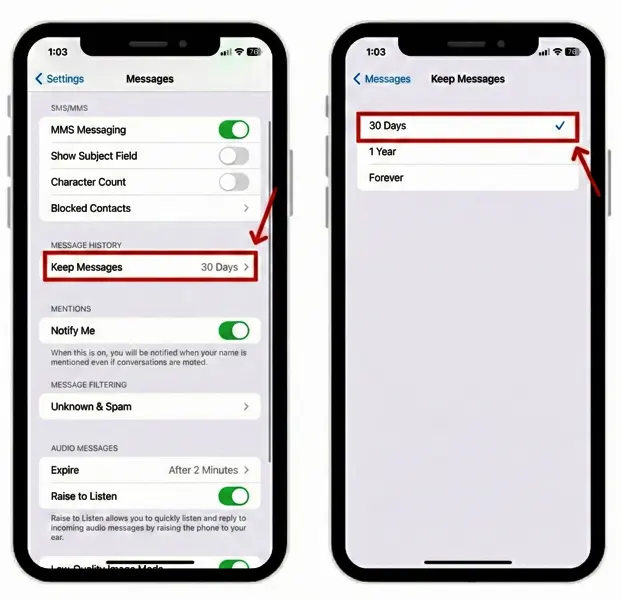
Swiping from right to left on messages shows the option of message list, and now you can delete those that seem unnecessary to you. To some extent, it will also help you fix iMessage not working. You can also go for the keep message option from your phone settings and select a period range for how long you want to keep this. You may choose 1 year or 30 days.
Restart Messages or reboot your device
4. Check the iOS status to see whether updated or not
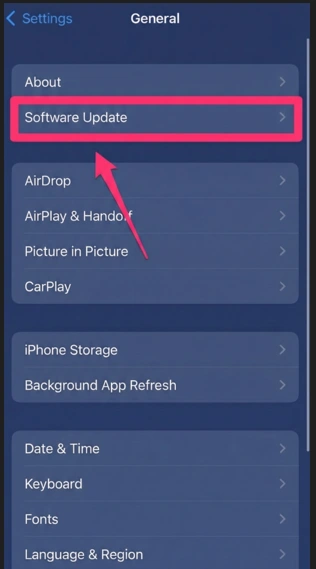
If you see iMessage not working on your device, then there is a possibility that the software is not up to date. The obsolete or outdated software may lead to a bug that stops the iMessage from functioning in a flawless manner. To sort it out, you just go directly to your phone settings. Now, click on software update, download and install it to resolve the iMessage not working problem.
5. Network settings check
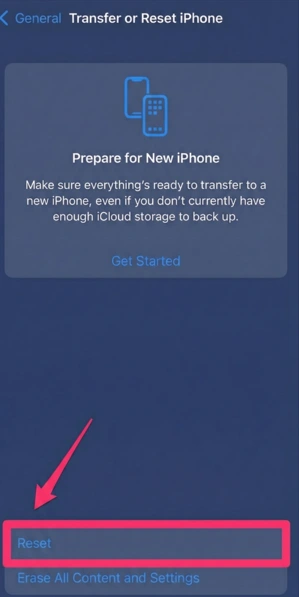
Sometimes the iMessage does not work on your device due to problems with the network settings. Resetting the network helps you to set you free from the issues. Go to your settings option. It will redirect you towards transferring or resetting your iPhone. Now, click on Reset Network and enter your password to fix iMessage not working.
6. iMessage Is Turned Off
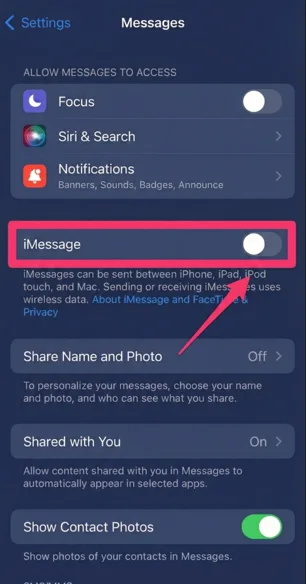
Sometimes the disabling of messages happens without any prior user intent, especially with the iOS Issue, any setting glitch or SIM card-related change. To fix it, go straight to the settings option and toggle the iMessage feature on. Keep the internet connection on and wait for a while for the activation led by the Apple server.
7. Sign in and out of Apple ID
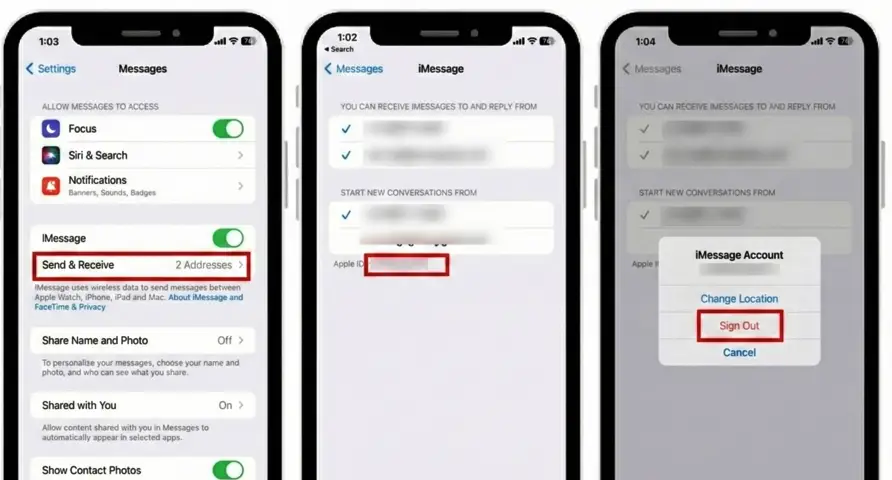
If you see iMessage not working you then just sign in and out of your Apple ID, and afterwards sign in again to see whether the issue is fixed or not. You now also try to reset your device and attempt the iMessage activation process once again.
8. You’ve Been Blocked
You never send an iMessage to someone if the individual blocks you. Meanwhile, it will never show delivered, and always displays a blue tick. Now, is there any solution? Yes, you can contact them by texting and calling from another app, and if nothing happens, then there is no fix unless the person unblocks you.
9. Setting issues with the time zone
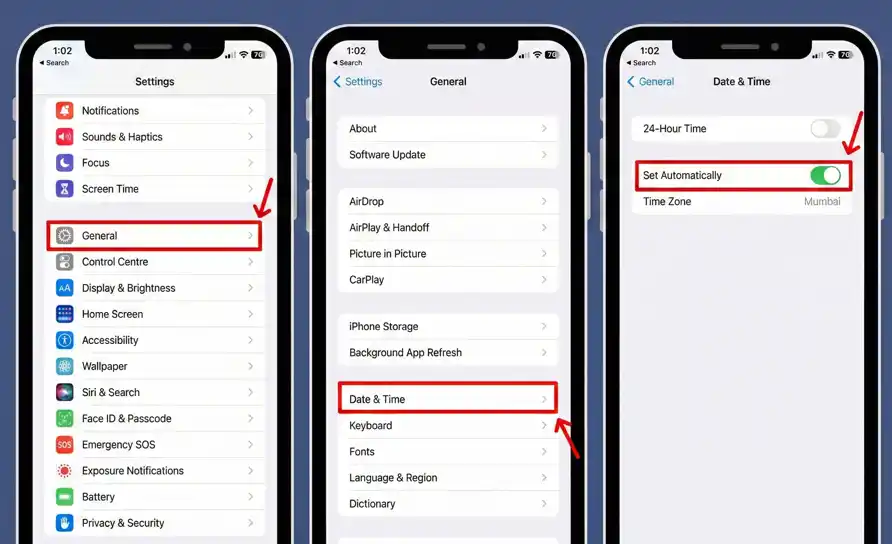
Some users faced issues with iMessage not working due to not setting the time zone to automatically update. Meanwhile, to fix the issue, you just need to go to the settings option and now to the general option. It will redirect you to the date & time. Now you just need to set the time zone feature to automatically turn on to overcome the issues of iMessage not working.
10. Contact with Apple support
If you try everything mentioned above to fix iMessage not working, but the result is still not working, then you must go to Apple support to escalate your issue further. Now, after visiting the site, you just need to make a call schedule or keep chatting with Apple representatives to fix the issues.
iMessage troubleshooting mindmap
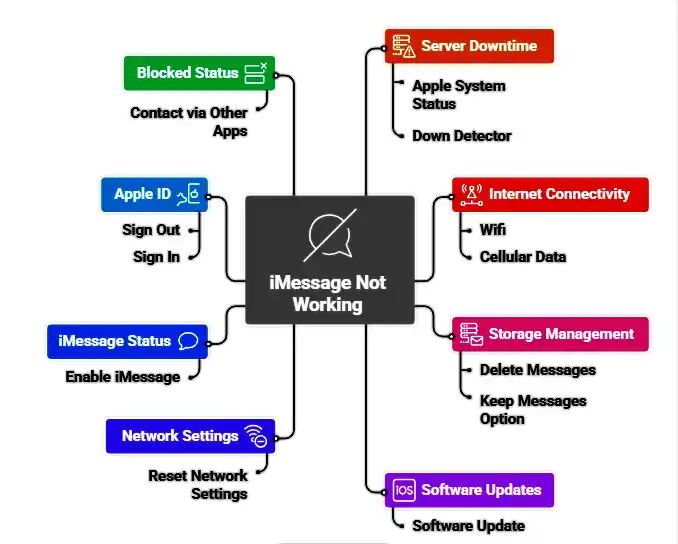
The Bottom Line
I hope I solve your iMessage issue. Check back further if you have any issues with your iMessage not working. Never forget to comment and share what issues you are facing now. I will try my best to resolve your doubt and give an actionable insight so that you never face something like it.
Frequently asked questions (FAQs)
1. Is it possible for anyone to use iMessage without a SIM card?
Ans. Yes, you can use iMessage without a SIM card, as it works well over mobile data and wifi connectivity. So if you dont need to have a phone number to use it, you just need to have a verified Apple ID.
2. Is it possible to use iMessage while roaming, especially while travelling internationally?
Ans. Yes, you can definitely use iMessage while travelling across the world, as it works seamlessly anywhere in every nook and corner of the world.